1.2: How to Create a Brand Workspace and Invite Your Team in Astria
 Watch lesson 1.2Astria Academy
 Astria Workshops · Series 1: Your first AI lookbook · Lesson 2
Set up a shared workspace for your brand in Astria. You’ll create the workspace, bring in the brand’s website and logo, and invite the people who will help create the lookbook.
Follow workshop 1.2: Shared Workspace. As a creative, this lets you give a brand a place where the team can keep creating as well as a set of finished images.
Before you begin
Open Astria Generate. Have the brand’s name and website ready, along with the person you want to invite. If you’re following the series, keep the visual brief from lesson 1.1 available for the next workshops.
Step 1: Create a workspace for the brand
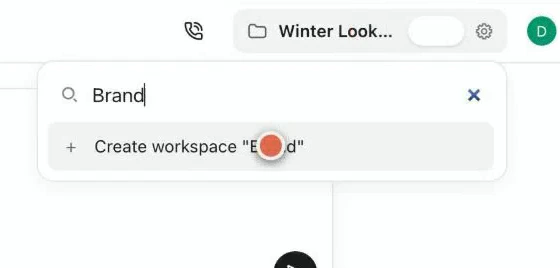
On Generate, open the workspace menu at the top right. Type the brand’s name, then choose Create workspace.
Keep one workspace per brand and give each a distinct name. If the name already exists, the menu finds that workspace rather than creating another one.
Step 2: Add the website and logo
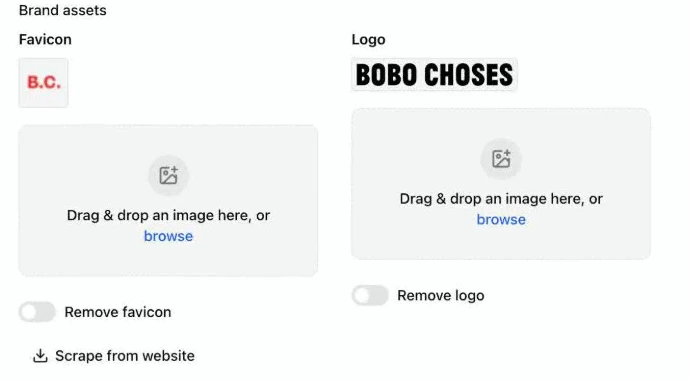
Open the workspace settings and choose Edit workspace. Add the brand’s website in the URL field and save.
Choose Scrape from website to bring in the brand’s logo. Check the imported logo, then return to Generate. Confirm that you’re now working in the brand’s workspace.
Step 3: Invite a collaborator
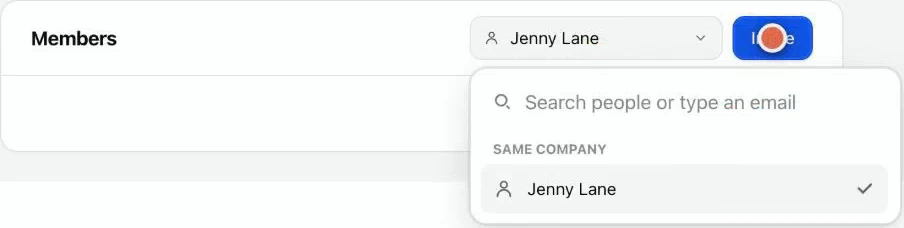
Invite the brand manager, photographer or designer you’re working with. In the workspace settings, find Members, open Add people, choose the person, then select Invite.
Check your result
You should now have a workspace named for the brand, with its website and logo, and an invitation sent to your collaborator. Check the workspace name when you return to Generate so the next work stays with the right brand.
Continue with workshop 1.3: Cast an AI fashion model, using the visual direction you’ve already chosen.