1.3: How to Cast an AI Fashion Model with Astria’s Agent
 Watch lesson 1.3Astria Academy
 Astria Workshops · Series 1: Your first AI lookbook · Lesson 3
Cast an AI model that suits your brand’s visual direction. You’ll open Astria’s Agent, choose the unique headshot skill, and turn a clear description of the face and hair into a casting task you can review and refine.
Follow workshop 1.3: Casting an AI Model. The screenshots focus on the Agent controls and written instructions you’ll use.
Before you begin
Open Astria Generate in your brand workspace. Keep your casting references and visual brief beside you so you can judge whether the face and hair fit the direction.
Step 1: Understand the prompt and the Agent
A prompt is the written instruction for an image. In the prompt box, you describe what you want that image to show.
With the Agent, you work through a task in a conversation. The Agent can use available tools to carry out the task. Under Connectors, you can also make apps such as Google Drive or Shopify available to it.
Step 2: Open Agent and Skills
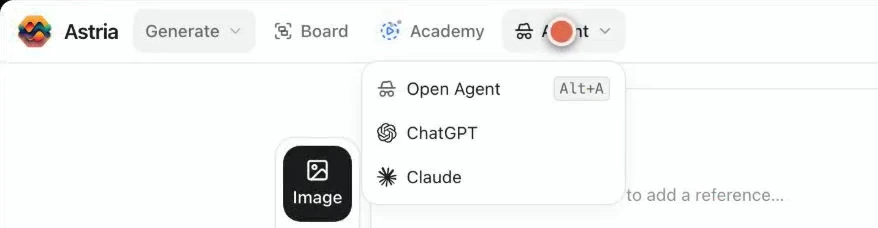
On Generate, open Agent at the top of the page. Its chat opens on the right. Below the message box, open Skills to choose instructions for the casting task.
Step 3: Choose unique headshot
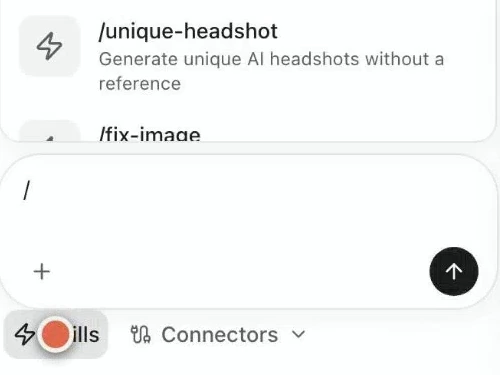
Select unique headshot from the list. The skill appears in the message box and guides the Agent’s choice of tools and how it creates the portrait. A headshot is a portrait focused on the face.
Step 4: Describe the face and hair
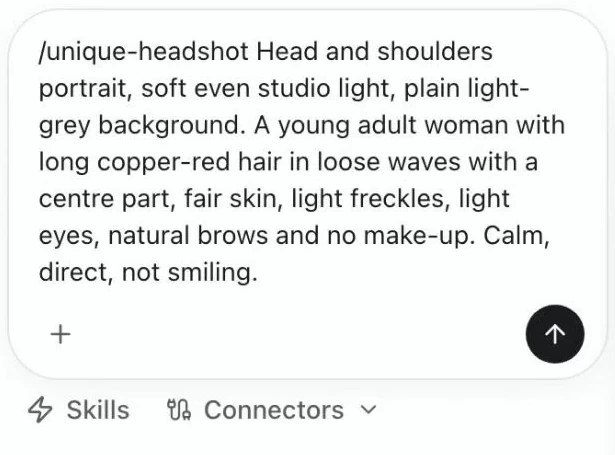
Give the Agent a specific casting direction based on the brand references. The workshop uses long copper-red hair in loose waves, light freckles and a natural, no-makeup look.
You can use that level of detail for your own direction: describe the visible features that matter, instead of asking for a model without further guidance.
The Agent can use relevant material in the workspace. If the task should use a particular file or reference, type @ to point to it. This workshop starts with a written description; choosing a photo to copy is a separate decision. Send the instruction when it describes the casting you want.
Step 5: Compare the portraits and refine one feature
When the portraits appear, put your casting references beside them. Check the hair, freckles and natural look against the description you sent.
If something needs changing, ask for that one change in the chat. Compare the next result with the first, then keep the portrait that best fits your casting direction.
Check your result
Check the selected portrait against the references again. The face and hair should fit the visual direction you chose for the brand, including the specific features in your instruction.
Continue with workshop 1.4: Create your first AI lookbook image, where you’ll bring clothing, pose and background references together.