| ASTRIA |
ECOMMERCE / MOCKUP LAB |
|
|
APPAREL & HOME TEXTILES
Your artwork. On the product image.
|
|
Generate a plain product surface from references, then place your supplied artwork in Mockup Lab. See the workflow on an on-model T-shirt and a duvet cover with matching pillowcase.
|
When to use Mockup Lab
Use it when the product image looks right but Nano Banana misses small lettering, changes a print, or redraws a repeating pattern incorrectly. Generate a plain surface and apply your approved artwork file. Review the export for legibility, scale and distortion; very small text may still need a closer product view.
|
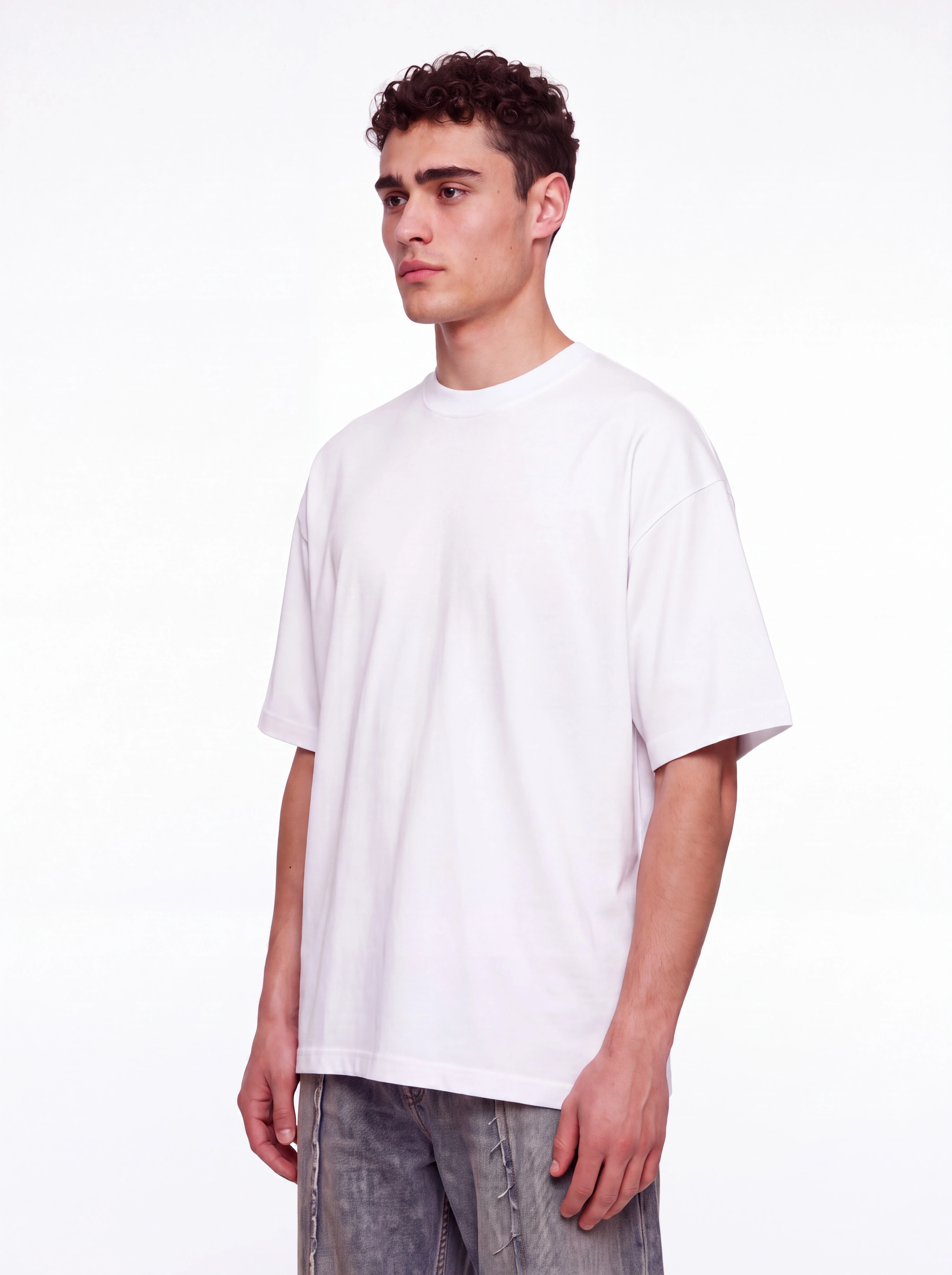
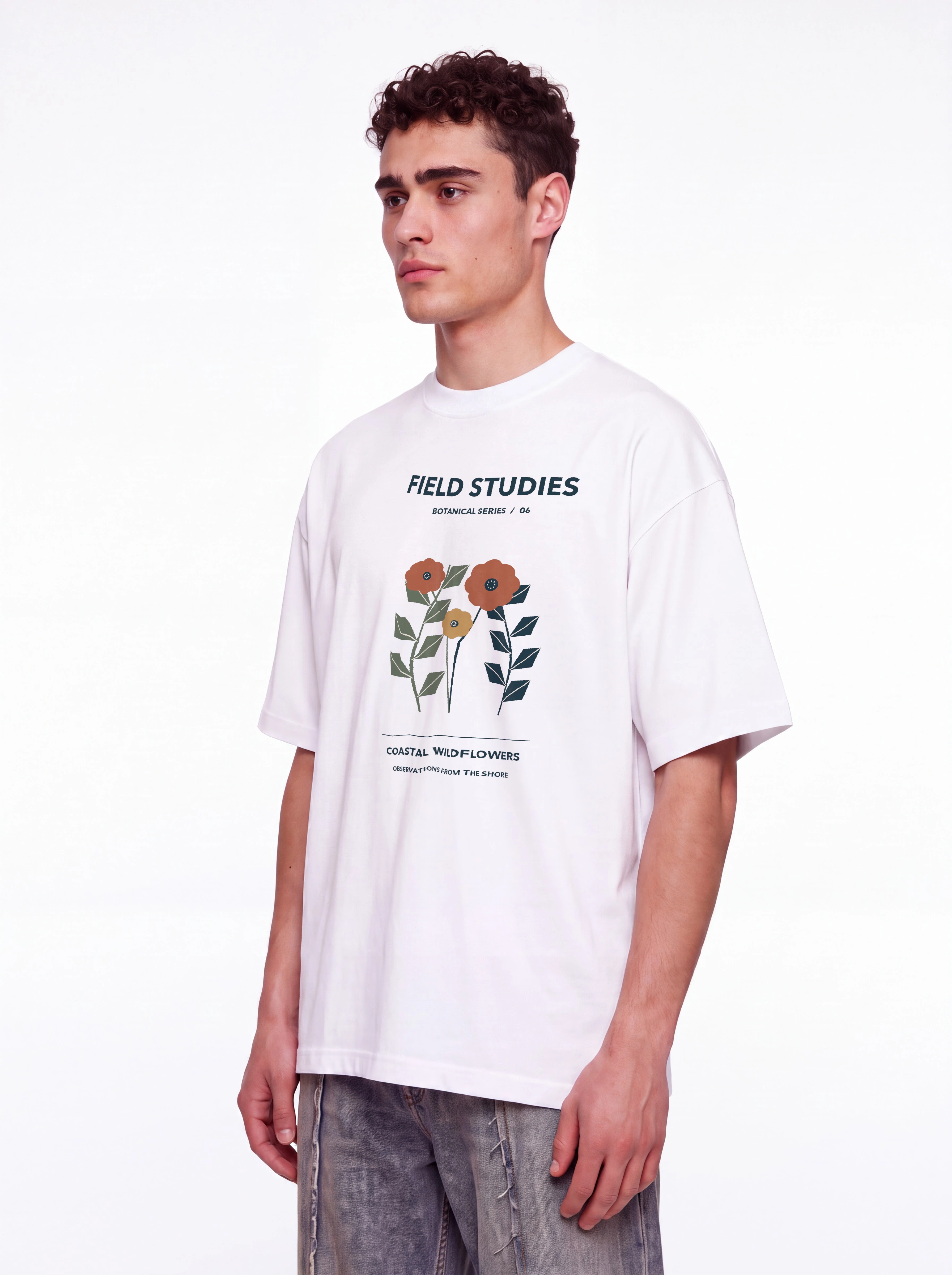
01 / One graphic on a T-shirt
|
Plain surface
|
Printed result
|
The supplied FIELD STUDIES botanical print is placed on the shirt front. Turn Tile artwork off for a single graphic, then review placement and the small caption. |
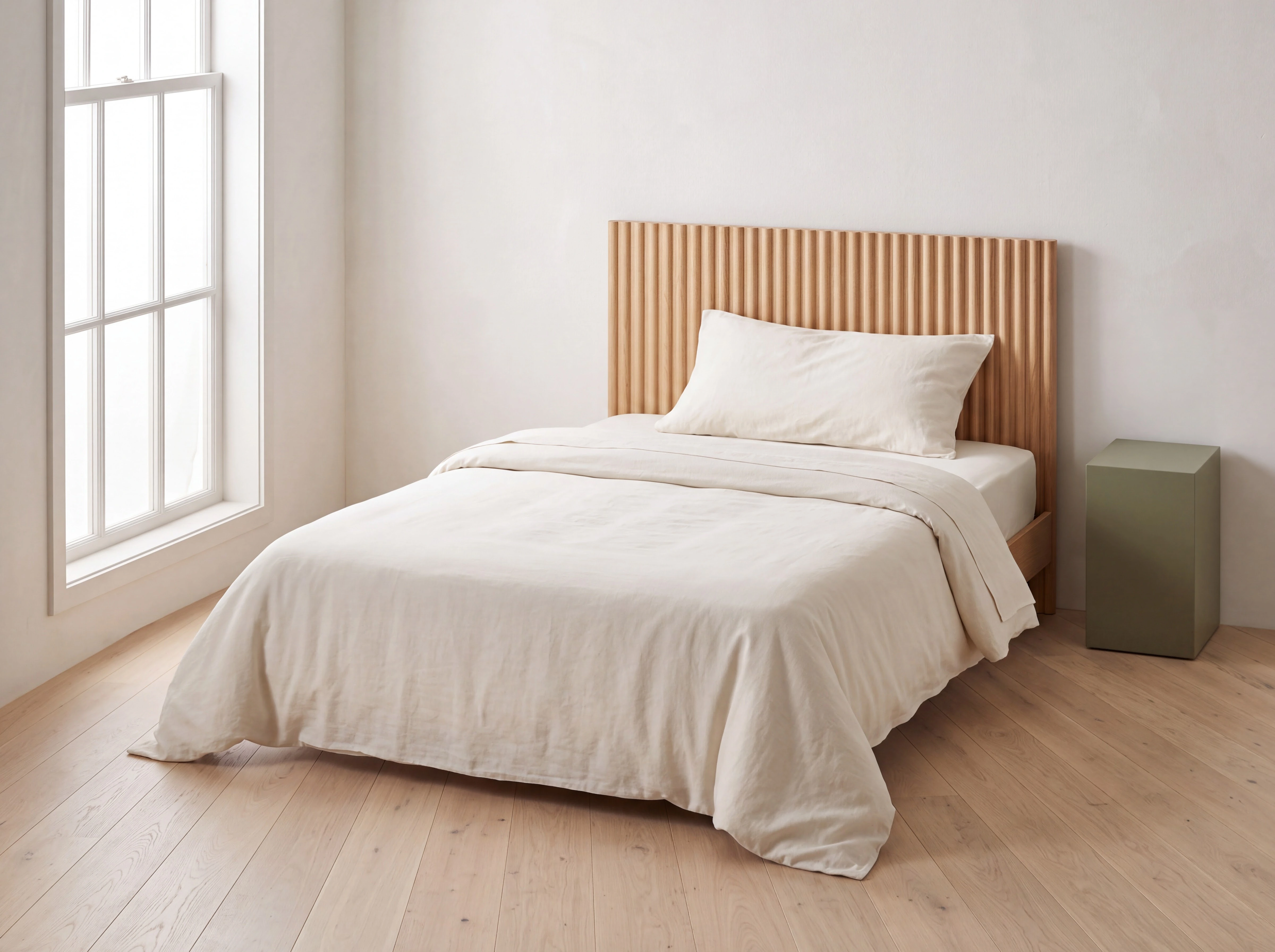
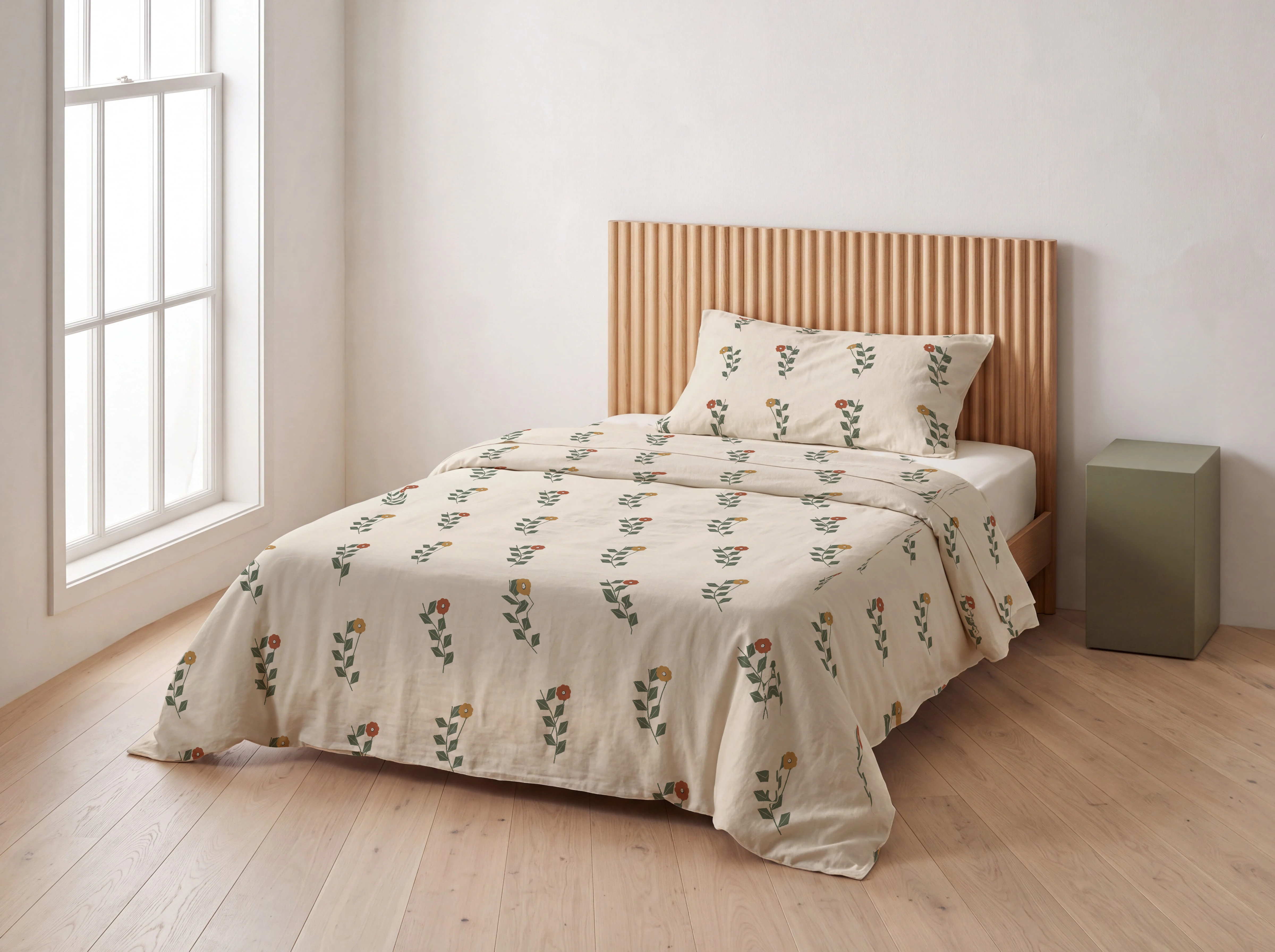
02 / One repeat, two pieces
|
Plain surface
|
Printed result
|
Apply the same repeat to the duvet cover and matching pillowcase with separate layers and Tile artwork on. Adjust each piece’s motif scale; keep the fitted sheet plain. |
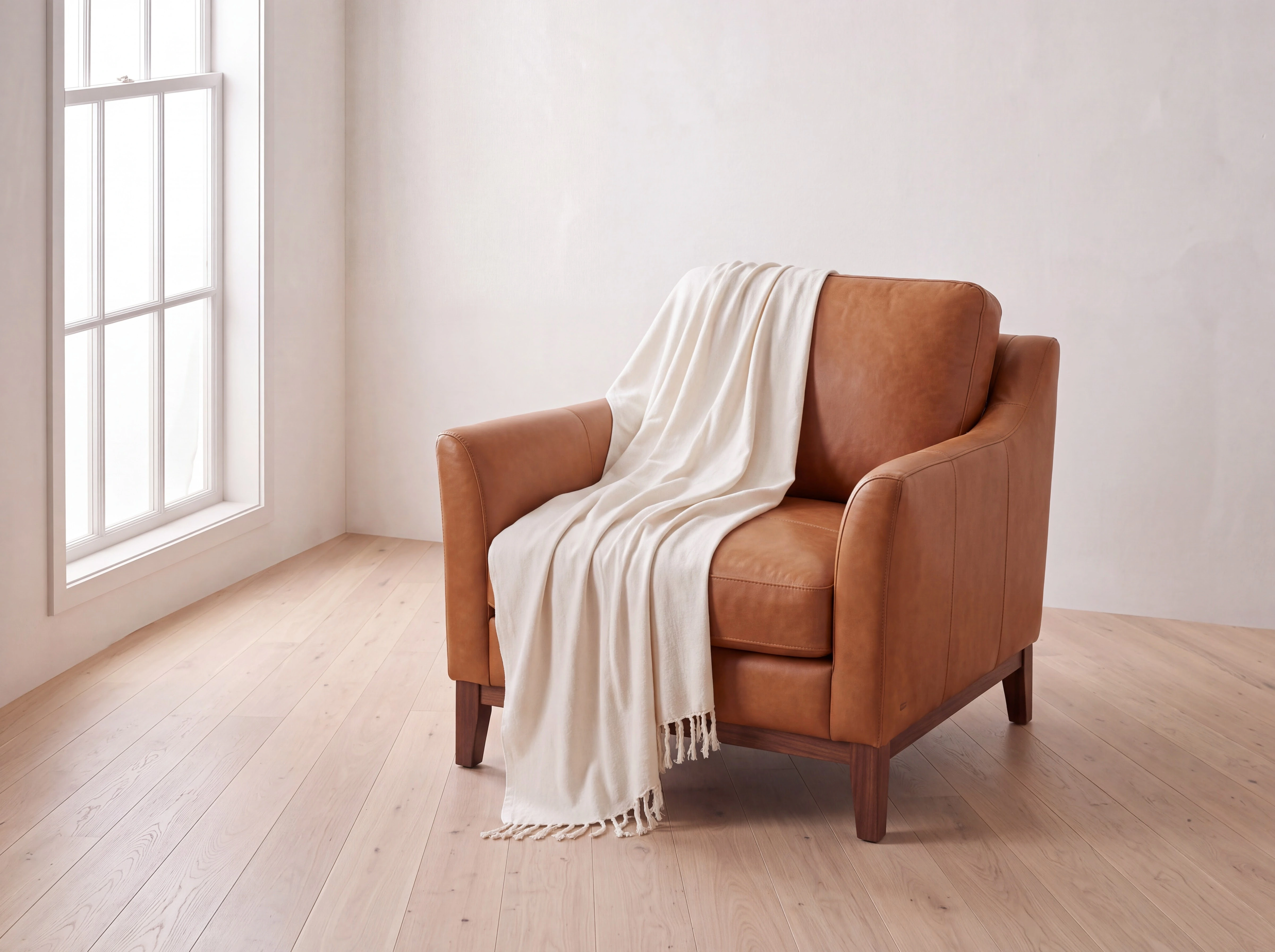
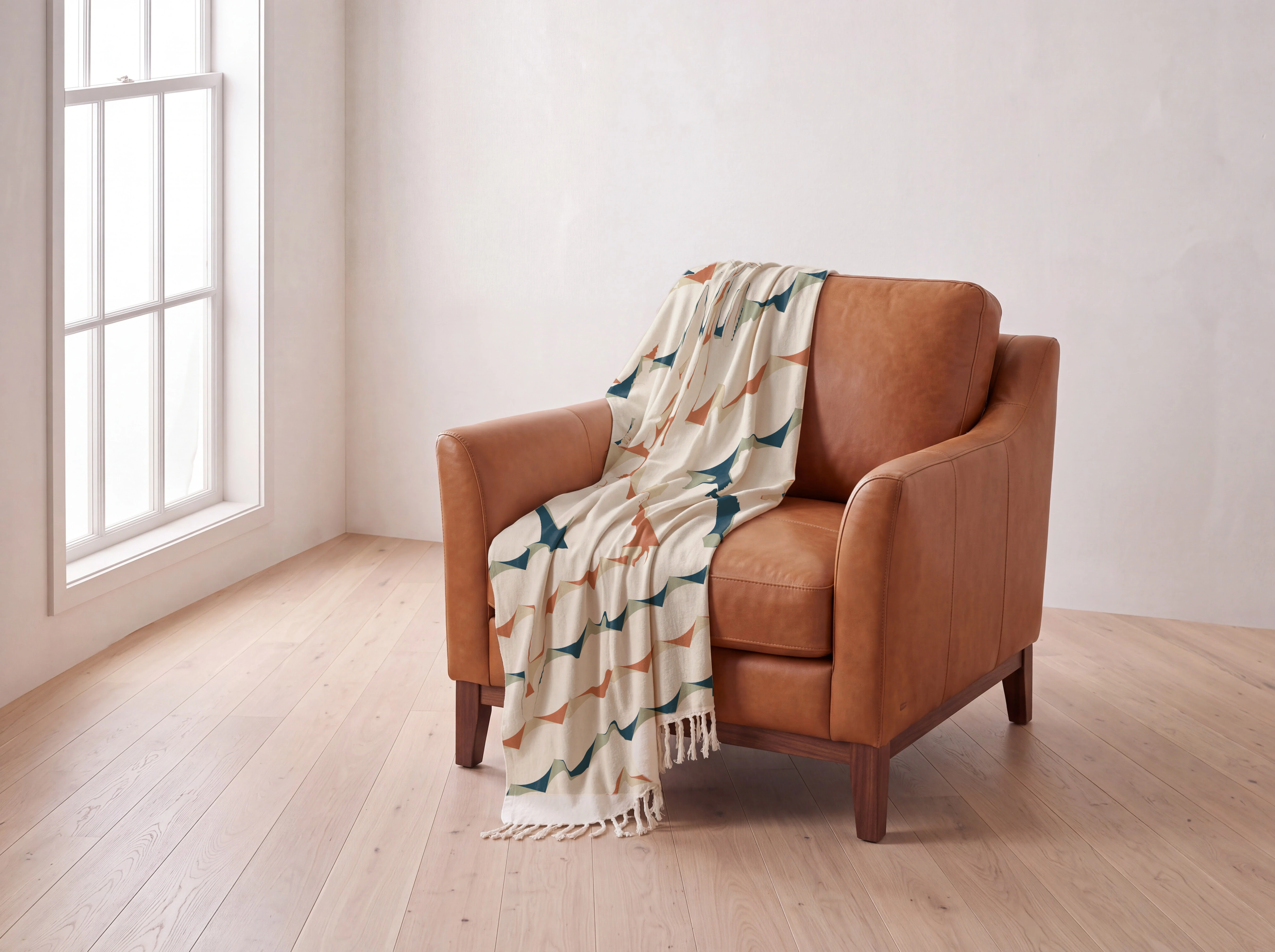
03 / A repeat across a cotton throw
|
Plain surface
|
Printed result
|
Tile the supplied geometric repeat on the selected cotton throw. Check motif size and distortion through the folds, and keep the chair and fringe outside the print selection. |
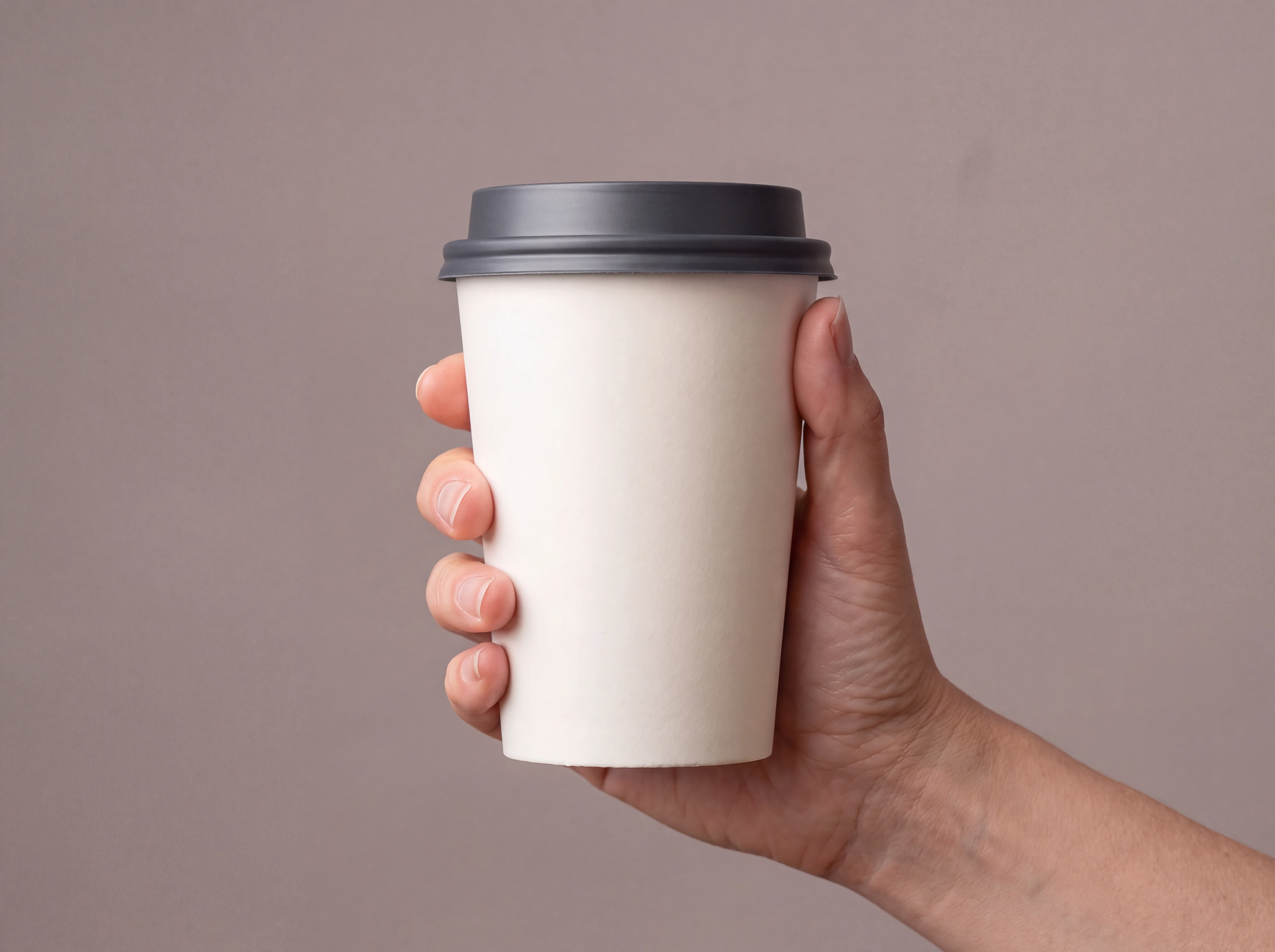
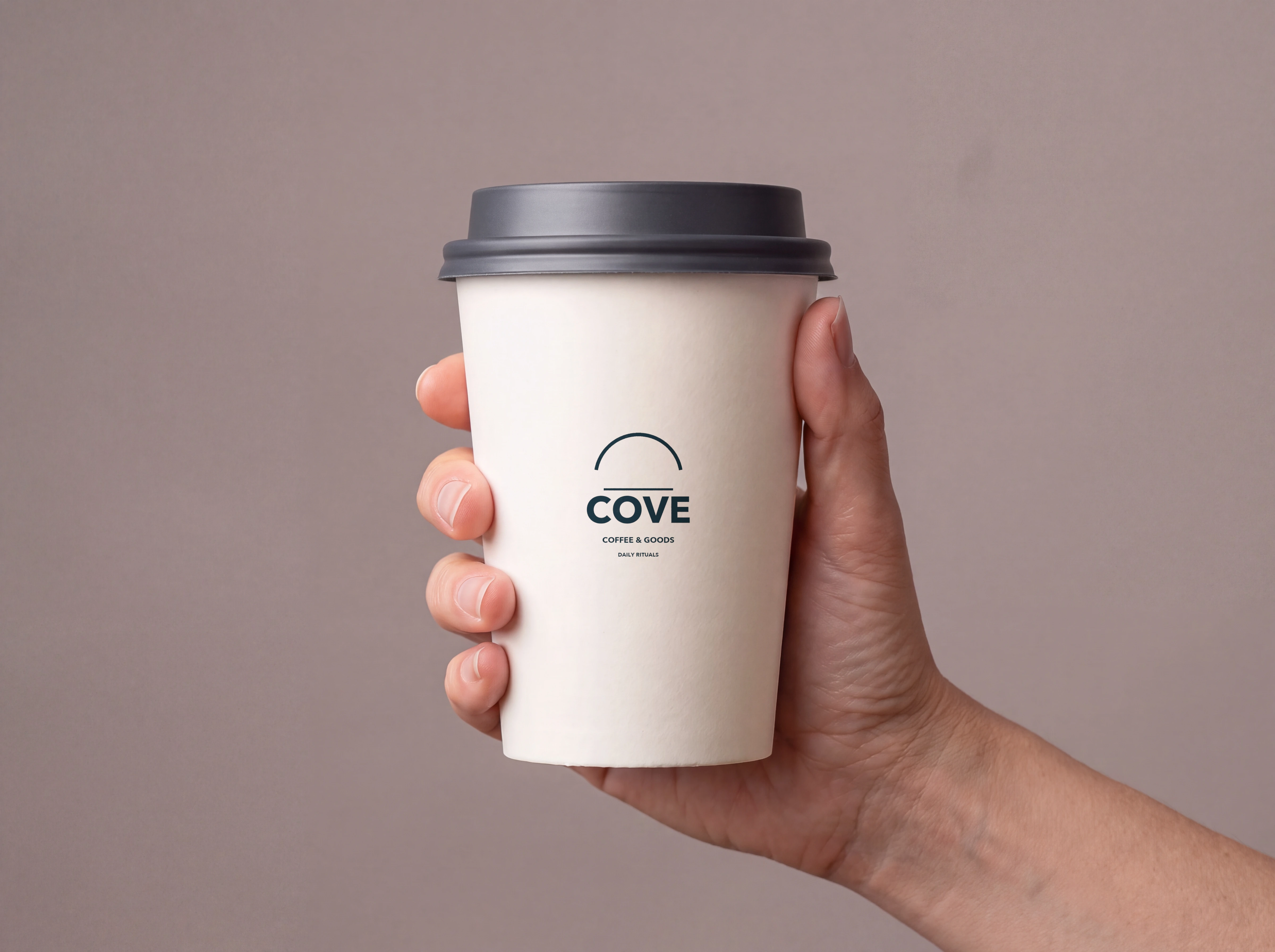
04 / One mark on a takeaway cup
|
Plain surface
|
Printed result
|
Place the supplied COVE mark on the cup, keeping the hand and lid outside the selection. This example uses Tile artwork off and Wrap to shape off: a flat placement with surface shading. Check the lettering and placement against your artwork. |
From generated image to finished mockup
| 1. |
Generate the base. Attach product references (and a person reference for on-model images). Ask for a plain, unprinted surface and review the product’s construction. |
| 2. |
Open the editor. Click the generated image to open its lightbox, choose Mockup, then Add pattern to upload artwork. Click the surface to select it. |
| 3. |
Place, wrap and export. Adjust size and placement in Fit, then wrapping in Surface. Inspect with High-quality preview on. Choose Save to prompt or Download PNG. |
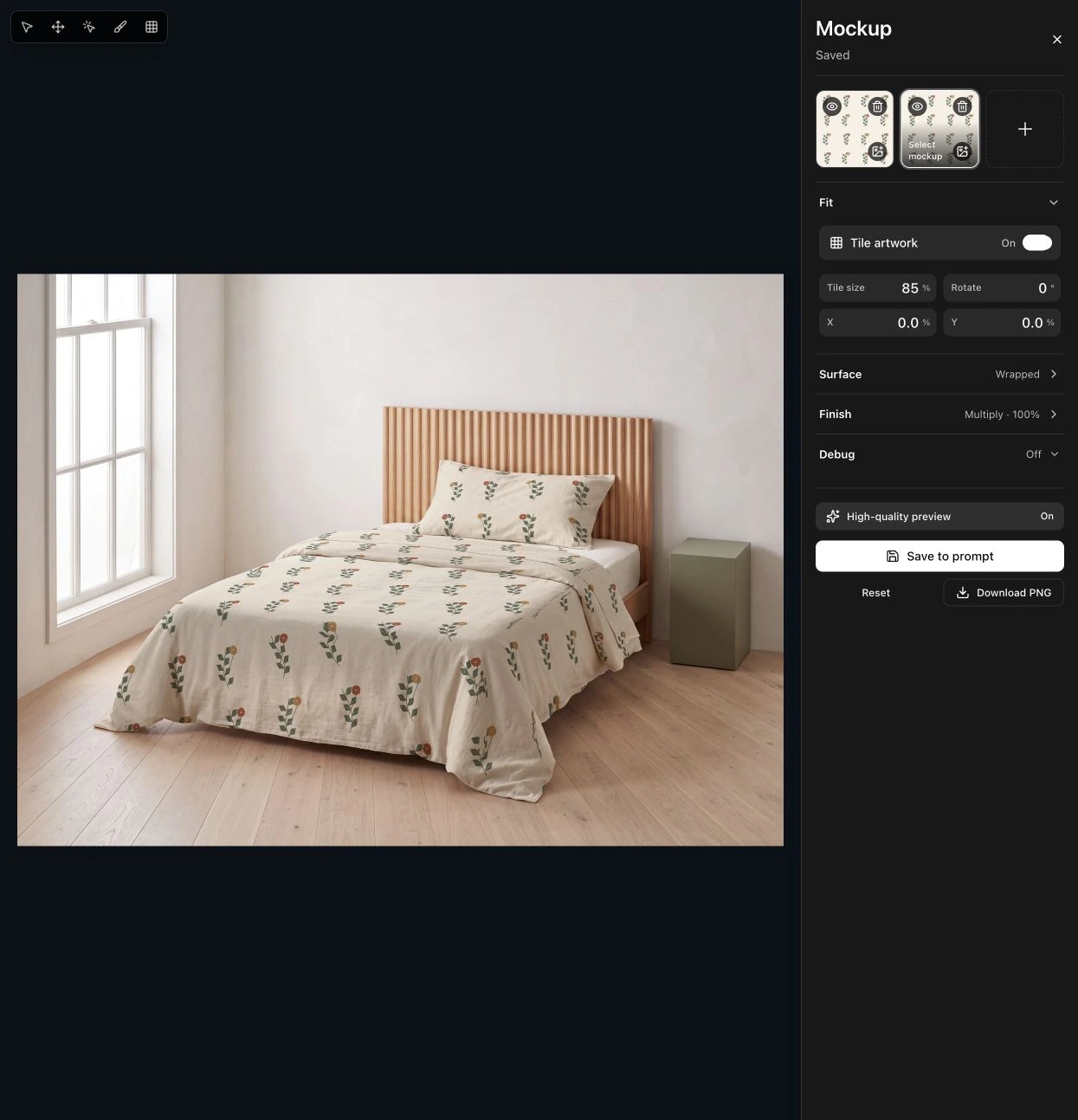 Inside the editor: separate layers for the duvet and pillowcase. High-quality preview is on. |
|
THE FULL HOW-TO
Try the workflow on your next product.
The article includes source artwork, selection and wrap settings, and checks for lettering, repeats and folds.
|
|
These examples are demonstration composites, not photographs of manufactured printed merchandise. Check the export against your approved artwork and a physical sample: print scale, lettering, seams and folds still need review. The article documents a workaround used for reversed artwork in this shirt’s wrap.
|
 Astria