Nano Banana Photoshop Plugin V2: What Changed
The Nano Banana Photoshop plugin V2 is a complete rewrite of Astria's Photoshop plugin. The new interface brings references, model settings and generation progress into one composer. You can keep working while an image generates, return the result as an editable layer, and use agent mode to automate Photoshop functions.
The update also improves selection placement and color handling, adds a workflow for separating a flat image into positioned layers, and lets you start video creation from the image already open in Photoshop.
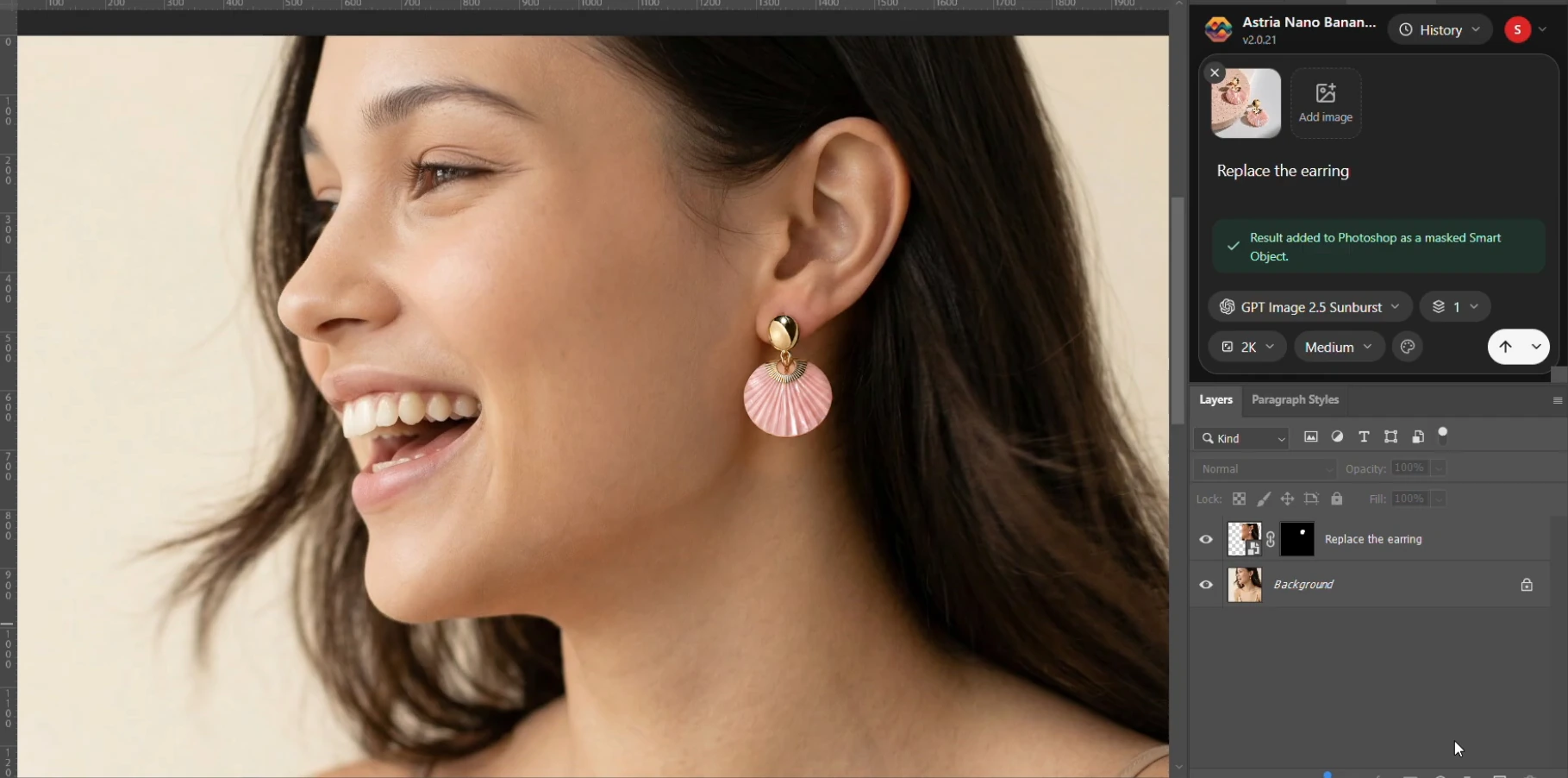
What's new in the Photoshop plugin V2
| Update | What it changes in daily work |
|---|---|
| Rebuilt interface | References, prompt, model and supported output settings sit together in a compact composer. |
| Drag-and-drop references | Bring image files from Finder or Explorer into the panel on supported Photoshop hosts. |
| Async generation | Follow progress or cancel in the panel while continuing other Photoshop work during generation. |
| More consistent placement | Matching aspect ratios, uniform scaling, feathered masks and sRGB tagging reduce avoidable placement and color shifts. |
| Model choice | Use any model supported by the plugin's current catalog; the available controls adapt to it. |
| Agent mode | Ask the connected agent to inspect and organize the document, or automate supported Photoshop functions. |
| Layer separation | Turn a flat image into a base and positioned cutout Smart Objects inside a masked group. |
| Video creation | Send a selection or visible image to Astria's browser workspace to plan and generate a video. |
Here, V2 means the plugin version. It is separate from the name of any image model you choose inside the panel.
A composer built around the image you're editing
A retoucher usually has three things to keep track of: the selected area, the requested change and the reference that defines it. The rebuilt panel keeps the reference thumbnails and instruction together, with model options close at hand. Resolution, quality and output count appear where the selected model supports them.
Add a product photograph from disk, capture the current Photoshop layer as a reference, or drag image files onto the panel. This makes an accessory swap or material study easier to set up: the reference remains visible while you write the change. For a step-by-step example, see using fashion references in Photoshop.
Drag-and-drop needs a compatible host: file drops into the panel require UXP 9.1 or later, such as Photoshop 2026. On an older supported Photoshop version, use Add image instead.
Keep working while the image generates
V2 runs the generation request asynchronously. Photoshop captures the input, the panel follows the job, and you can continue working during the wait. Progress and cancellation live inside the panel.
For a production retoucher, that can mean preparing another document while a replacement background generates. An art director can work on a presentation layout while an image variation is in progress. There is less pressure to turn each generation into a separate pause in the working day.
Source capture and result placement still briefly need Photoshop access. Keep the source document's dimensions and placement unchanged until the result returns; work in another document when you need to change those. Agent tools also wait until the active panel generation has finished.
Less drift when results return to the document
A good generated edit can still create extra work if it comes back stretched, misaligned or with an unexpected color shift. The rewritten editing pipeline addresses those problems:
- Aspect ratio and scaling: requests follow the selected region's proportions, and placement uses uniform scaling rather than stretching the result.
- Selection blending: a softly feathered mask helps the generated area meet the original image.
- Color handling: sRGB tagging reduces mismatches when generated images enter documents using another color profile.
- Editable delivery: results return as Smart Objects, so masks and ordinary Photoshop adjustments remain available.
These changes reduce avoidable drift in the editing workflow. A model can still reinterpret a face, garment, product detail or architectural feature. Compare the result with the original before approving it, especially when exact product shape or building geometry matters.
For architecture teams, this is useful when reviewing facade materials, interior finishes or lighting alternatives. Keep the approved geometry as the base and treat generated variations as design studies. The architecture workflow guide covers those review tasks in more detail.
Choose the model for the task
You can switch between models supported by the plugin without changing the way you prepare a Photoshop selection. The panel reads the available catalog and shows the controls appropriate to the chosen model.
That gives a studio room to try a different model when an edit needs another approach. A tool such as layer separation has a different input workflow from a reference-based image edit, so its controls change too. Check the current picker for availability rather than building a process around a fixed list of model names.
Agent mode for Photoshop automation
Open agent mode from the plugin to give the agent a connection to the current Photoshop document. It can inspect document and layer information, organize layers and run supported Photoshop functions. Repetitive work can be expressed as a brief instead of a long sequence of clicks.
Useful starting requests include:
Inspect the open document and list its layers before making any changes.
Group the selected layers into a group called “Client review” and give the layers clear, descriptive names.
For more involved tasks, the agent can use scripts for loops, conditional edits and calculated layouts. Describe the intended result and the layers it should affect. Check the resulting document before handing it to another person.
The Photoshop connection comes from opening the agent inside the plugin. A regular Astria browser chat does not have that document connection. Finish an active panel generation before asking the agent to run Photoshop tools.
Separate a flat image into editable layers
Layer separation gives you a way to work with individual parts of an image that arrived as a single flattened file. Select the area to separate—use Select All for the whole image—then choose the layer separation model. You can leave the instruction empty or describe the elements you want separated.
The result arrives as positioned cutout Smart Objects above a base, arranged in stacking order inside one masked group. The import is grouped into one undo step. This creates a useful starting point for compositing and local adjustments; inspect edges and overlaps before final delivery.
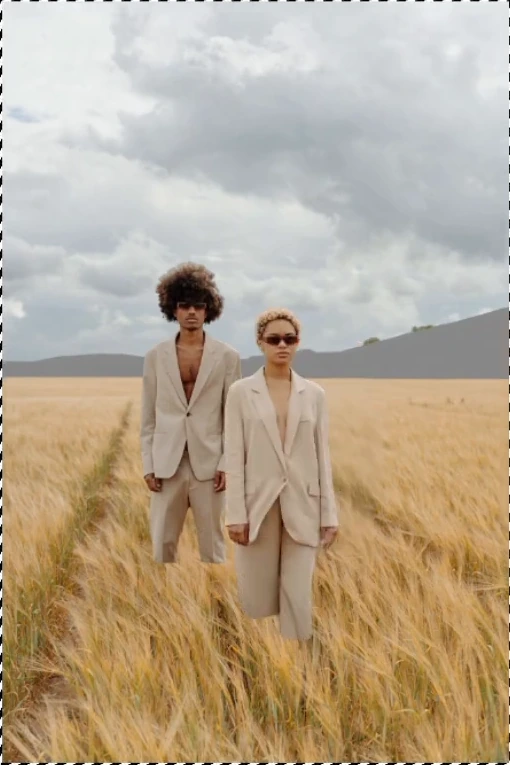
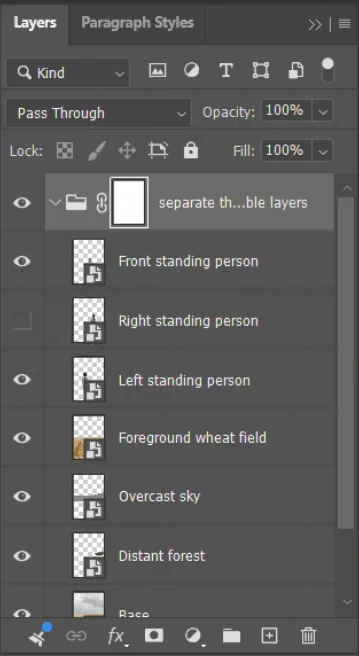
The release announcement illustrates another example below: a fashion photograph separated into the subject, handbag, stools and scene elements. Its colored outlines explain the breakdown; they are annotations, not the Photoshop masks. The ten-layer result belongs to this example, rather than a fixed layer count for every image.
Start a video from your Photoshop image
The Create video camera button captures the selected area, or the whole visible image when there is no selection. Your prompt can travel with it as a starting brief.
The workflow then continues in Astria's browser workspace, where the storyboard agent helps plan the shots and generate the video. This gives a motion designer or campaign team a path from an approved still to a moving concept. The handoff opens that video workflow; it does not place a generated clip into Photoshop's timeline.
Where V2 fits across a creative team
| Role | Practical use | What to review |
|---|---|---|
| Retoucher | Reference-based accessory changes, cleanup and background edits while preparing other files | Mask edges, skin detail and local color matching |
| Ecommerce or merchandising lead | Explore product styling and campaign variations with supplied references | Shape, color, logos and SKU details against the real product |
| Architect or interior designer | Compare materials, shades and atmosphere on an existing concept view | Geometry, perspective and consistency with the design brief |
| Creative director or studio lead | Organize document layers with the agent and review alternate treatments | Clear version names and an editable handoff |
| Motion designer or social creative | Send an approved still into storyboard and video creation | Subject continuity, framing and the intended movement |
For packaging teams, the packaging mockup workflow shows how to evaluate visual concepts while retaining a controlled master design.
Update the plugin and try one real task
Download the latest maintained CCX build from the Nano Banana Photoshop plugin page. The plugin supports Photoshop 2025, version 26 and later, on macOS and Windows; use Photoshop 2026 or another compatible host for file drag-and-drop.
Open a working copy of an image, make a selection, add a reference if the chosen model supports it, and describe one specific change. Review the returned Smart Object beside the original. Then try layer separation or open the agent for a document organization task.
See Astria pricing for current terms. The Photoshop plugin guide covers the broader editing workflow.
Watch the V2 demonstration
The demo shows reference edits and layer separation. Its interface reflects the recorded build; agent and video workflows described above are available in the updated plugin. The public V2 release announcement covers the rebuilt panel and selection pipeline.
Frequently asked questions
Can I keep working in Photoshop while an image generates?
Yes. The network generation runs asynchronously, so you can keep working while the panel shows progress. Capturing the source and placing the result briefly require Photoshop access. Keep the source document geometry unchanged until the result returns.
Which Photoshop versions support the plugin and drag-and-drop?
The maintained plugin supports Photoshop 2025, version 26 and later, on macOS and Windows. Dropping files into the panel needs a host with UXP 9.1 or later, such as Photoshop 2026. Use Add image on older supported hosts.
Does V2 mean the Nano Banana 2 image model?
No. V2 names the rebuilt Astria Photoshop plugin. The plugin can use models available in its model picker, with controls adapting to the selected model.
Can the Photoshop AI agent organize layers?
Yes. Open agent mode from the plugin to inspect the document and automate supported Photoshop functions, including naming layers and creating groups. Photoshop tools require the plugin connection, and cannot run while a panel generation is active.
Where does video creation happen?
Create video captures the selection, or the visible image if there is no selection, and opens an Astria browser workspace for storyboard planning and video generation. The handoff does not insert a generated video into the Photoshop timeline.