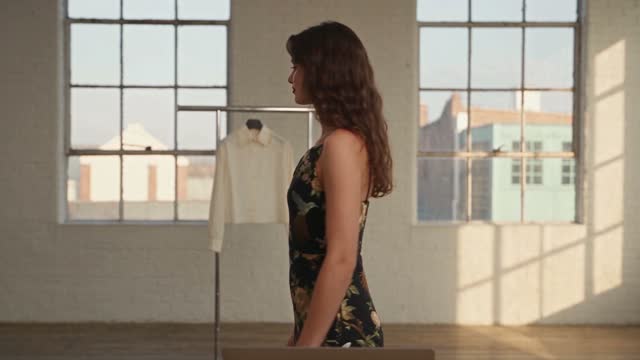
New: Astria Course Series 1+2 — E-commerce & Fashion with AI.Explore the course

Astria Course part 1 and 2 - Available now!

15 short lessons: from your first lookbook to reusable templates.
ASTRIA Academy / Course Series 1+2
1.4 · First AI Lookbook

E-commerce & fashion with AI

Astria Course — Parts 1 & 2

Our new Astria Academy course takes you from a brand’s visual direction to a complete AI lookbook, then shows you how to reuse that work across products. Follow 15 short lessons, in about 24 minutes.

The course / Two series

From first image to a reusable workflow.

Series 1 · Create your first lookbook

Study a real brand, organize a shared workspace, cast an AI model, and create your first images. Refine the background, lighting, styling, and framing, then review the set before scaling up.
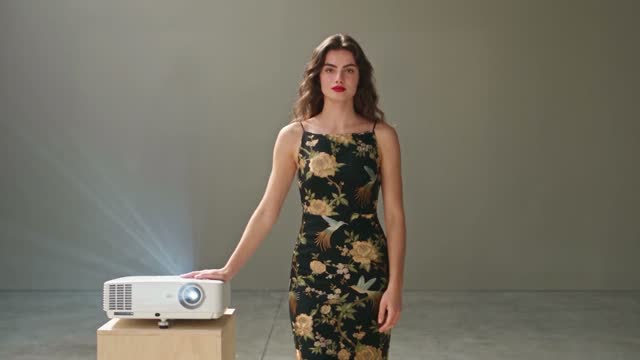
1.5 · Background & Lighting

1.5 · Background & Lighting

1.7 · Poses & Framing

1.7 · Poses & Framing

Series 2 · Turn the look into a template

Save the prompts behind your chosen images, run the template on another product, and prepare several looks together. Organize templates by garment category so the views fit each product.
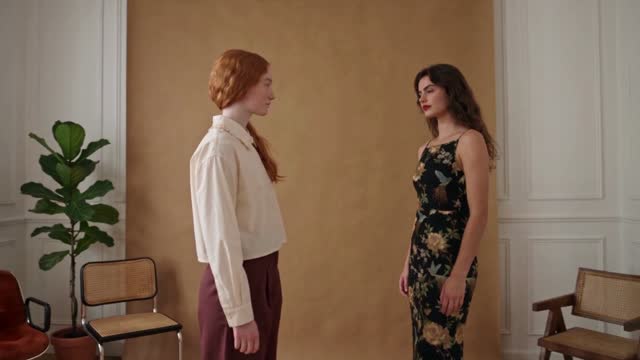
2.2 · Creating a Template

2.2 · Creating a Template

15 lessons / About 24 minutes

Build once. Learn to reuse it.

Start with Series 1 to create the look, then continue to Series 2 to make it reusable across your next products.

Explore the course →

Course videos are available in English and Hebrew. Choose a lesson thumbnail to watch that step directly.

Keyboard map

Shortcuts

Press keys together unless alternatives are separated by “or”.

The map is always one shortcut away

Press it again to return to your work.

Everywhere

Move between Astria's main spaces.

Open or close this shortcut map
Alt+H
Go to Generate, or focus its prompt there
Alt+G
Go to Board
Alt+B
Open or close Agent
Alt+A
Switch workspace
Alt+W
Close the active overlay or menu
Esc

Composer

Choose a tool and generate without leaving the keyboard.

Open the image composer
Alt+I
Open the video composer
Alt+V
Choose a composer tool by position
Alt+1–5
Generate
⌘+Enter
Add a reference
@
Create a text reference from selected text
⌘+Shift+T

Generation gallery

Hover a generation or output first, then press a key.

Select or deselect an output
S
Like or unlike
L
Mention in Agent
Mor@
Rerun the prompt
R
Open its template
T
Archive or unarchive the prompt
Shift+A
Download the prompt images
D

Media viewer

Shortcuts available while viewing an image or video.

Previous or next result
←or→
Zoom out, return to result, or close
Esc
Open Mockup Lab for an image
M
Temporarily show the original in Darkroom
Hold \
Cycle through layers
C
Choose a layer directly
1–9

Contextual shortcuts only act when their surface is visible or selected.