Connect Instagram and Schedule a Week of Reels in Astria
Watch the steps
Download the video · Read the transcript · Download captions
The short walkthrough includes narration and English captions. Use your player’s captions control to turn them on.
Have your finished videos ready in Astria? Here’s how to connect Instagram, share one Reel, and schedule one video a day for a week.
You’ll need an Instagram Business or Creator account and access to the Instagram connector in Astria. Open your brand’s workspace in Astria before you start. The workspace owner connects the account once. If Connect Instagram is missing or Instagram blocks authorization, contact Astria support to check access.
1. Connect Instagram
- In your workspace’s video feed, click Download and export — the down-arrow button above your videos.
- Choose Connect Instagram.
- Sign in to your brand’s Instagram account. Review and approve the permissions, then return to Astria.
- Open New chat → Connectors → Manage connectors. Check that Instagram shows the right @username.
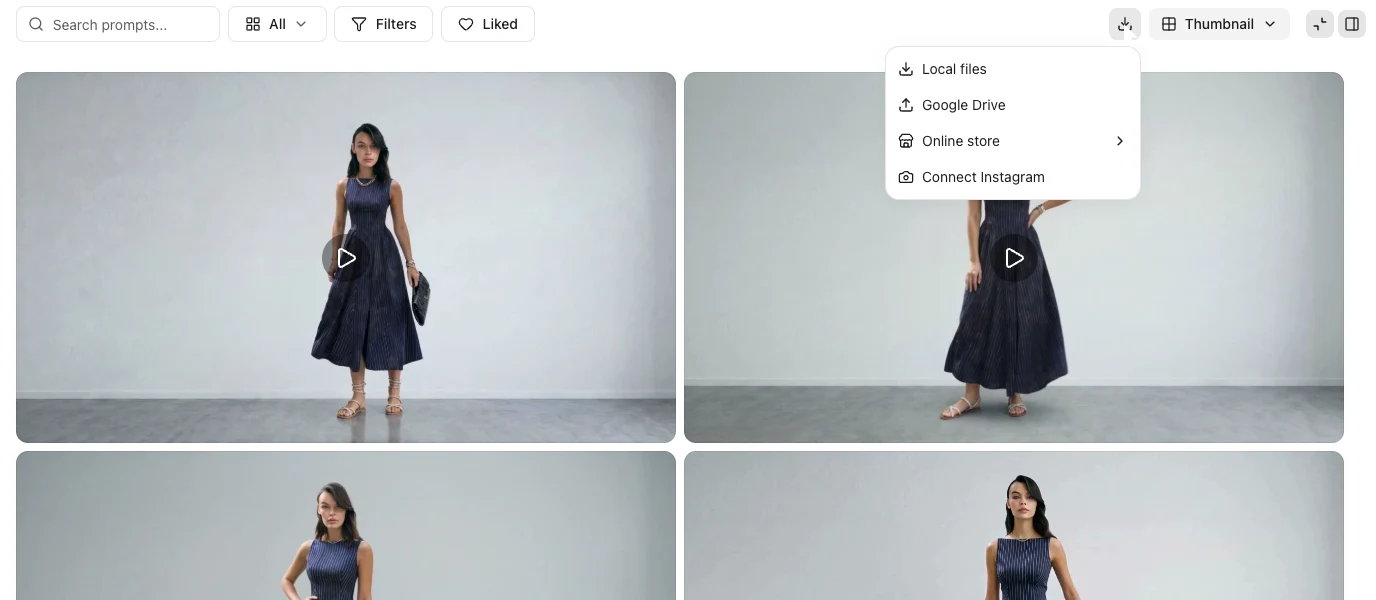
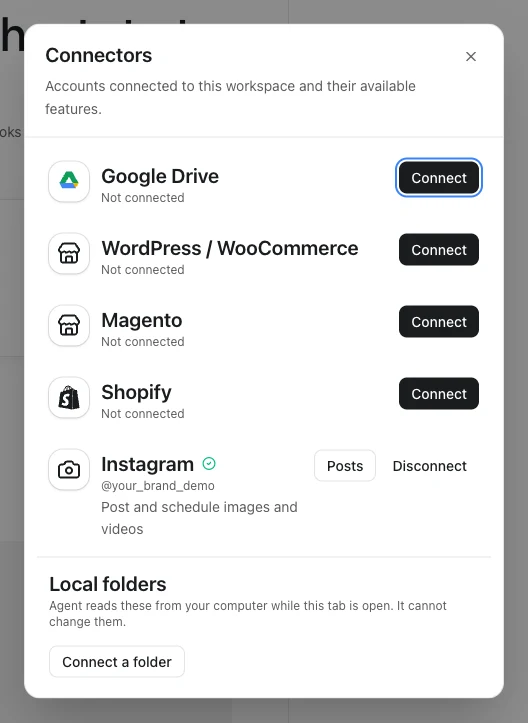
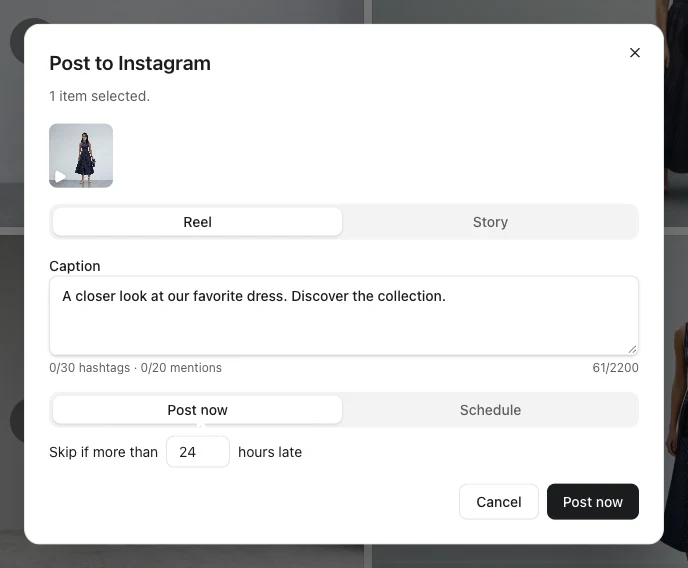
These screenshots and the video use an isolated demo. The account connection and posting confirmations are simulated; nothing was sent to Instagram. Instagram sign-in is explained, not recorded.
If the menu already says Instagram posts, the workspace is connected. If Connect Instagram is disabled, ask the workspace owner to connect it.
2. Post one video as a Reel
- Select one finished video using the selection circle on its thumbnail.
- In the selection toolbar, click the small arrow beside Download (More download and upload options), then choose Post to Instagram.
- Leave Reel selected and write your Caption.
- Choose Post now, then press the Post now button at the bottom.
- Click View Instagram posts to check its progress.
Publishing means your video is still being sent. Published means it has gone out. When Open appears beside it, click to view it on Instagram.
3. Schedule seven videos for the week
- Select seven finished videos. Click Monday’s video first, then Tuesday’s, and continue through Sunday. This is their posting order.
- Open More download and upload options → Post to Instagram.
- Choose Separate posts. Each video becomes its own Reel. The starting choice, Carousel, puts the videos together in one post.
- Write a Caption that works for all seven videos. They will share this caption.
- Choose Schedule. Set First post at to your Monday date and time.
- Set Time between posts to 1 day. Check that the “last on” date is Sunday.
- Check the videos, caption and dates, then click Schedule 7 posts.
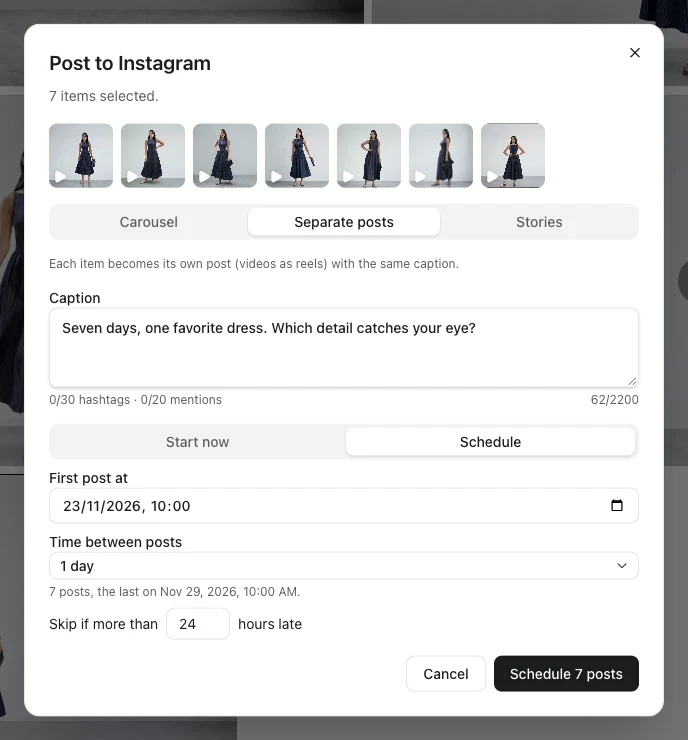
The dates shown are examples. Choose your upcoming week. Astria uses your computer’s time zone, so check it before scheduling.
Want different captions? Schedule each video separately: choose Reel, add its caption, choose Schedule, set Publish at, and click Schedule post.
Check your week
Click View Instagram posts. Look for seven Scheduled Reels, one on each day. The latest date appears first. You can close your browser after saving.
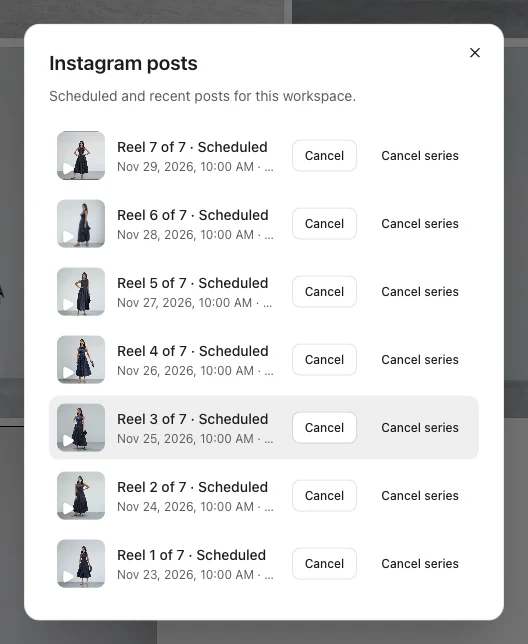
Come back through Download and export → Instagram posts. To change a scheduled post, click Cancel, then schedule its replacement. Cancel series stops the remaining scheduled posts in that group.
After the first posting time, check for Published. If you see Failed, read the message. If you see Needs checking, check Instagram before trying again.