Portrait and Brand Photo Editing in Photoshop With AI
A brand designer needs a portrait that fits a new setting. A photographer wants to explore a wardrobe or hair variation. A communications team needs an approved image that works in a specific layout.
The Astria Nano Banana Photoshop plugin lets an editor adapt an existing photograph, retain the source for comparison, and refine individual changes through Photoshop layers and masks. Begin with a photograph the subject or brand has approved.
Watch styling and setting changes
The editing reel demonstrates pose changes, apparel colors, a reference garment, hair color, a beach setting, an office background, furniture and accessories. Each is a useful local or contextual editing task when the person and intended purpose remain clear.
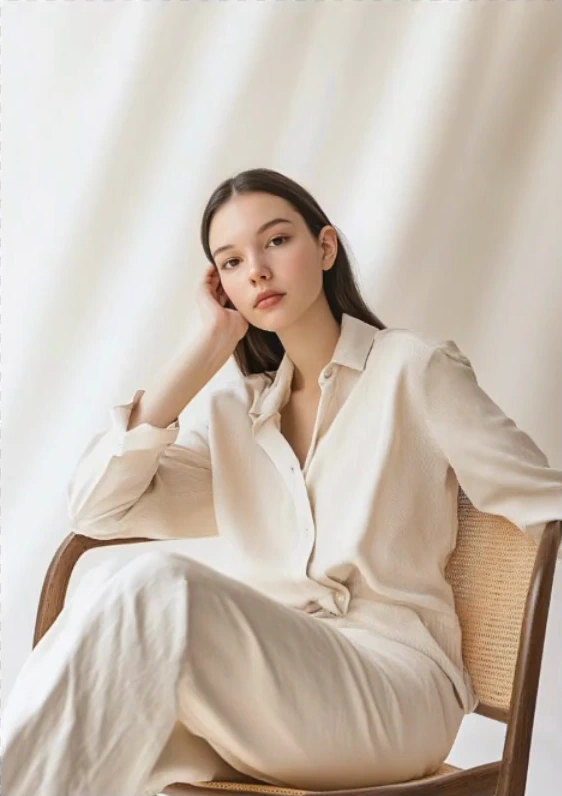
00:29 — Original seated portrait against a light curtain.

00:35 — The sequence lightens the hair and replaces the curtain with an office. This is the same portrait and pose.
Select an image to enlarge it. Frames are cropped from the original video.
Watch the original Astria demonstration. The recording shows an earlier plugin interface; use the current panel for the selection, reference-image and returned-layer workflow. Illustrations are stills from that recording.
Choose the change that serves the brief
For an in-house brand photograph, a background change may be enough to make an image useful in a new layout. For a portrait styling exercise, wardrobe or hair can be the primary variable. Keep those decisions separate and preserve a version with the approved person and original appearance.
A small color shift is often best handled with a Photoshop adjustment layer. Use generation for a new environment, an item replacement or another change that requires reconstructed content. This keeps the retoucher's work focused and makes the approval conversation easier.
Attach the relevant reference when the brief calls for a specific garment, accessory or pose. The reference should answer the exact editing question. Avoid making an unrelated mood-board image responsible for the person's identity, wardrobe and background at once.
Change a background while preserving the portrait
- Keep the approved photograph on a base layer and save the current selection or subject mask.
- Identify the background region and describe the intended setting and light direction.
- Specify the face, expression, clothing and pose to preserve.
- Generate an alternative and compare the returned layer with the base.
- Refine hair, shoulders, chair edges and any transparent or reflective detail.
- Balance the background and subject with Photoshop adjustments, then review at the final crop.
Look at the relationship between the person and the new setting. A seated subject needs credible chair and floor contact. Bright windows in the background should agree with light on the face. A convincing office should not introduce signage or brand marks that the communications team never approved.
Use a clear handoff for each role
| Role | Application | Approval responsibility |
|---|---|---|
| Portrait photographer | Styling alternatives and selected corrections | Likeness, expression and suitability for the subject |
| Retoucher | Local edits, background transitions and masks | Natural detail and clean compositing |
| In-house brand designer | Adapt a photograph to a campaign layout | Brand treatment, composition and artwork |
| Corporate communications team | Review a professional portrait presentation | Subject approval and appropriate use |
| Social content designer | Export approved crops and variants | Readability in the actual placement |
Keep identity review close to the edit
Compare eyes, mouth, hairline and distinctive features against the approved photograph. A change to gaze or expression can become a change to the person. When a face is turned away or obscured, another approved photograph can supply the visible features the edit needs.
Have the subject review material appearance changes before the image is used to represent them. Keep exact names, job titles and brand copy as editable text in the final layout. Save a layered master so the next request can change the background without regenerating the face.
This guide concerns adapting individual images. For creating a coordinated team portrait set, see AI headshots for teams. For a product-led wardrobe replacement, use clear garment references and review the result as a product image.
Get the Astria Photoshop plugin or read the general Photoshop guide. Current terms are on Astria pricing.
Frequently asked questions
Can I change a portrait background with Nano Banana in Photoshop?
Yes. Use the source photograph as context, identify the background to replace, specify the subject features to preserve, and refine the returned layer at hair, shoulders and furniture edges.
How can I keep a person recognizable during an edit?
Retain an approved source photograph, change one attribute at a time, supply an identity reference when needed, and compare distinctive facial features before approval.
When should I use an adjustment layer instead of generation?
Use an adjustment layer for a controlled color or exposure change when the photograph already contains the required geometry and detail. Generation is useful when the edit needs new content or a different setting.