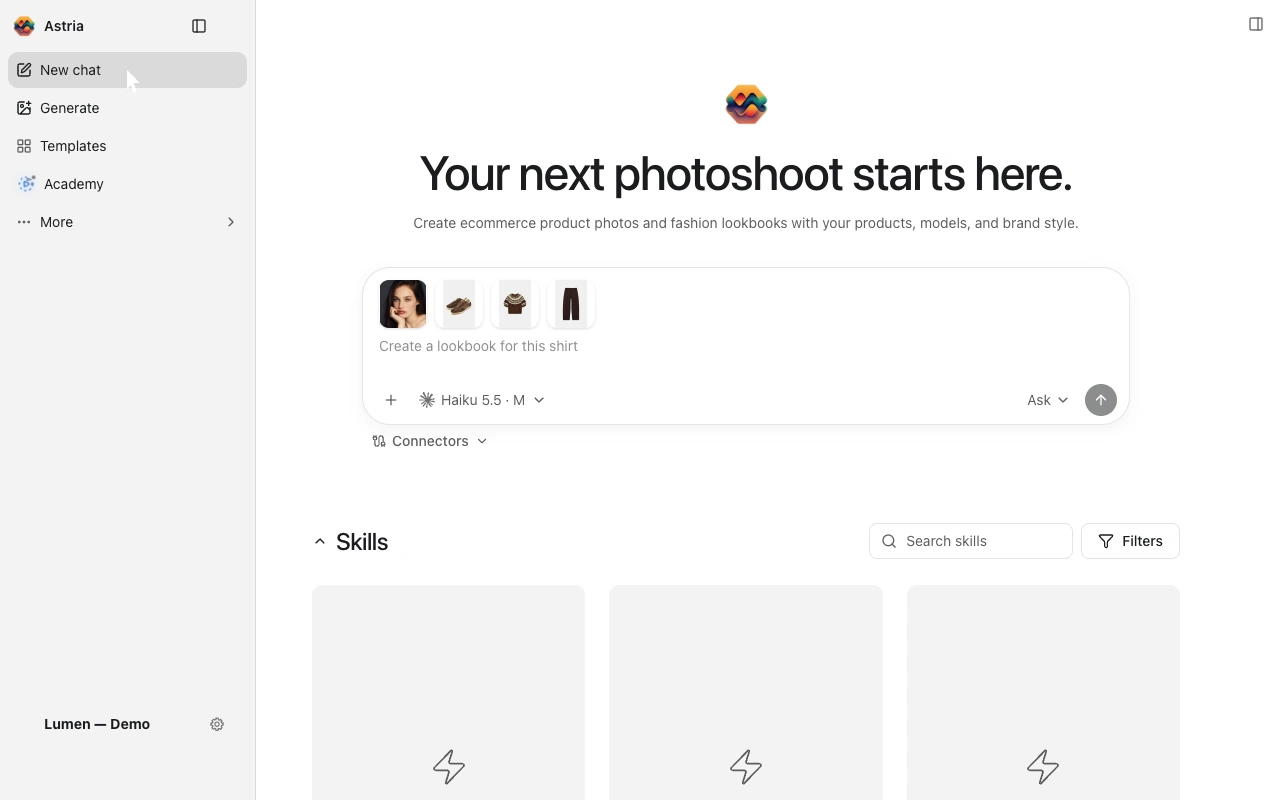
Make an In the Bag video in Astria
Watch the walkthrough
Follow along from the Agent home screen. The recording shows where to click In The Bag, how to pick products, and what the finished video looks like.
Pick four products you want to show. Astria’s In The Bag skill makes a short video where hands hold up each product, put it into a shopping bag, and leave the bag on screen with your logo facing the camera.
You’ll need a few saved product photos, called references in Astria, and a clear image of your brand logo. If the logo is already saved in your workspace, Astria can pick it up there.
1. Find In The Bag on the Agent home screen
- Sign in to Astria. Click New chat in the left sidebar to open the Agent home screen.
- Check the workspace name at the bottom of the sidebar. Switch to the workspace where your products and logo are saved.
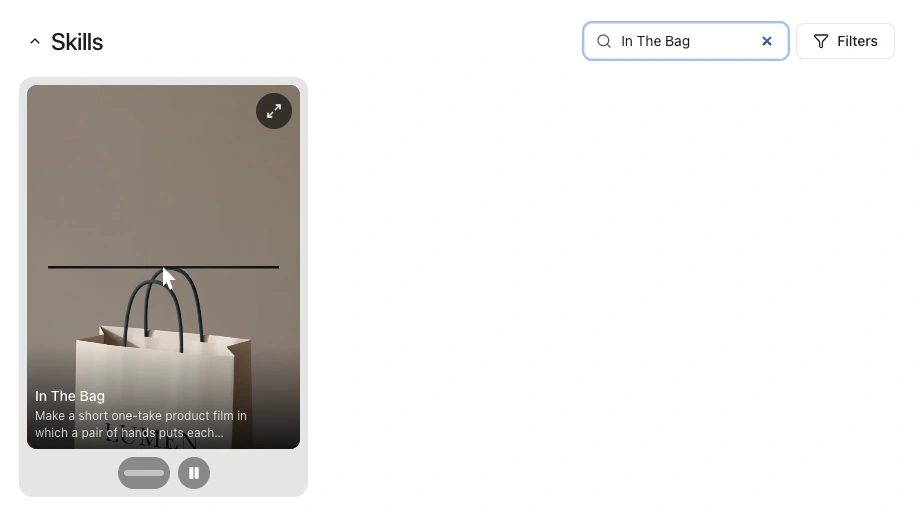
- Scroll down to Skills. Use Search skills, marked with a magnifying glass, to find In The Bag. Click the In The Bag card.
2. Pick four products
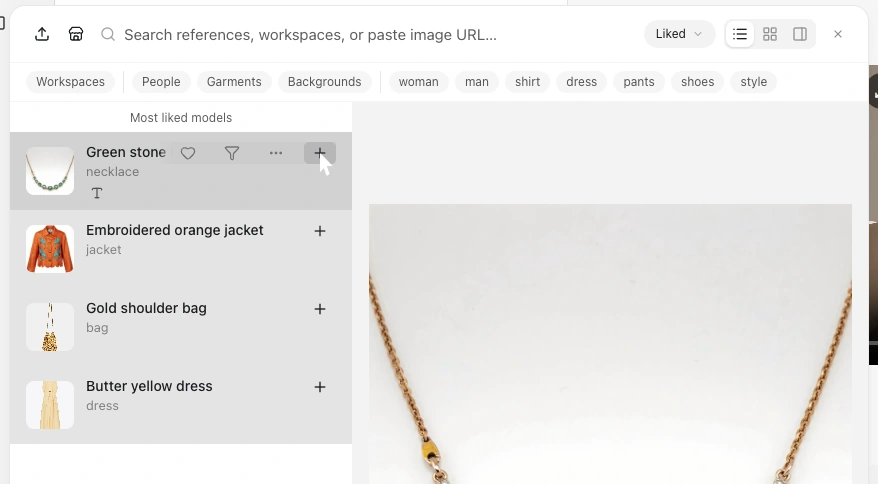
- On the skill page, find Choose references and click … beside the small product thumbnails to browse your saved references.
- Hover over a product and click its + button. Repeat for each item you want in the video. The + keeps the picker open as you add items.
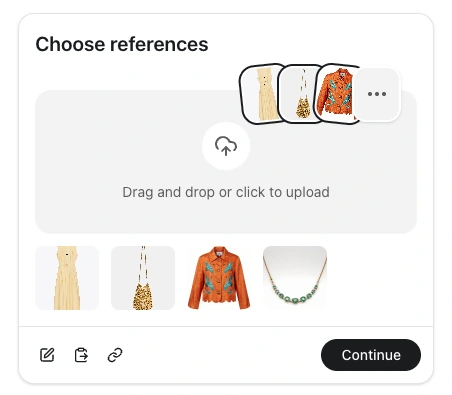
- Close the picker with ×. Check that your four products appear below the upload area.
In this example we picked a dress, a shoulder bag, a jacket, and a necklace. Pick one saved reference for each product you want to show. If you can’t see an item, search for its name at the top of the picker.
3. Use your logo and click Continue
Logo already saved in this workspace? Leave your four products selected. Astria looks for your logo in the workspace and uses it on the shopping bag.
Logo missing or want a different one? Drag a clear image of just the logo into Choose references, or click the upload area to select the file. You can also upload the logo in chat if Astria asks for it.
Click Continue to start. Astria prepares the branded bag and the video. If it asks for approval in the chat, use the Generate button on the proposal.
4. Play your video
Open the video Astria shares in the chat. Check that you can see all four products, then pause on the last frame to check the logo. If something looks off, tell Astria what to fix. For example, “Show the necklace above the bag for a little longer.”