Astria Lynx: Fix Logos, Text and Fine Product Details
Astria Lynx automatically fixes and refines logos, text, prints, plaques and fine product details using your product references. No manual image edits are required. It helps bring the small features that identify a product back toward the supplied design while you generate an on-model photograph.
Attach your product references → open the composer’s cog wheel (Advanced options) → enable Lynx → Generate.
You can start with the automatic workflow. Manual Lynx areas are optional advanced control.
A tiny label can be the difference between a convincing fashion image and a usable product photograph. A shirt may have the right color and silhouette while its caption is misspelled. A woven badge may become a flat approximation. Small brass letters on a bag can lose their shape. Lynx focuses on those reference details as part of generation, saving you from manually repainting each result.
The examples below show both visible corrections and more subtle refinements. Results still need review against the product reference; Lynx does not guarantee exact reproduction of every character, motif or material feature.
How to use Lynx
Step 1: Attach the product references
Open Astria’s composer. Drag your product images into the prompt box, or use the Plus icon to attach them. Add the person reference when you want an on-model image.
Use a sharp source where the important feature is actually visible. For a small logo, include a clear view of its lettering and symbol. For a complex print, show the complete artwork and caption. For a bag, show the label, hardware and material as well as the silhouette.
Step 2: Enable Lynx in Advanced options
Open the cog wheel in the composer, find Lynx in Advanced options, and enable it. You do not need to draw regions or edit the image before generating.
Step 3: Describe the photograph and Generate
Write the outfit, pose, framing, background and lighting you want. Keep the product detail visible: arms clear of a chest emblem, or the front of a bag facing the camera. Then select Generate.
For example, with a person and shirt attached:
A full-length studio lookbook photograph of the person wearing the reference shirt with plain dark jeans. Relaxed front-facing stance, arms clear of the chest artwork. Warm chalk backdrop, soft light. Keep the reference print and caption visible. One person, one photograph.
Lynx handles the detail refinement automatically. Review the completed image at the size you will use it, then zoom in to check the brand mark, wording, print, label and surrounding material.
Five products, five matched examples
These are original fictional demonstration designs from the Lynx — Detail Lab workspace. Each product-only reference is identified separately from its on-model outputs. The five featured references were created as synthetic demonstration assets; they are not customer products or photographs of manufactured items.
Every comparison uses the before frame and finished frame attached to the same prompt. The detail crops use the same relative coordinates, and links to the complete frames accompany each example. No manual retouching was applied to the article images. Web copies are resized and encoded for display; the crops are not upscaled.
The resolution labels below identify each prompt’s generation setting. They are not a claim that every downloaded before and finished frame has identical pixel dimensions. Each product reference has one matched comparison.
ORMA: canvas bag and woven label
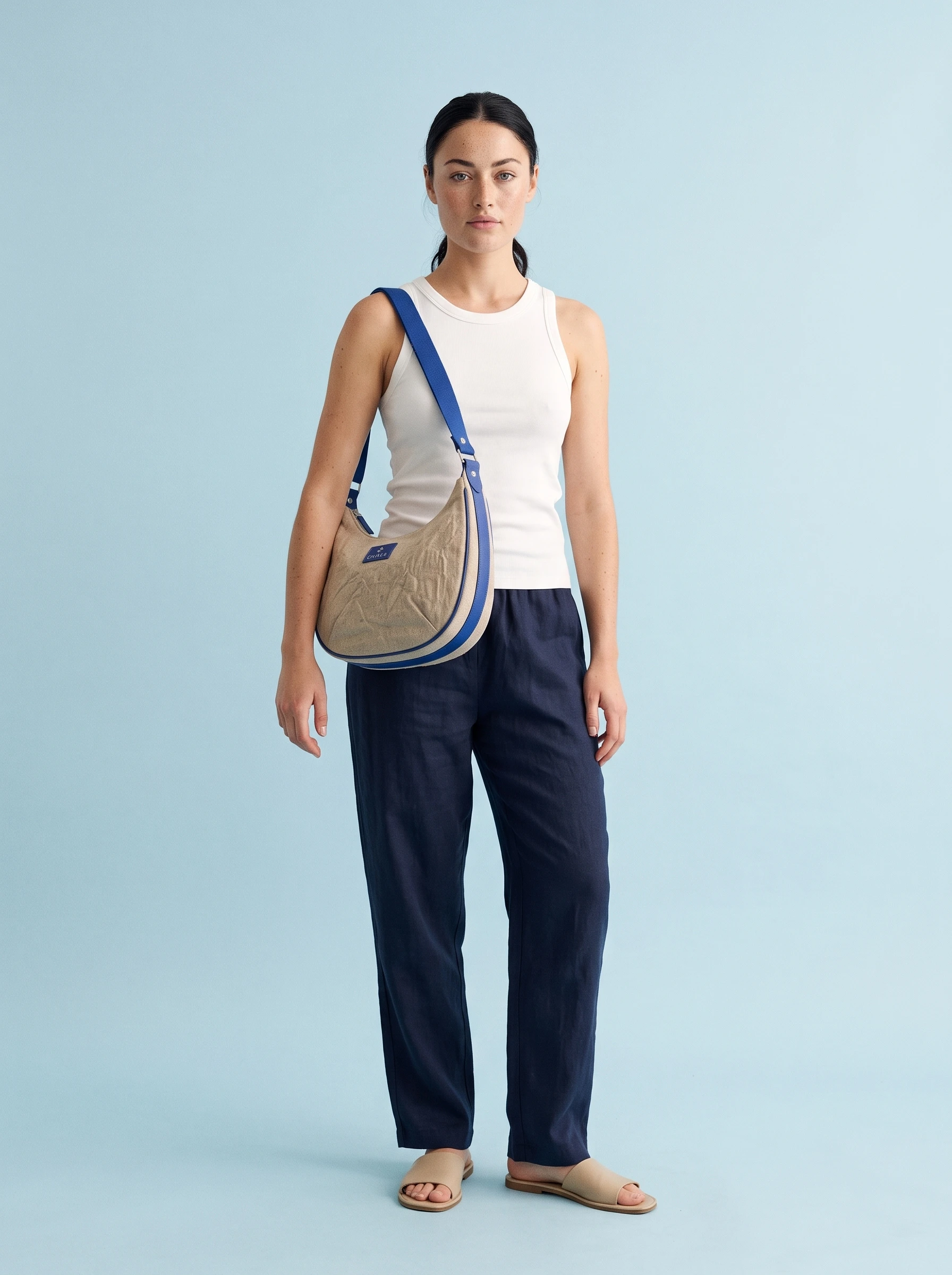
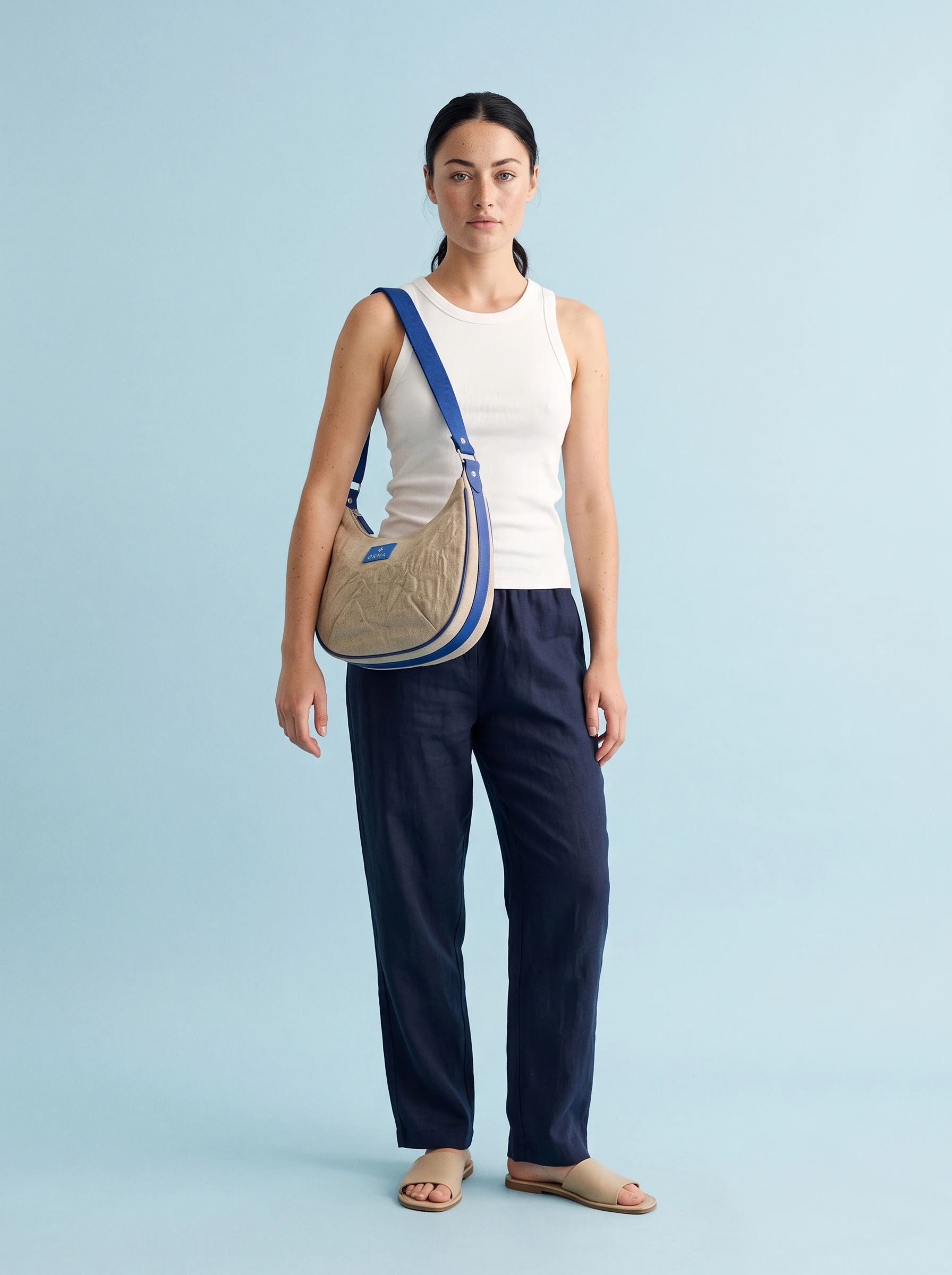
The crescent bag combines natural canvas, cobalt piping and strap, silver hardware and a small blue label. The malformed label lettering becomes readable as ORMA in the finished frame.
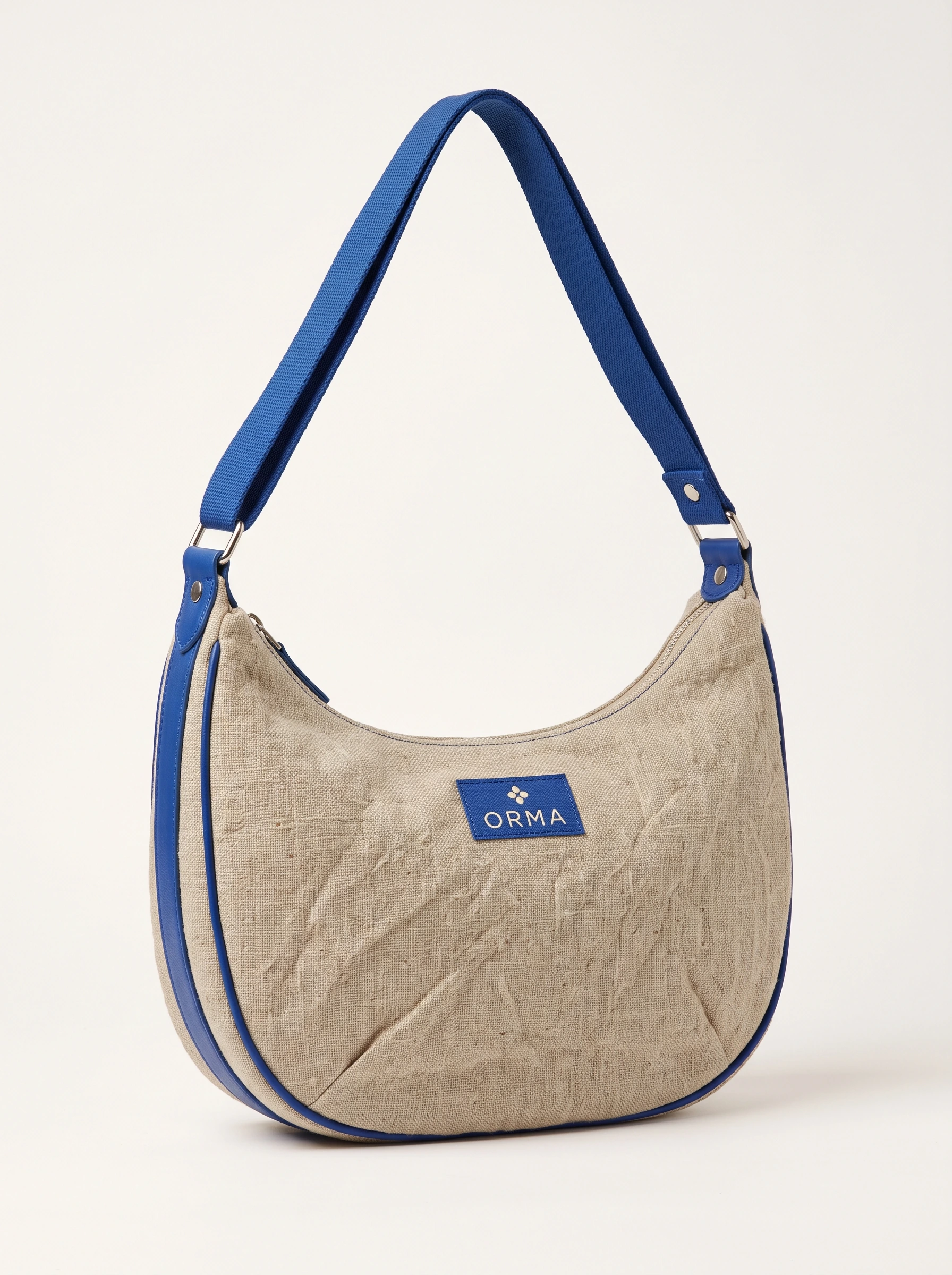
Canvas bag and woven label. Original fictional demonstration design; this product-only image is the input used for the on-model example below.
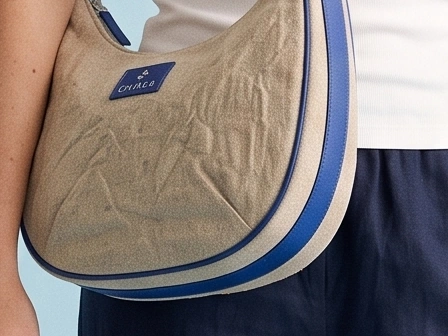
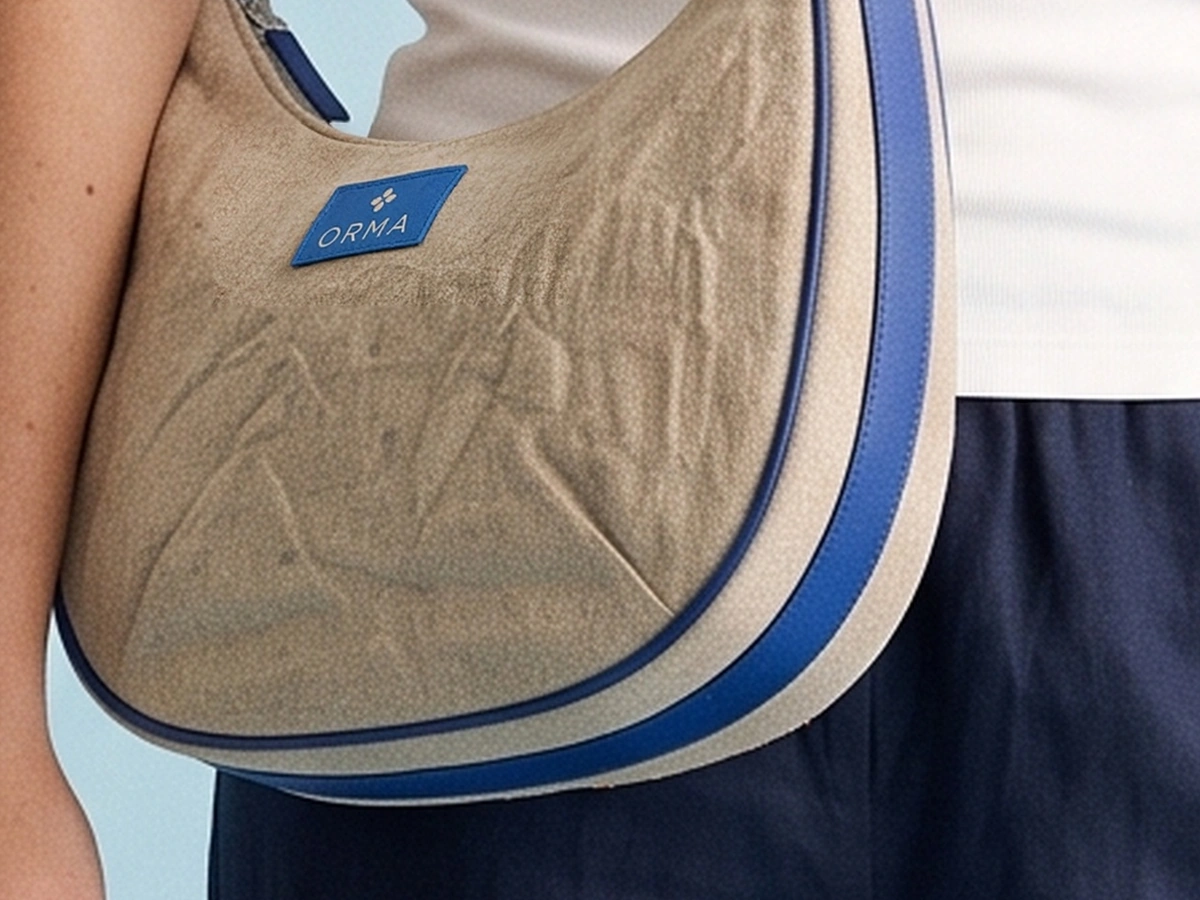
Woven label correction · 2K setting
The malformed label lettering becomes readable as ORMA. The label and surrounding canvas also change, so review its color, symbol and weave against the source.
ORMA · matched detail
The same relative crop from this prompt’s before and finished frames. Switch to Scan line to inspect the difference.
Botanical Atlas: complex print and caption
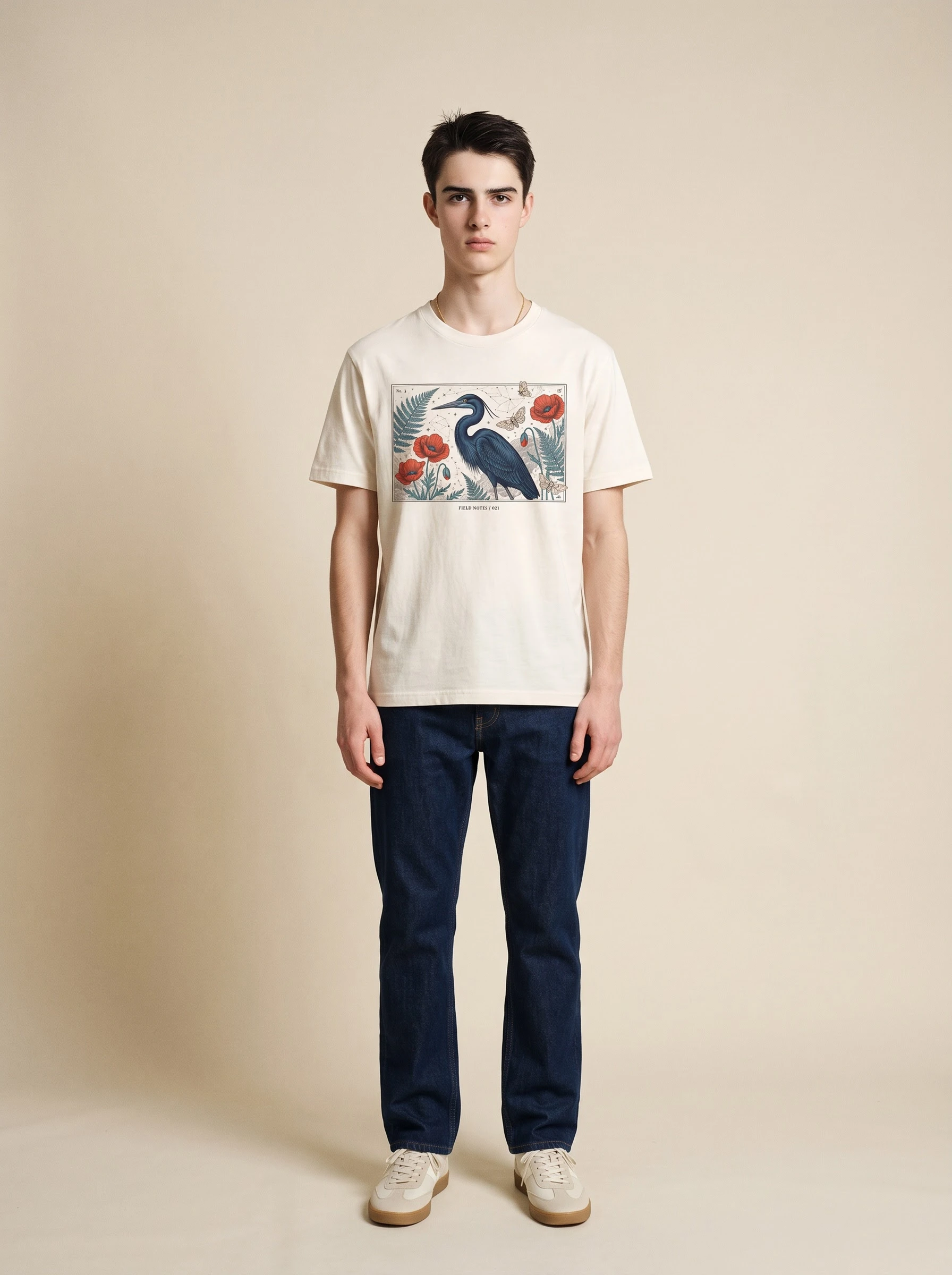
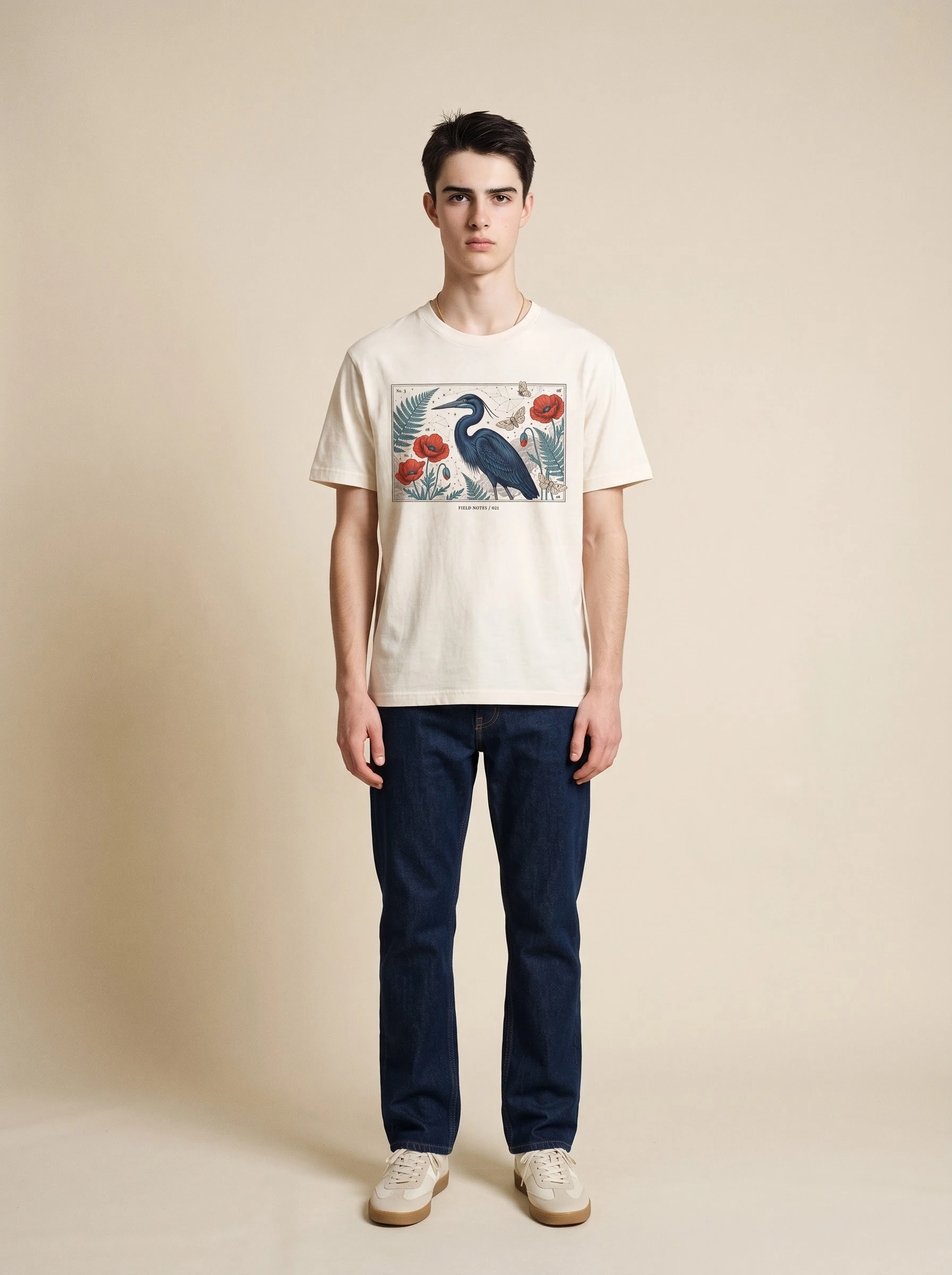
The ivory shirt combines a dark blue heron, red flowers, teal foliage, moths and fine linework with a small caption beneath the print. This tests more than whether a large graphic survives: the caption and arrangement also matter.
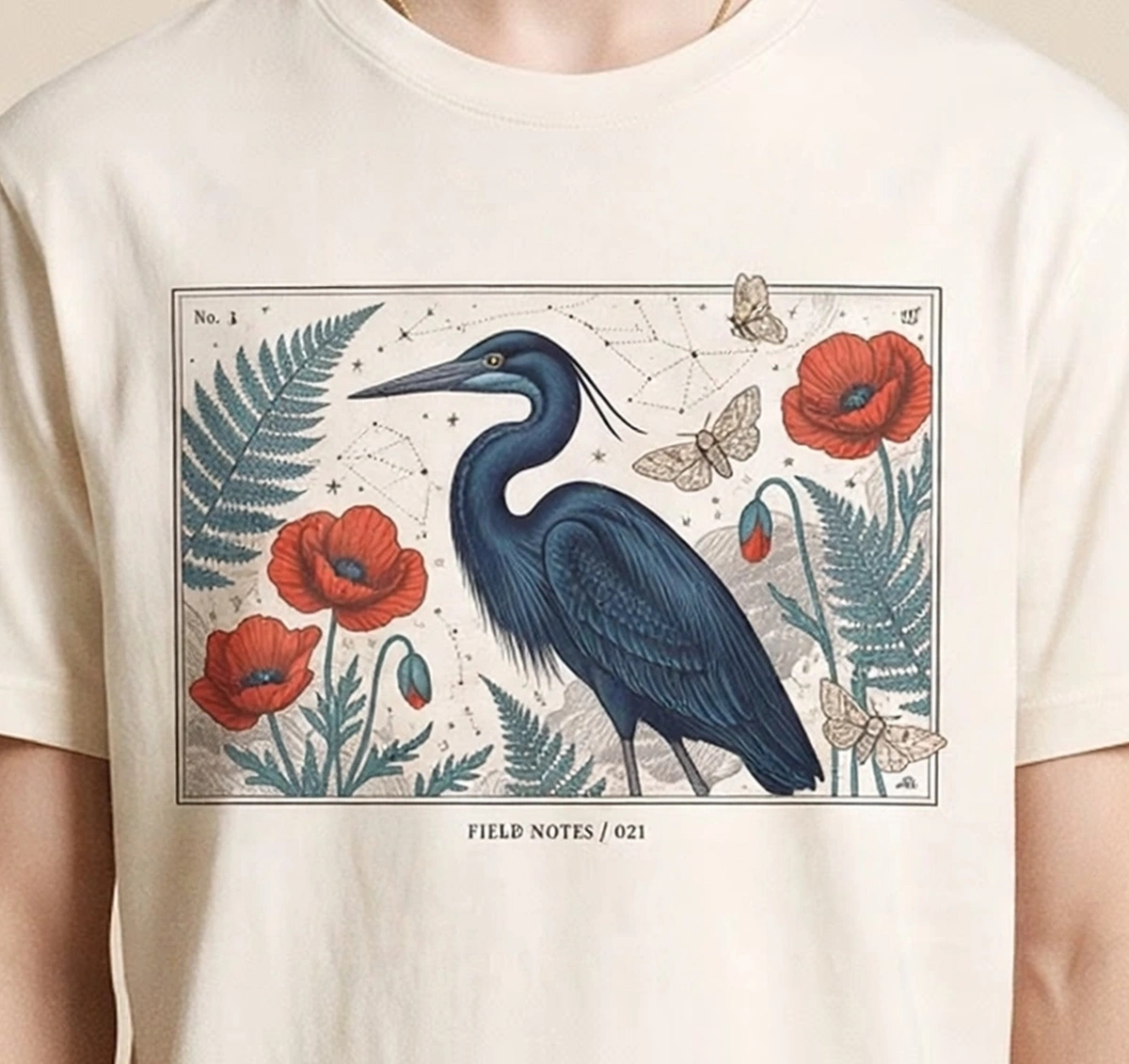
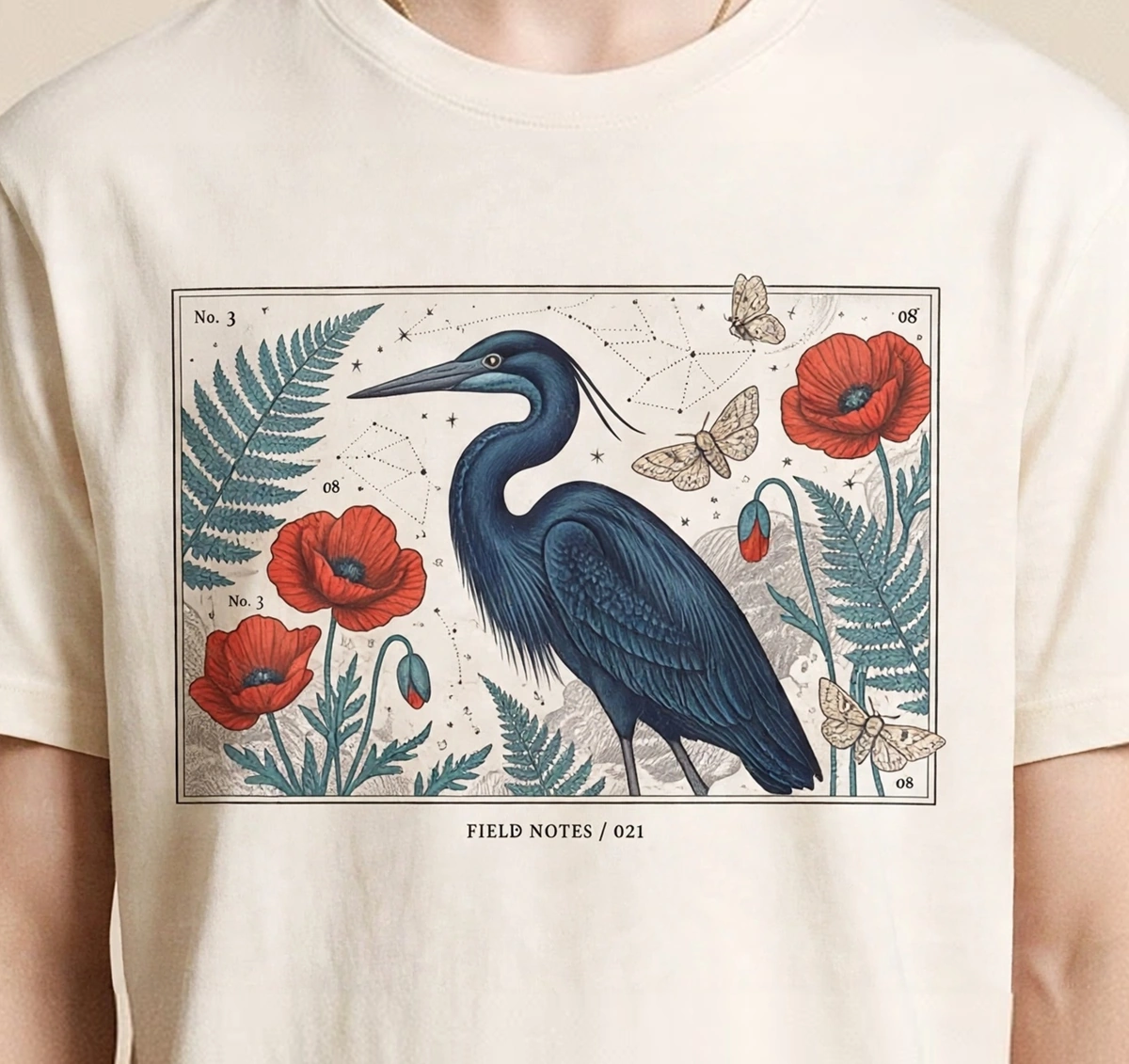
The featured example shows an additional refinement pass. The caption was already close before this pass; inspect the finer artwork and lettering changes against the product reference.
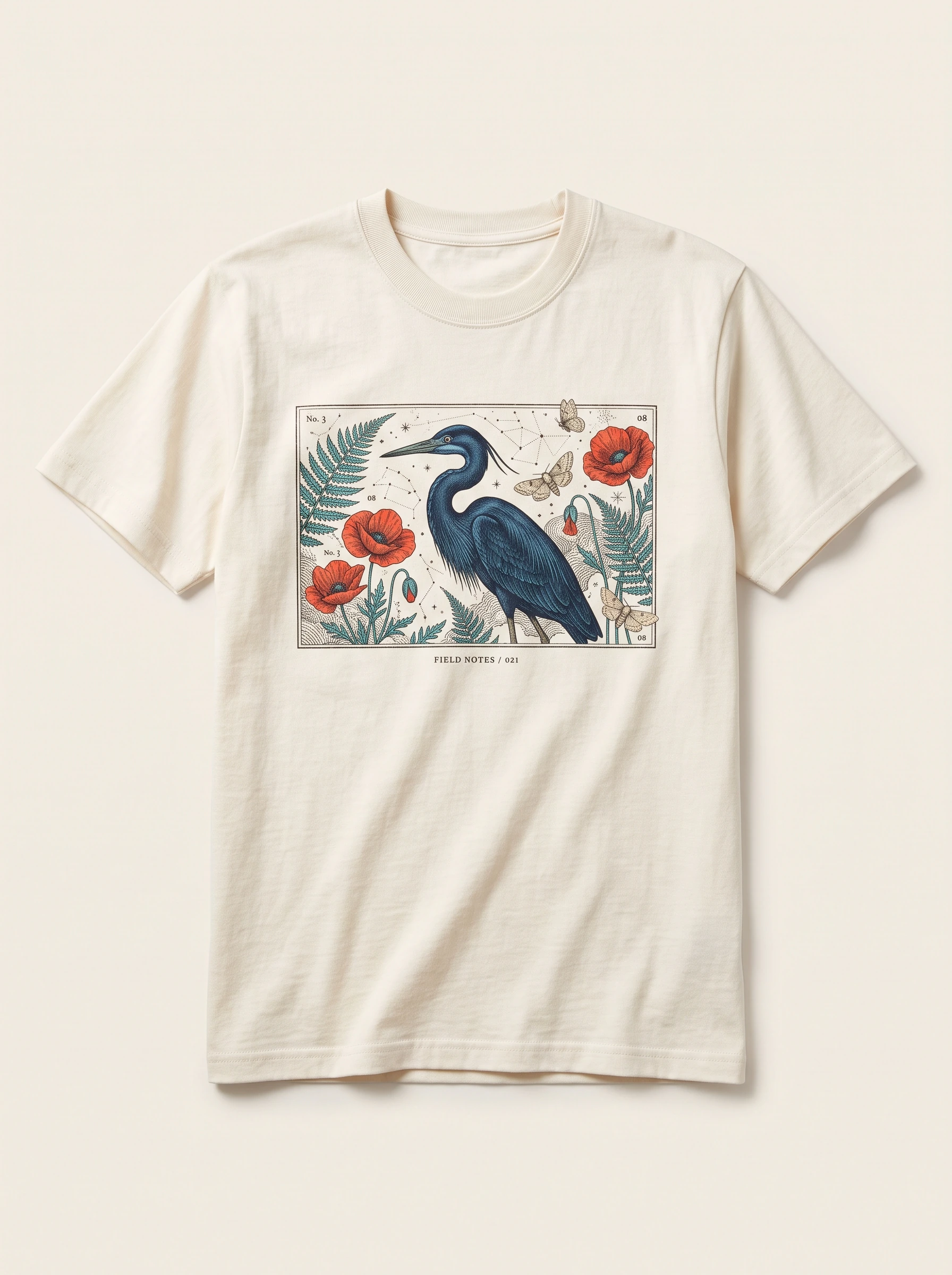
Complex print and small caption. Original fictional demonstration design; this product-only image is the input used for the on-model example below.
Fine print refinement · 2K setting
The before frame comes from an earlier refinement pass. This additional pass makes subtle changes to fine artwork and caption strokes; the wording was already close before this pass.
Botanical Atlas · matched detail
The same relative crop from this prompt’s before and finished frames. Switch to Scan line to inspect the difference.
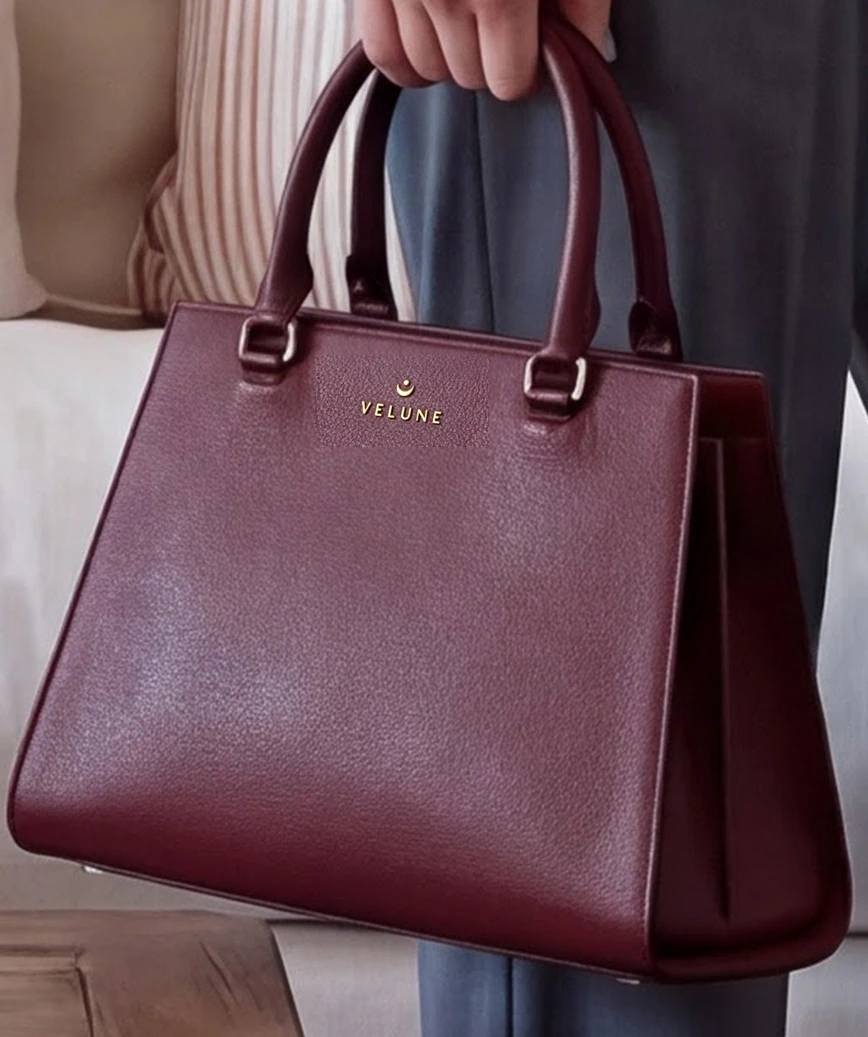
VELUNE: a small brass logo in a wide scene
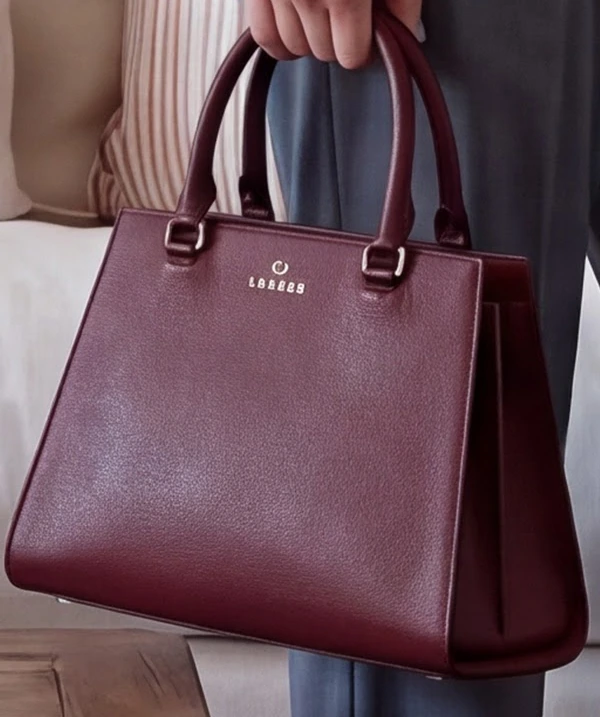
The oxblood handbag is carried through a furnished room, leaving its small brass lettering and crescent plaque at a natural scale. The before frame has malformed lettering; the finished frame reads VELUNE and restores the upward-facing crescent with its dot above. The full scene and matched crops show how small the detail is within the photograph.
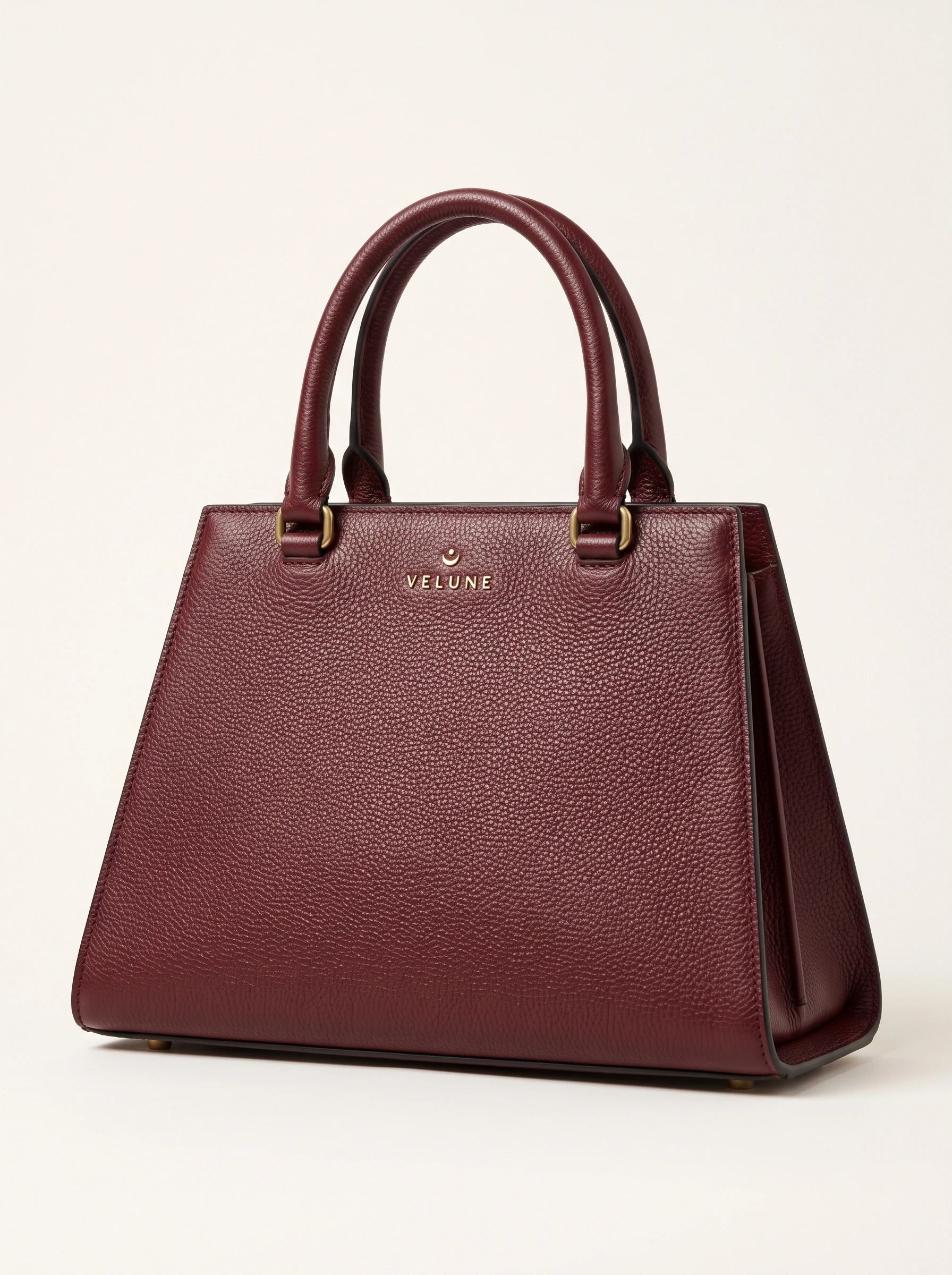
Brass lettering and crescent plaque. Original fictional demonstration design; this product-only image is the input used for the on-model example below.
Small plaque in a wide scene · 4K setting
The wide room view leaves the bag’s plaque small in the photograph. The malformed lettering becomes readable as VELUNE, with an upward-facing crescent and dot above it. Compare the brass shapes, spacing and leather against the product reference.

VELUNE · matched detail
The same relative crop from this prompt’s before and finished frames. Switch to Scan line to inspect the difference.

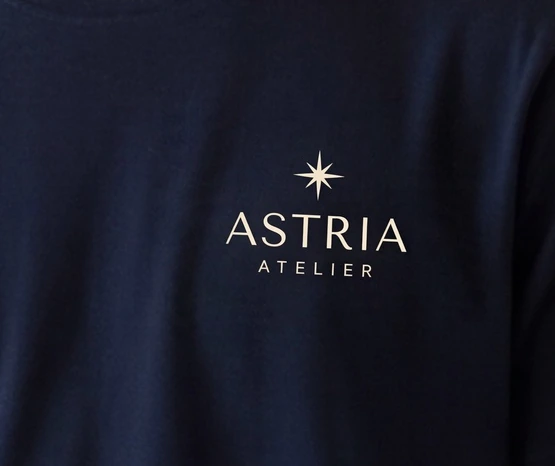
ASTRIA Atelier: a small printed logo
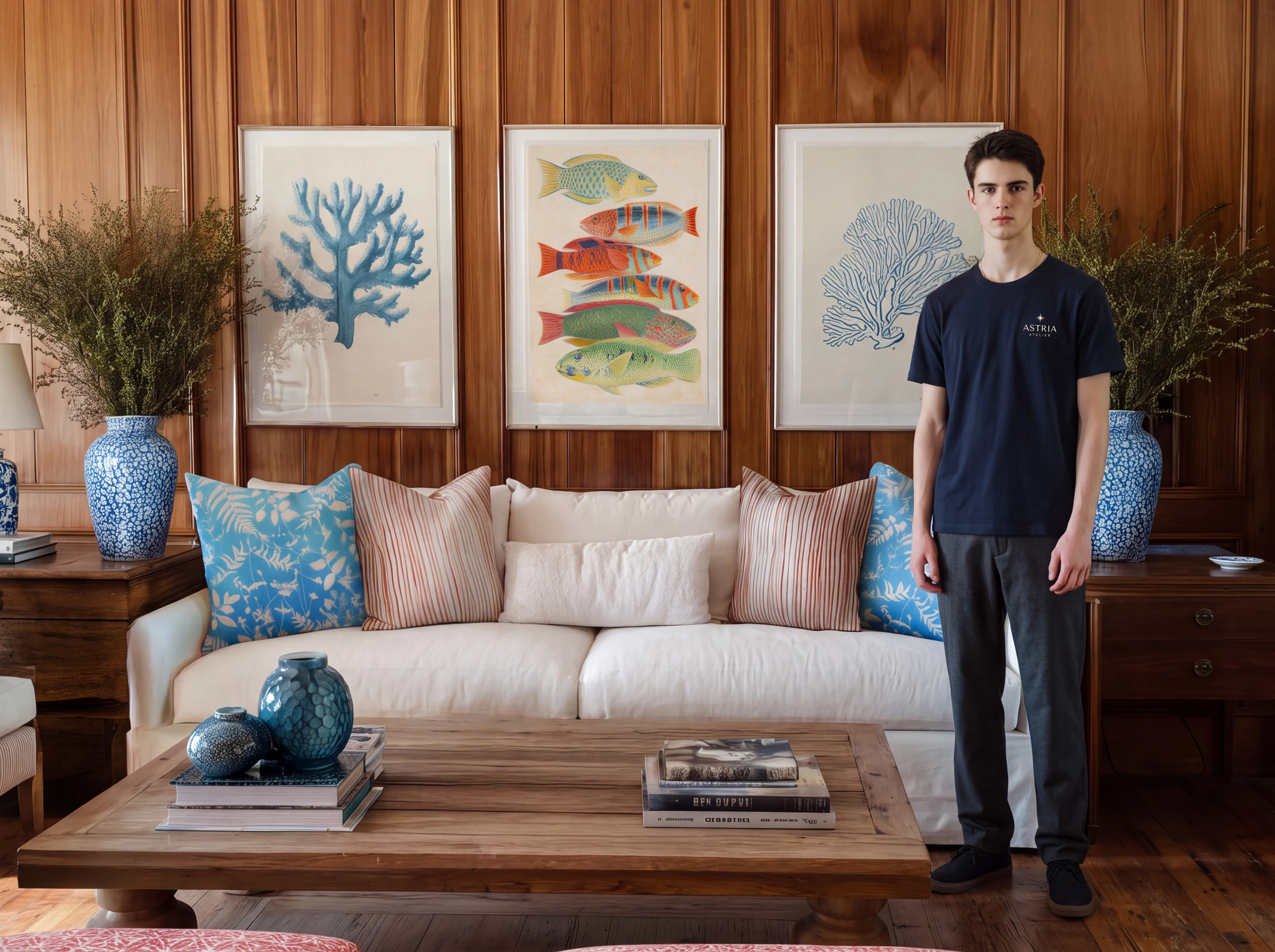
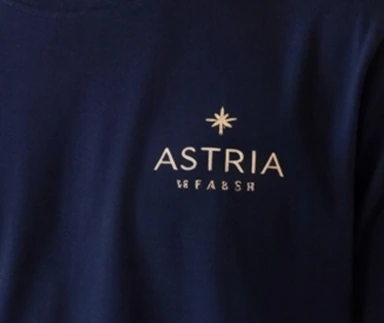
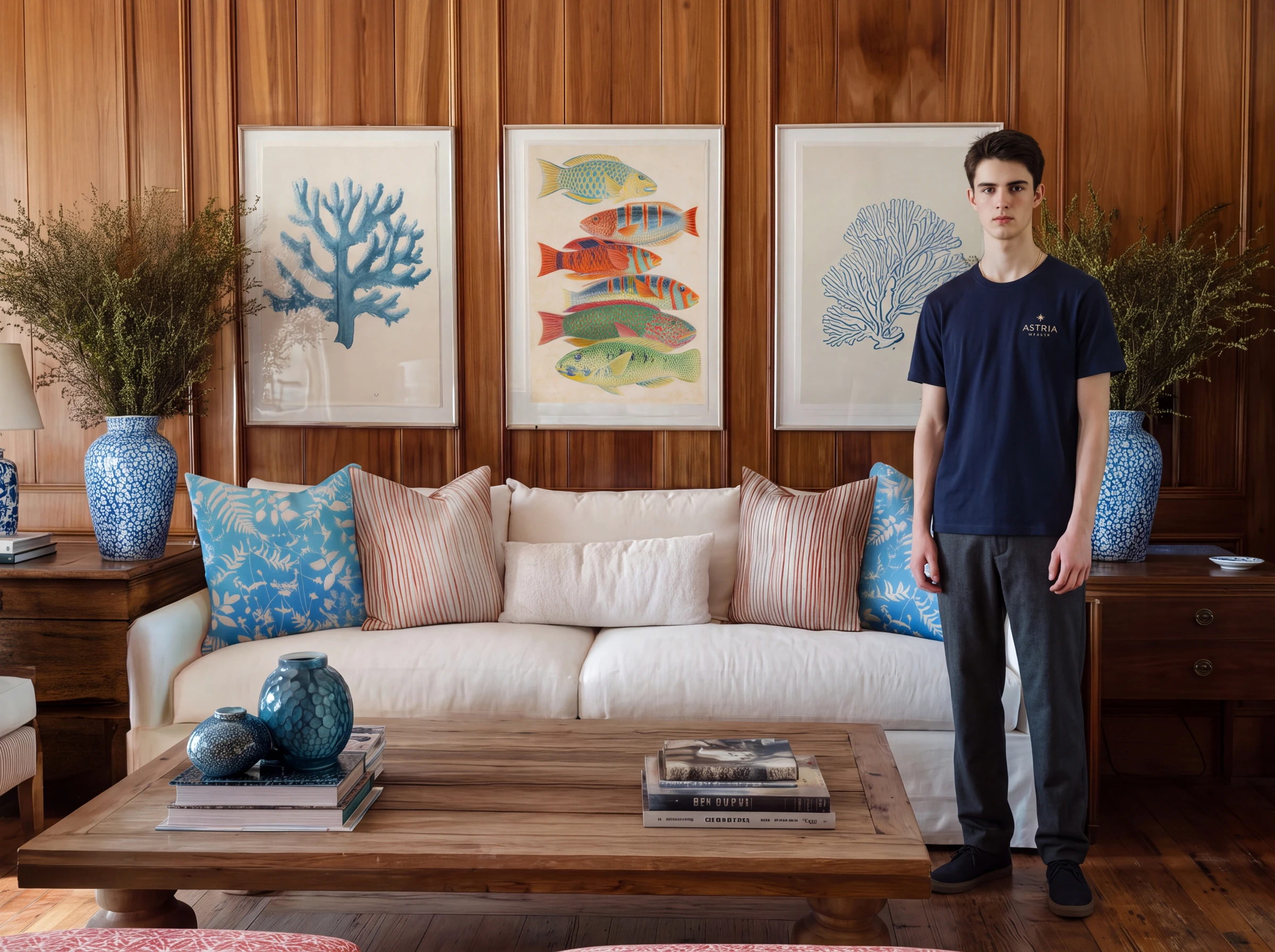
A small cream star and two lines of lettering sit on a navy shirt, worn in a wide room scene. ASTRIA is readable in the before frame, but the smaller line beneath it is garbled. The finished frame reads ATELIER. The full scene establishes the scale of the mark, while the matched crops make the distorted lettering and its correction visible.
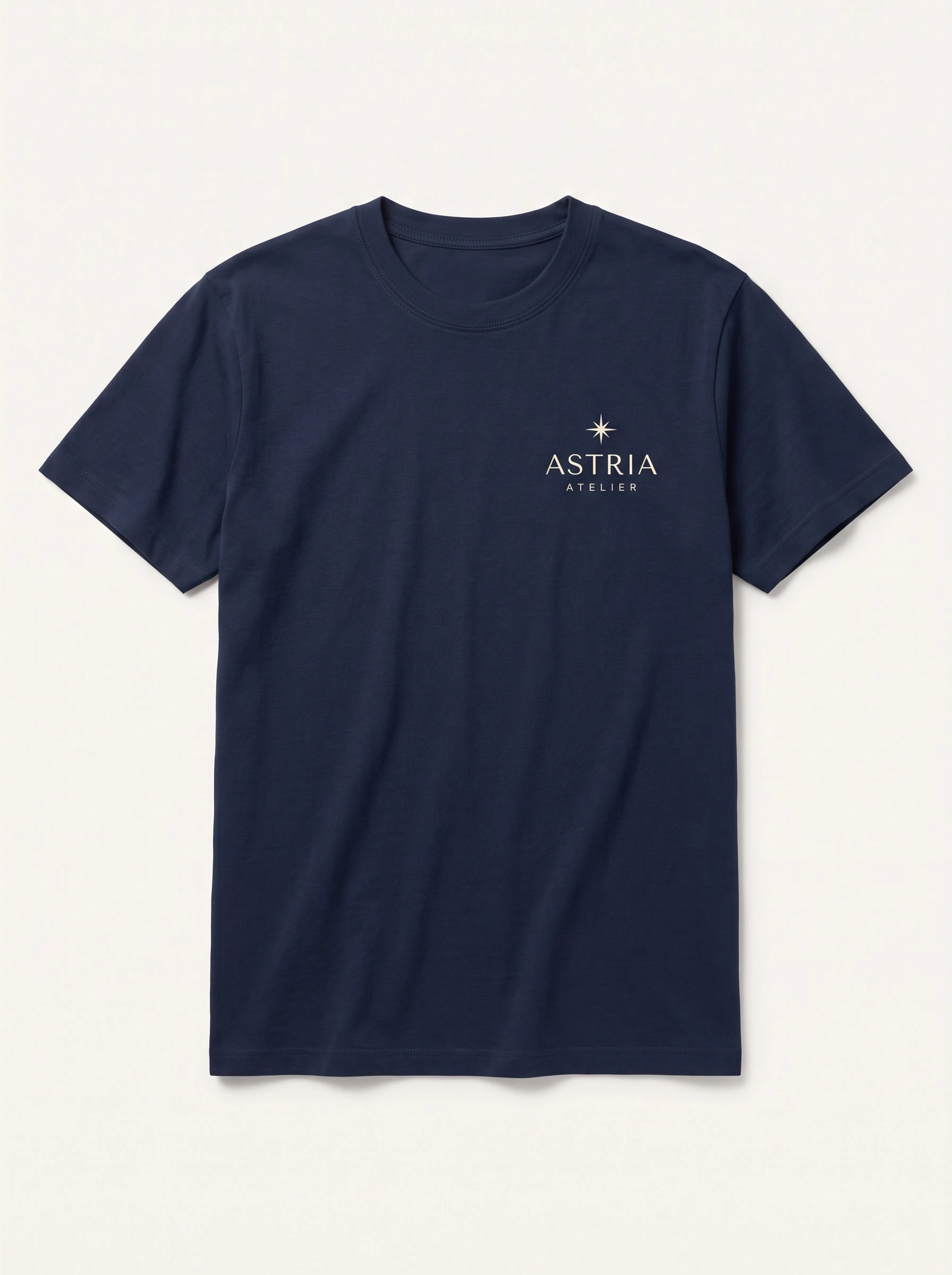
Small printed logo. Original fictional demonstration design; this product-only image is the input used for the on-model example below.
Small chest logo in a wide scene · 4K setting
The full room view leaves the chest mark small. ASTRIA is readable before Lynx, but the smaller line is garbled. In the finished frame it reads ATELIER, and the star and letter shapes are redrawn. Compare the complete mark against the reference.
ASTRIA Atelier · matched detail
The same relative crop from this prompt’s before and finished frames. Switch to Scan line to inspect the difference.
FIELD CLUB: woven emblem and ribbon lettering
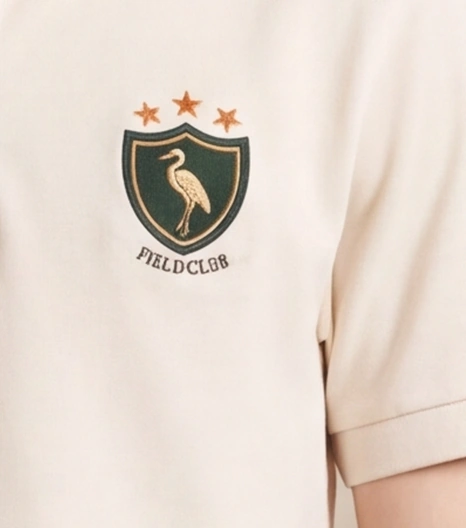
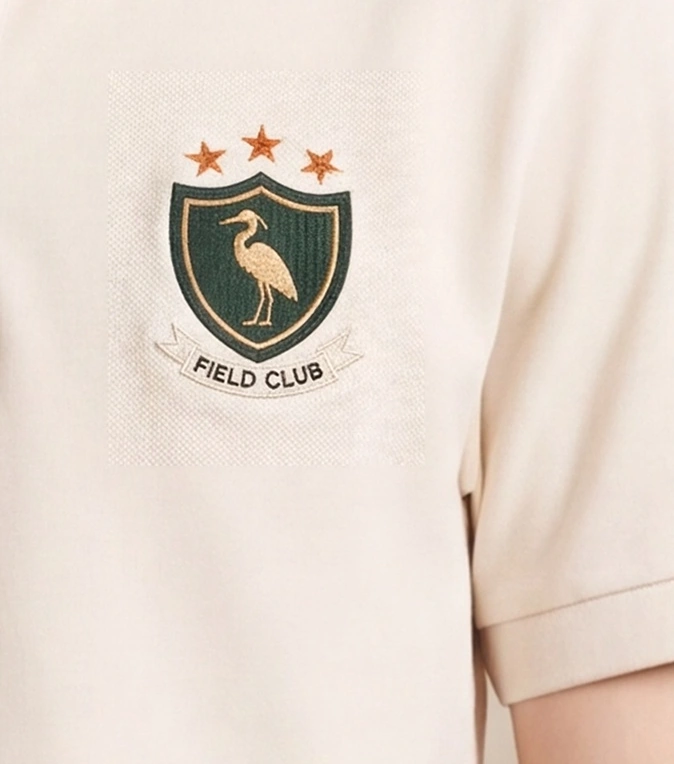
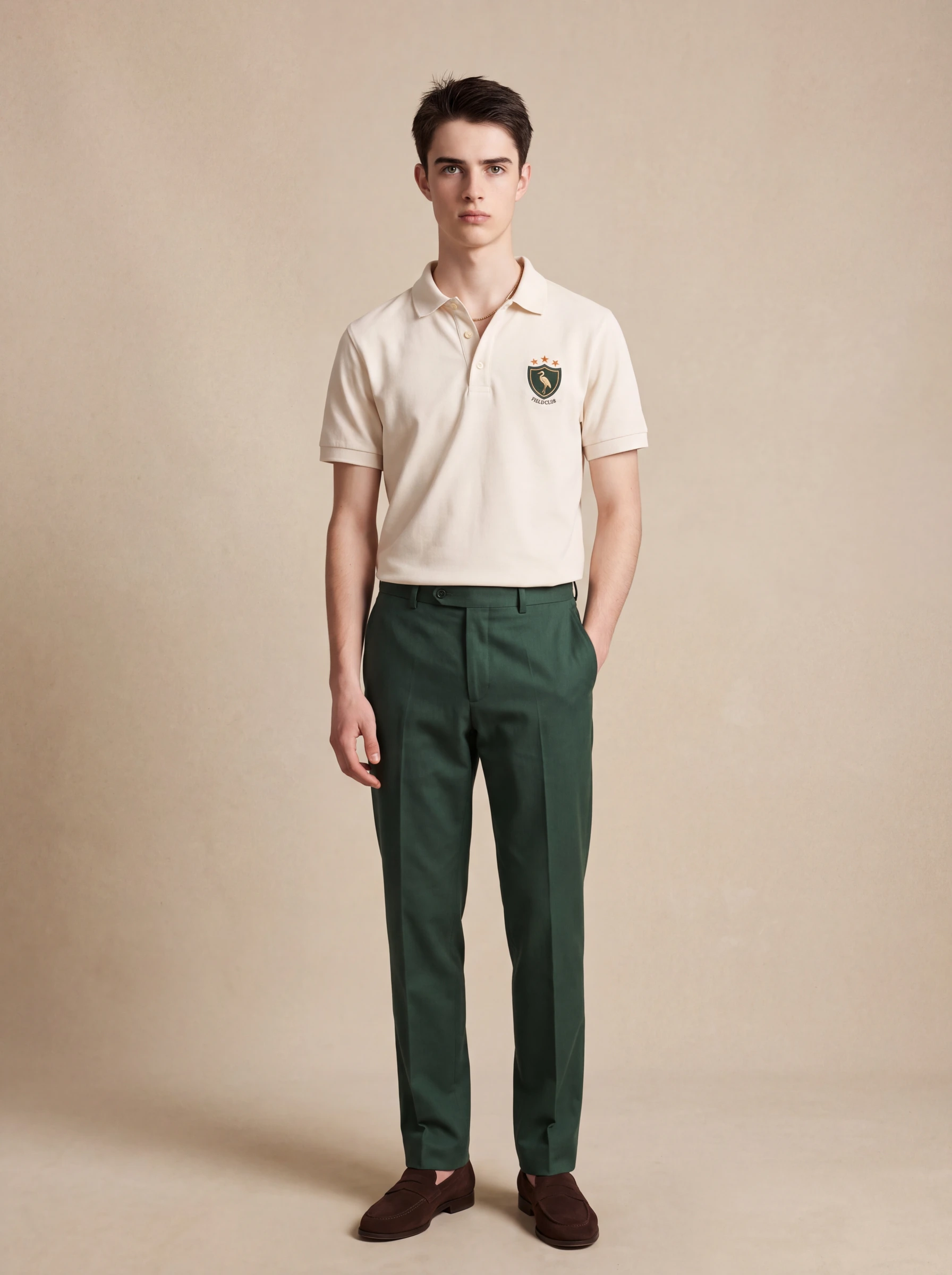
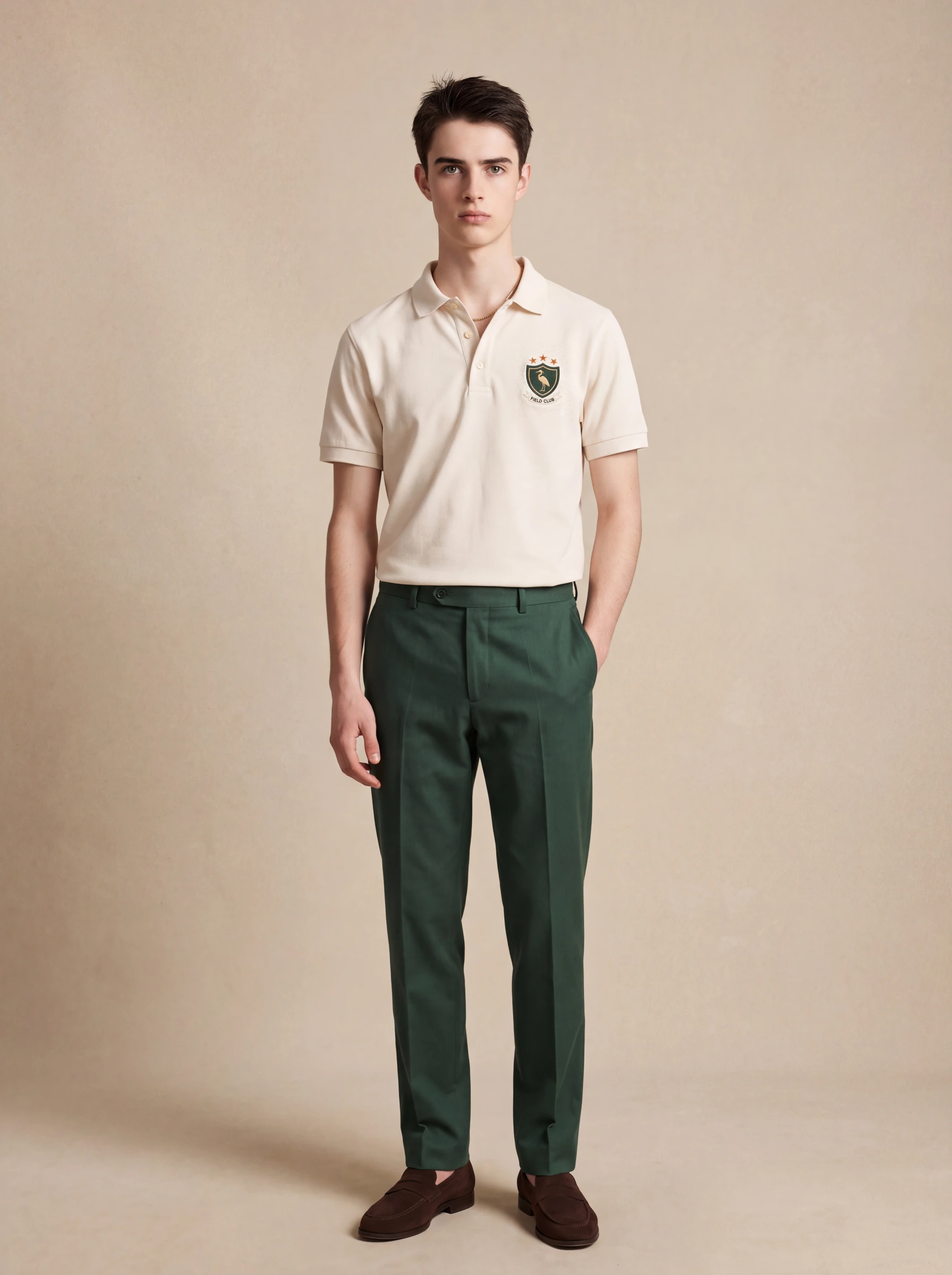
The ecru polo’s green shield, gold heron, three stars and small ribbon combine text with a textured emblem. The ribbon lettering correction turns distorted text into readable FIELD CLUB lettering. The shield and stitching are also reworked, so the review should include the emblem’s shape and texture as well as the words.
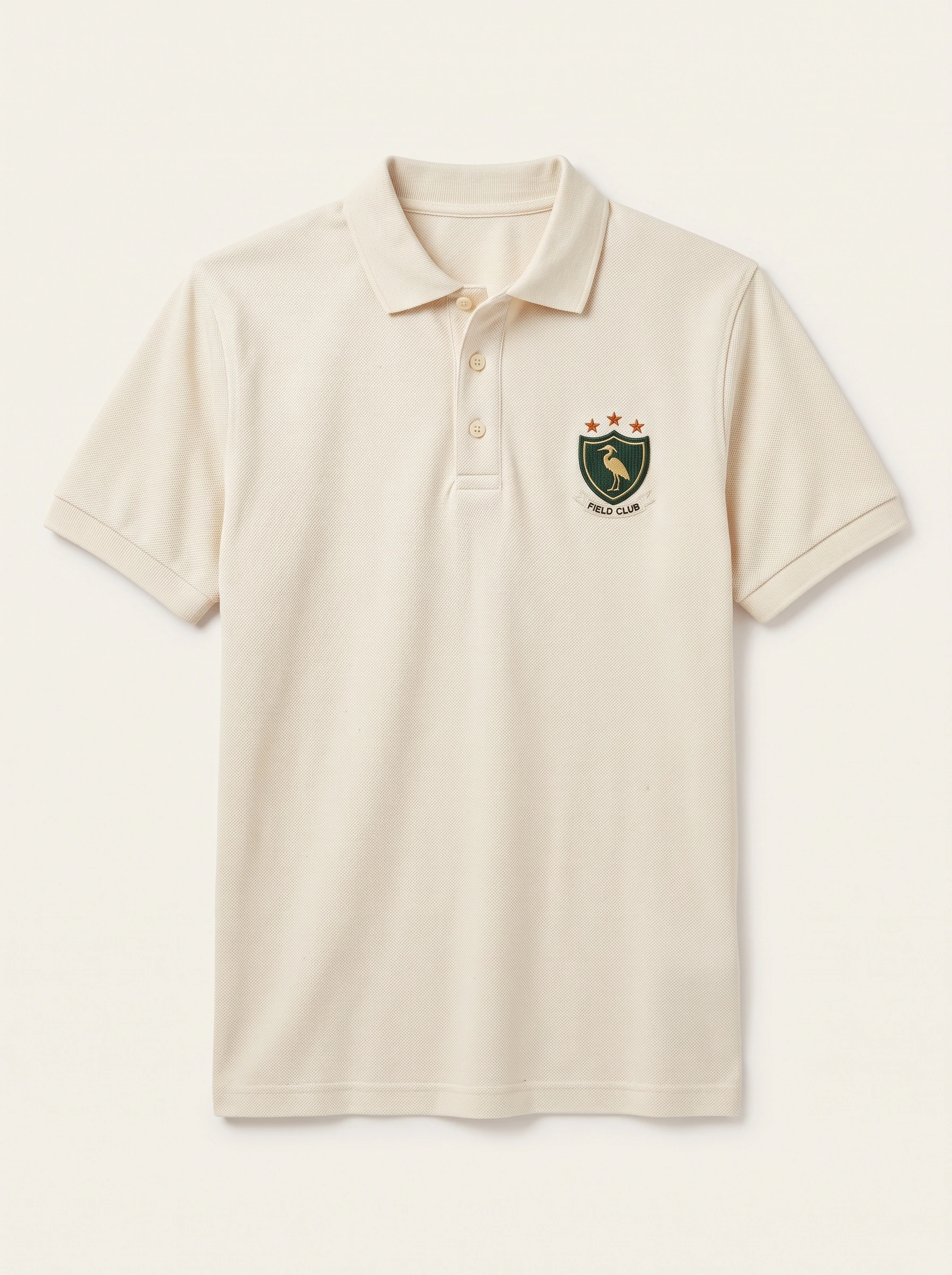
Woven emblem and ribbon text. Original fictional demonstration design; this product-only image is the input used for the on-model example below.
Ribbon lettering correction · 4K setting
The malformed ribbon lettering becomes readable as FIELD CLUB. The ribbon, heron and thread-like texture are also redrawn; their shapes still need comparison with the reference.
FIELD CLUB · matched detail
The same relative crop from this prompt’s before and finished frames. Switch to Scan line to inspect the difference.
What to check before approving a result
Compare the product to its source at two scales. At the intended publishing size, check the silhouette, color, print placement and overall appearance. In the detail view, check the exact wording, symbol, motif arrangement, label color and material around the refined area.
A corrected word does not by itself establish that the whole product is faithful. The Botanical Atlas comparison shows that fine artwork can change. A woven badge can become clearer while its heron or border also changes. Approve the complete product, not only the newly legible text.
If a detail is hidden, blurred or too small in the reference, supply a clearer view. If it is obscured in the generated shot, adjust the pose or framing and generate again with Lynx enabled.
Optional advanced control: manual Lynx areas
Most people can begin by enabling Lynx in the composer. Manual Lynx areas are optional, for cases where you want more control over which reference detail receives attention. They are not a prerequisite for generating with Lynx, and you do not need to manually retouch the finished image to use the feature.
Start with the automatic result and your reference check. Use the optional area controls when a specific detail needs more direction, then review the next result against the same source.
Frequently asked questions
How do I turn on Astria Lynx?
Attach your product references, open the composer’s cog wheel (Advanced options), enable Lynx, then Generate. Add a person reference for an on-model image.
Do I need to edit the image or draw Lynx areas first?
No. Lynx can refine product details automatically during generation, with no manual image edits required. Manual Lynx areas are optional advanced control.
What product details is Lynx for?
Lynx is for reference details such as logos, small text, complex prints, plaques, emblems, labels and fine product features. This demonstration covers a printed shirt, a small chest logo, a woven badge, a woven bag label and a brass handbag plaque.
Will Lynx reproduce every detail perfectly?
Results vary. Check the finished image against its product reference, including wording, symbols, print geometry, color and material. Some examples show clear corrections, while others show subtle changes.
Try Lynx with your products
Open Astria and enable Lynx to try the workflow with your own product references. For current rates, see Astria pricing.