Mockup Lab: Shirt and Bedding Mockups for Ecommerce
Astria’s Mockup Lab applies an artwork file to a surface in an image. Generate the photograph with a plain product surface, open the finished image in the lightbox, then select Mockup. Upload your print, select the object, and adjust its scale, position, wrapping and finish before saving or downloading.
For an apparel brand, that can mean placing a shirt graphic and its small caption on an on-model photograph. For a home-textile brand, it can mean applying the approved fabric repeat to a duvet cover and matching pillowcase while keeping the sheet plain. Those are the two lead examples below; packaging, a cup and a throw follow as secondary applications.
Start with a shirt print and a bedding collection
These two examples show the files an apparel or bed-linen team needs to keep separate: the approved photograph, the print master, and the finished composite. The shirt base uses the shirt reference on /mockup-lab. The bedroom and cotton-throw settings are new fictional scenes generated from original, locally authored scene references in Astria’s Articles workspace. The printed designs are original fictional demonstration artwork. They illustrate the workflow; they do not establish the appearance of manufactured merchandise.
Shirt: apply the graphic and check the smallest caption
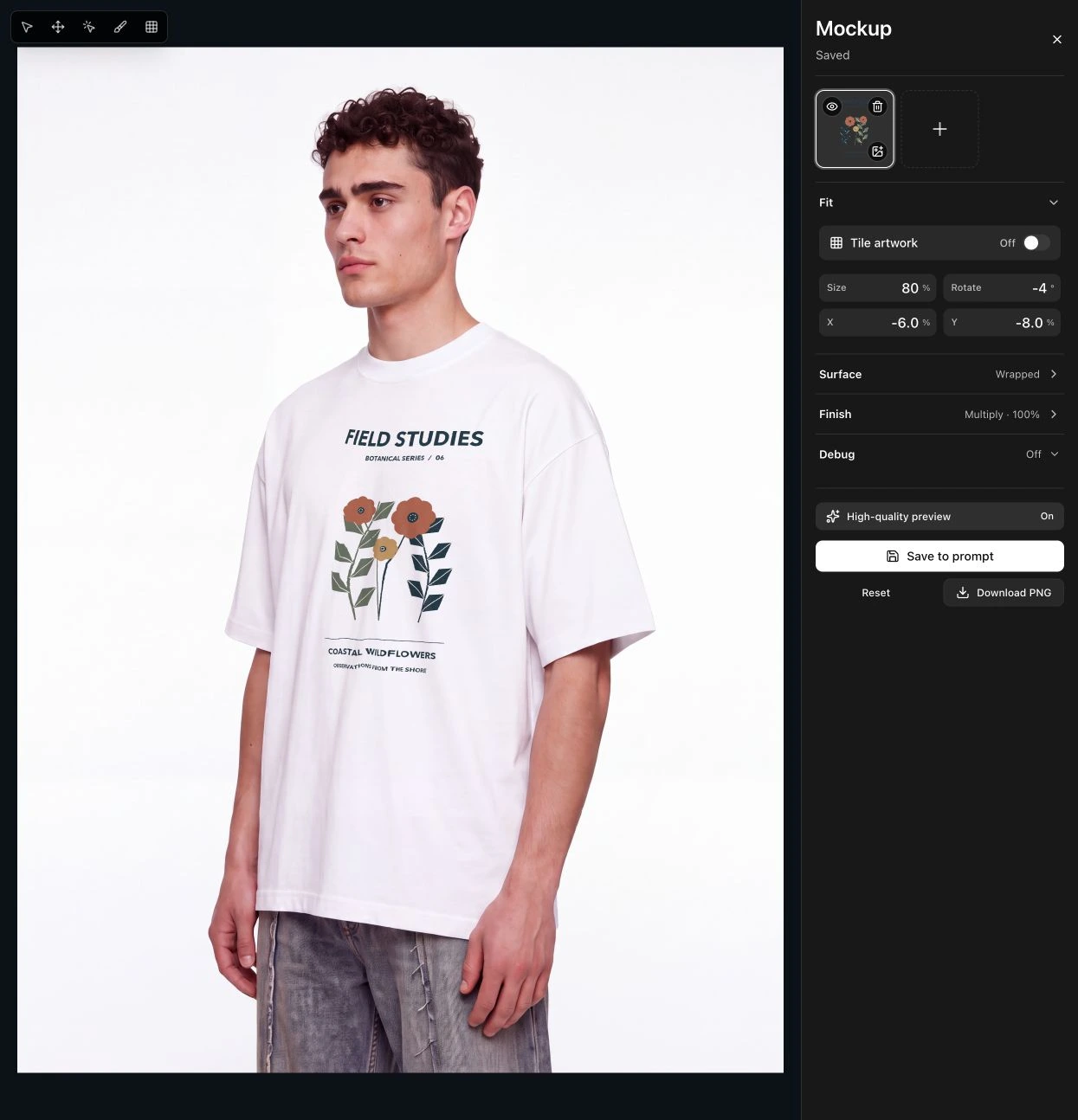
The shirt example uses a pocketless demonstration variant of the sample’s white T-shirt on the same model, then places a botanical graphic with the heading FIELD STUDIES and several smaller lines. The base establishes the garment, person and lighting. The supplied transparent artwork establishes the illustration, wording and relative spacing.
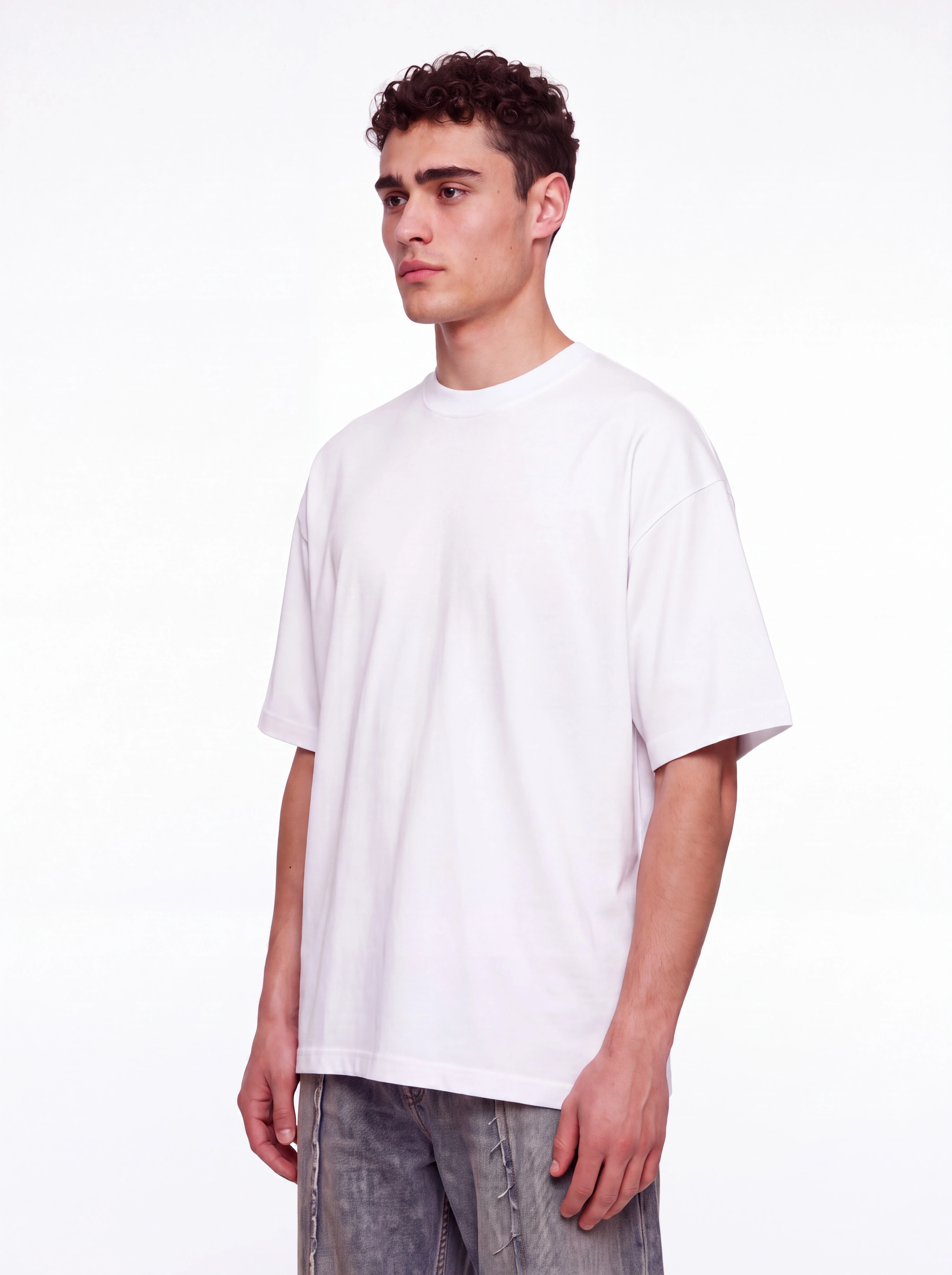
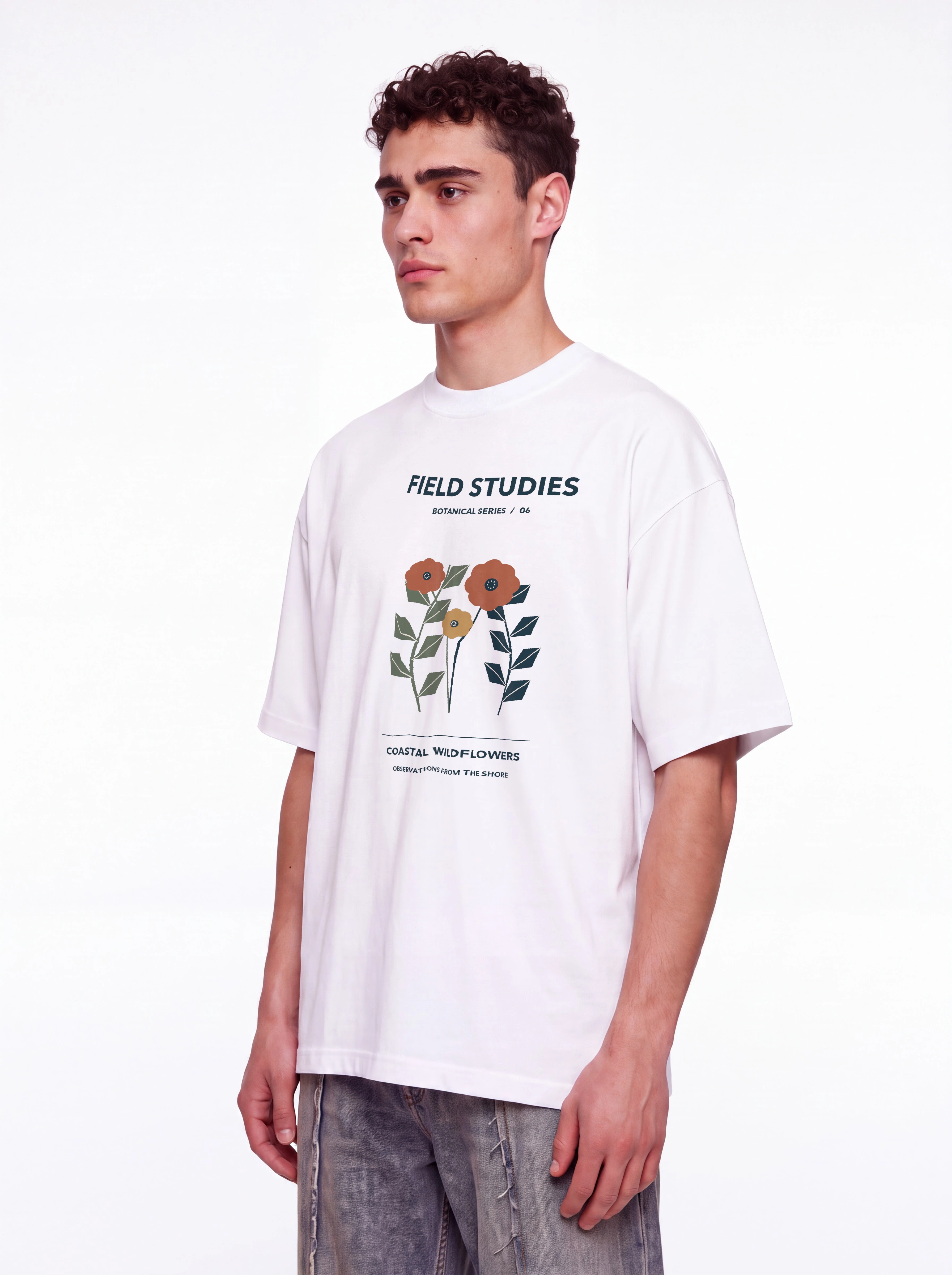
Use Tile artwork off for a front graphic. Select only the garment, set its size and position in Fit, and keep the print inside the actual printable panel. Inspect the neckline, sleeves, side seams and hem as well as the art. Changing the print does not correct an incorrect shirt cut. In this example, Rotate −4°, Move X −6% and Move Y −8% center the graphic beneath the collar and align it with the shirt front. Those values belong to this image; use the garment’s center and seams to position your own print.
This is also a practical route when a Nano Banana photograph looks right but a printed caption is wrong: generate the fabric plain and apply the approved file. Do not increase the print beyond the manufactured size just to make the text readable. Supply a closer product-detail image when needed.
The tested build reversed this shirt’s artwork after surface processing. For the published wrapped result, a horizontally flipped upload copy compensates for that reversal; the final export is checked against the upright master. Keep this correction specific to the affected image, and check again if the mapping changes. The master artwork and print-production file stay upright. No lettering was retouched in the exported photograph.
Bedding and linen: print the duvet and pillowcase as separate pieces
A bed-linen brand needs more than a pattern filling a bedroom photograph. The duvet cover and pillowcase must carry the right repeat, at a believable scale, while the fitted sheet, wood frame and other fabrics remain as specified for the set.
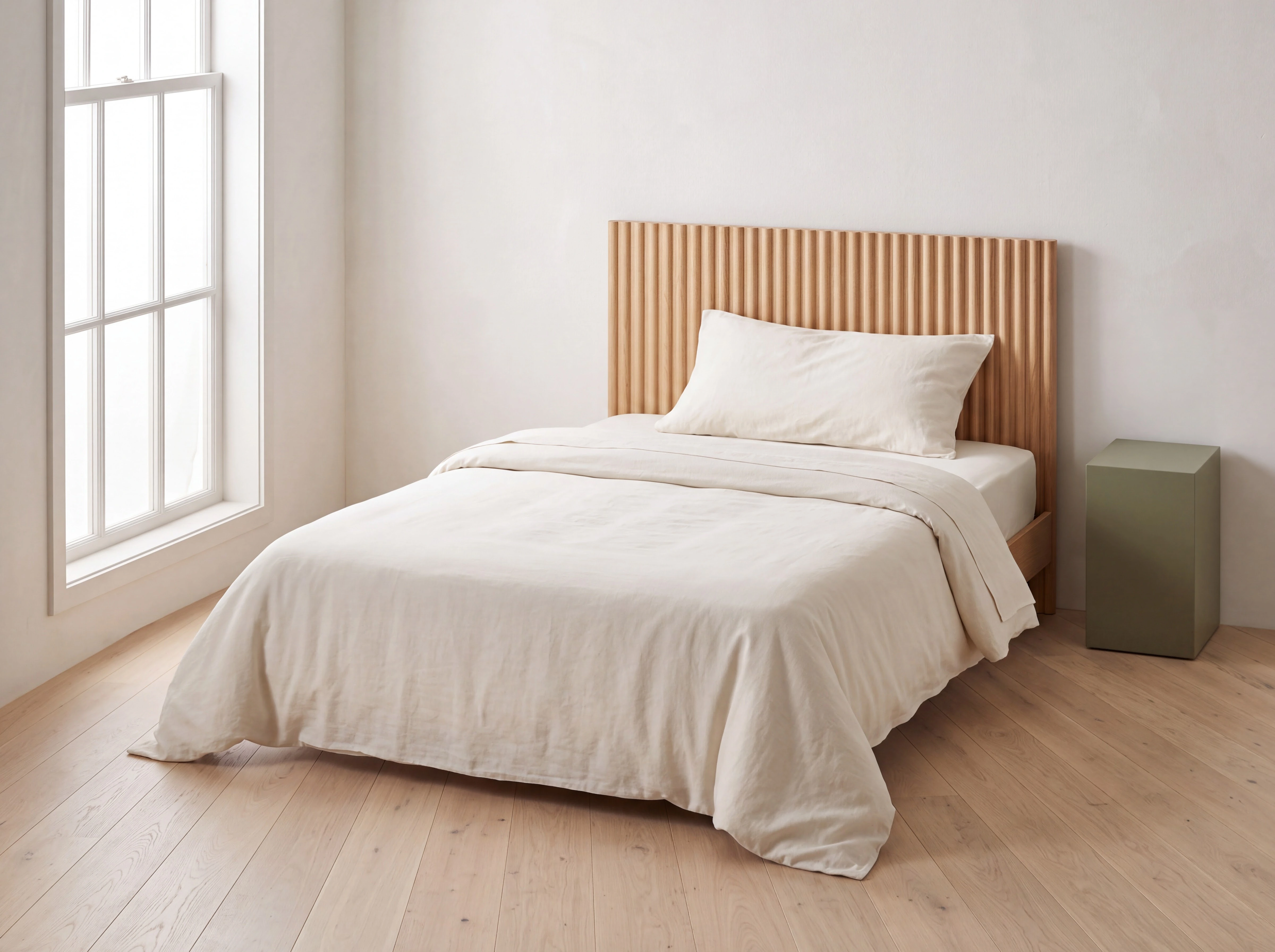
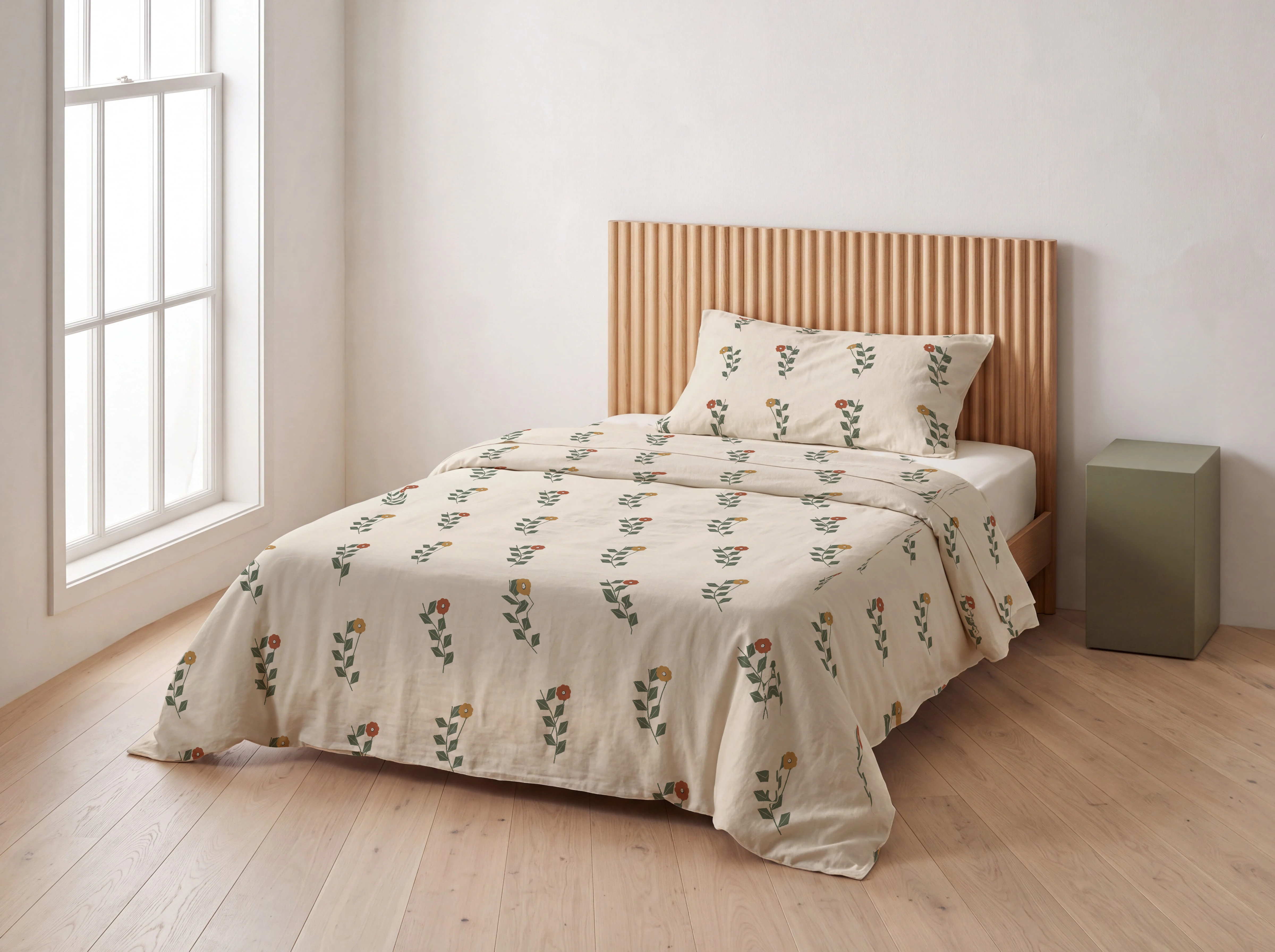
Add the repeat, select the duvet cover and leave Tile artwork on. Refine the mask around the folded-back edge and the bed frame. Use Add pattern again for the pillowcase, with its own selection, size and rotation. Match the apparent motif size across the two pieces using their real dimensions or a sample photograph; matching slider percentages alone does not establish matching physical scale. Adjust each piece independently; a slider value belongs to that particular selection, not to every bed.
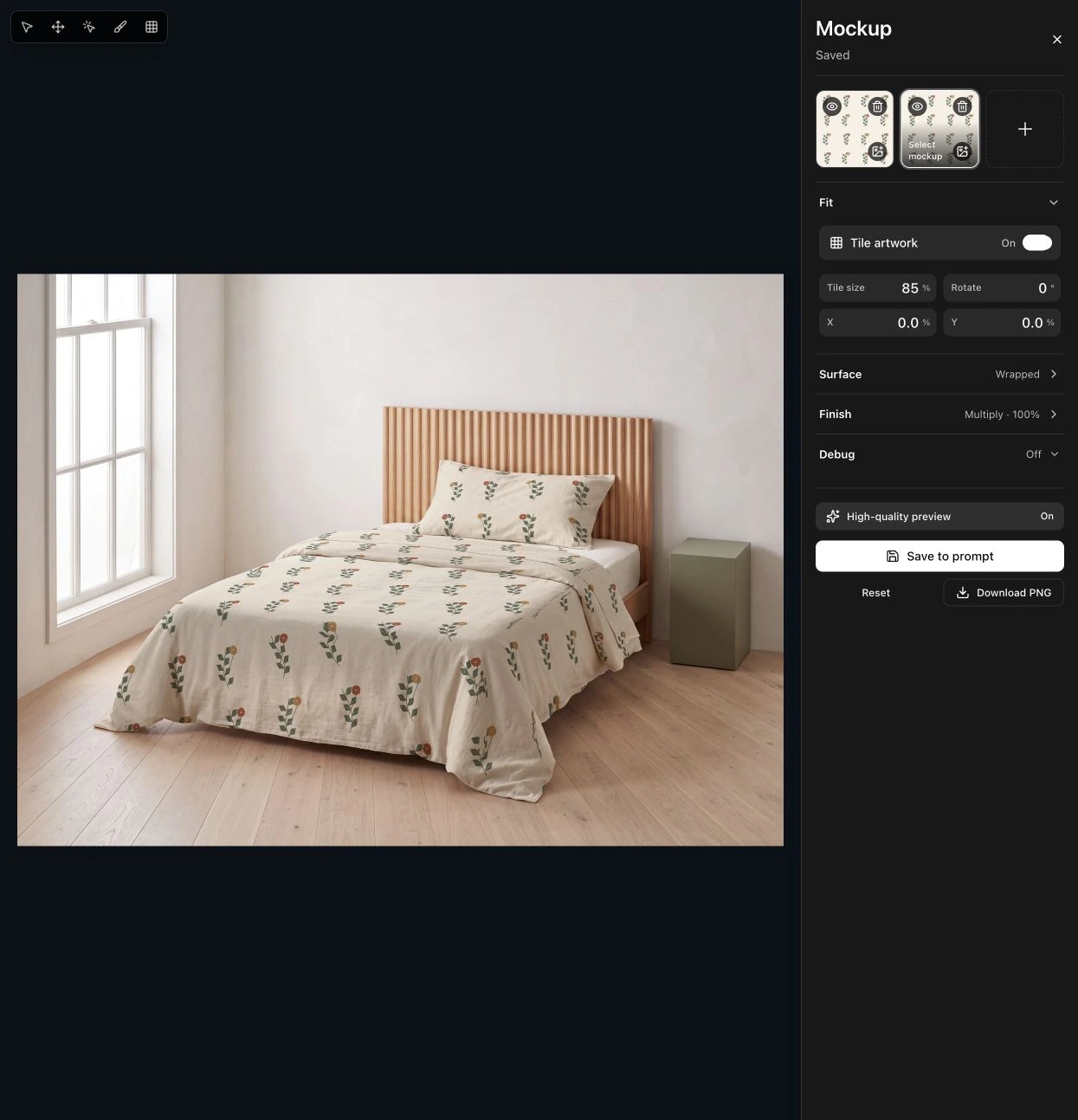
Keep the pillow and duvet as separate cloth pieces. Their prints do not need to align continuously across the gap. Check motif direction at the fold and whether the real reverse face is printed or plain. For another colorway of the same set, change the artwork and review the placement again; for a different duvet size or fabric weight, start with a suitable base.
Source files for these two examples
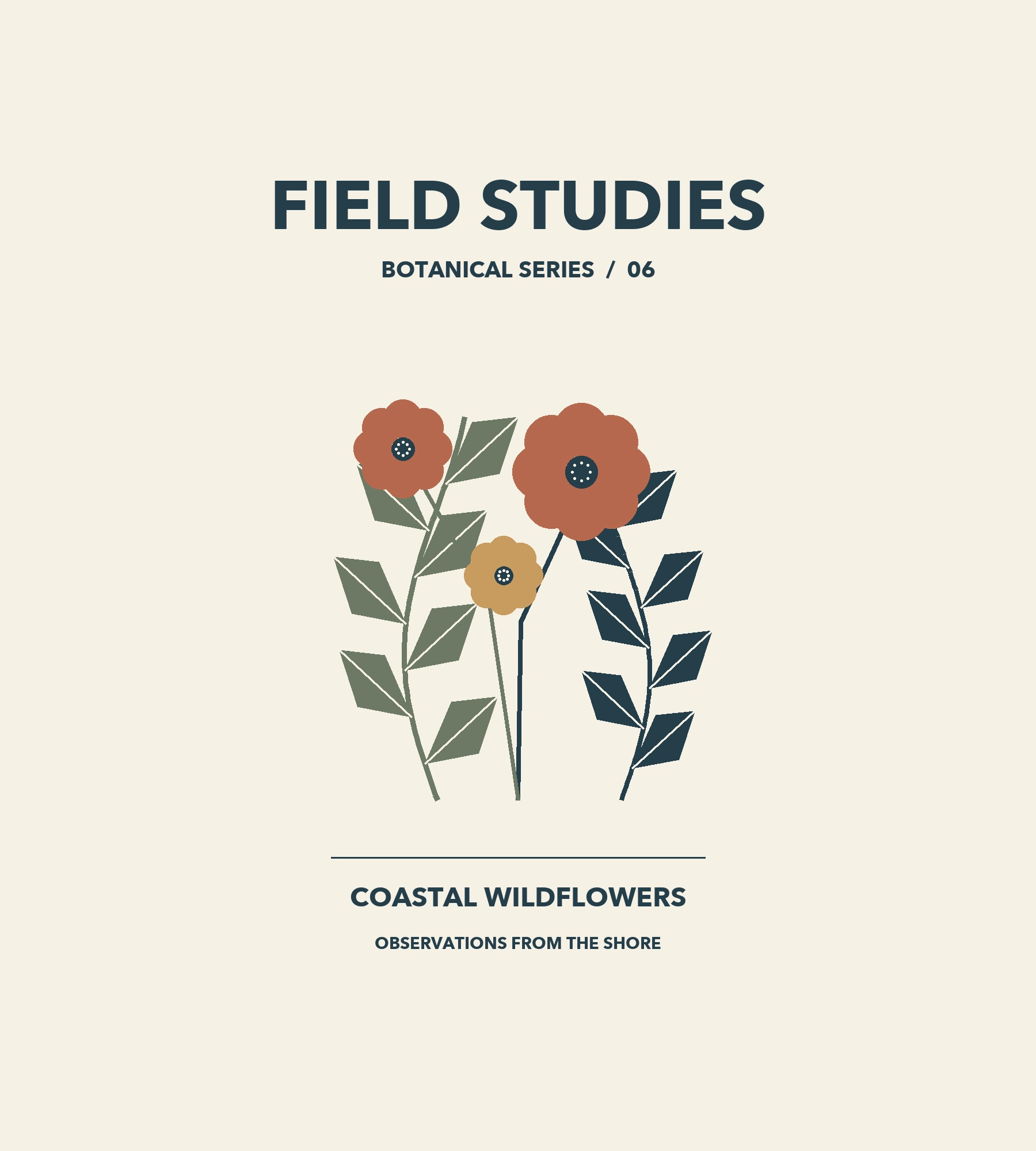
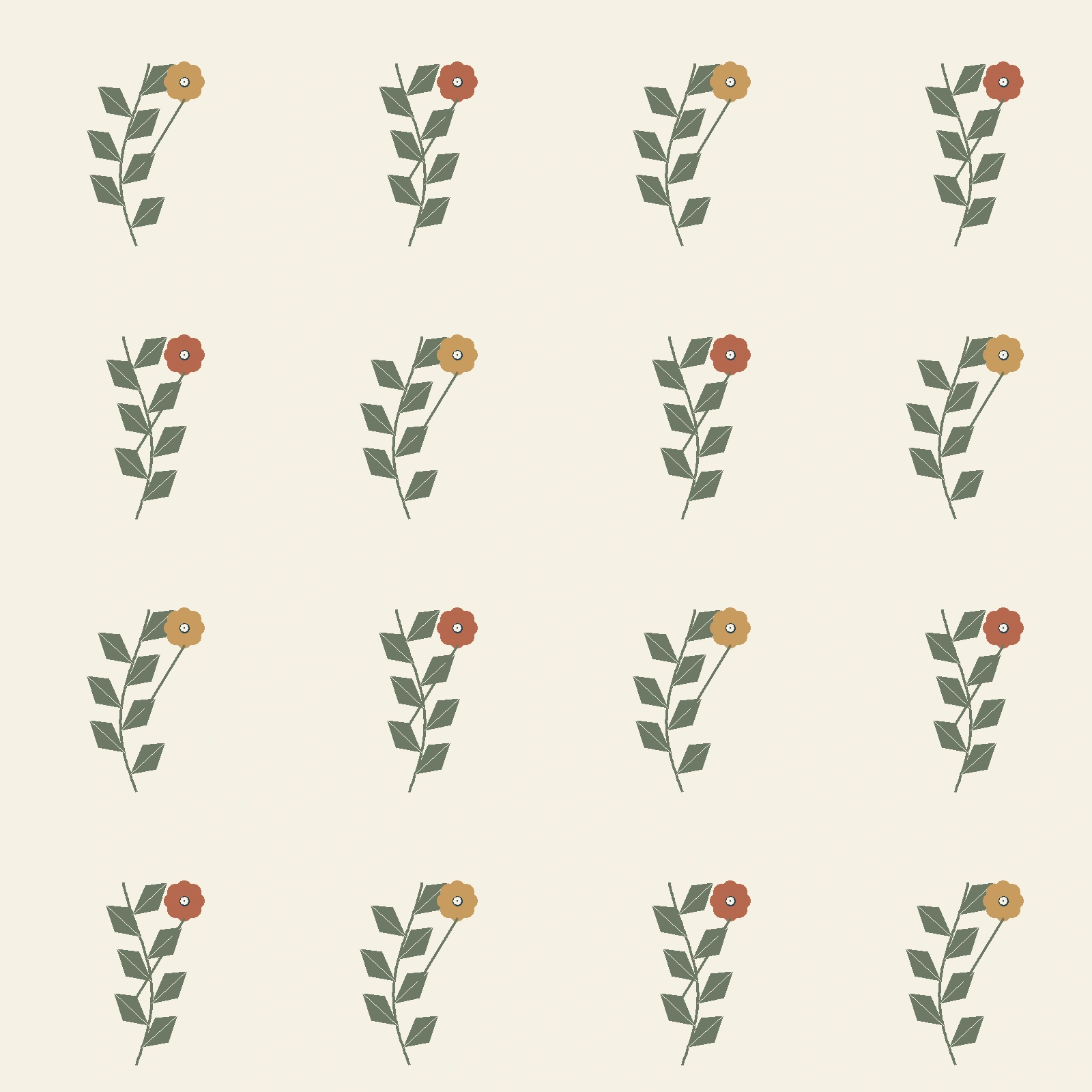
Download the shirt artwork master, the reversed shirt upload used for this wrap, or the linen repeat. Use the upright master to judge the finished lettering and illustration.
Why separate the photograph from the print?
A product image has two different kinds of detail. The photograph establishes the garment cut or bedding construction, material, pose and lighting. The artwork establishes the exact lettering, symbol, illustration and repeat. Treating them separately lets you adjust the design without asking an image model to redraw the entire scene.
If a Nano Banana result has a misspelled small caption or an altered motif, supplying the artwork to Mockup Lab gives you direct control over that printed area. The compositor uses your image file as the print; you position and wrap it on the selected surface. It still resamples, shades and distorts that artwork to fit the photograph, so check the export. Very small letters can become unreadable even when the source file is correct.
Google’s image-generation documentation recommends a staged approach when generating text in images: prepare the wording before asking for the image. For existing brand typography, the workflow here goes further by bringing in the approved artwork itself. This is a production choice, not a claim that every Nano Banana output has the same failure.
For an ecommerce brand, the question is whether a customer can identify the actual variant. A convincing room image with the wrong duvet repeat is still the wrong product image. A shirt with almost-correct lettering may represent the wrong collection. Keep the design file and a photograph of the manufactured item available during review.
How to open Mockup Lab after generating an image
The working path is:
Generate → click the finished image → lightbox → Mockup → Add pattern → click the surface → adjust → Save to prompt or Download PNG.
Step 1: Generate a plain surface from your product reference
Open the Astria composer, attach a sharp product reference and describe the photograph. If a person wears or holds the product, attach the appropriate person reference too. Ask for the target surface to be plain and unprinted while preserving the construction and material.
For an on-model shirt mockup, with the shirt and person reference attached:
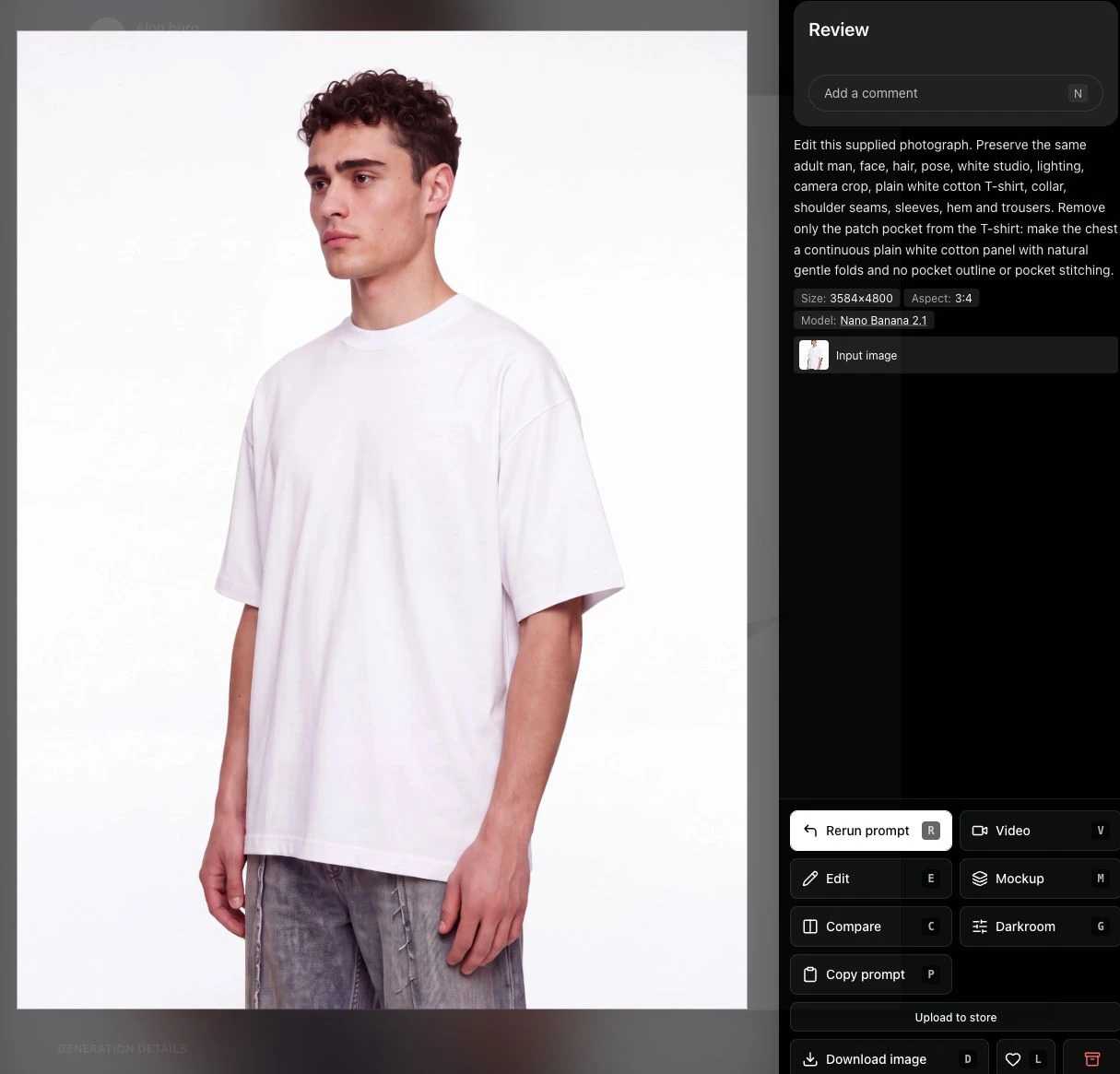
Using the supplied person and shirt as references, make a close ecommerce lookbook photograph from the head to just below the hips. Use a plain pocketless white cotton T-shirt; preserve the chosen product’s cut, dropped shoulder, ribbed neck and stitching. Relaxed three-quarter stance, arms clear of the shirt, white studio background, soft daylight. Keep the fabric plain white and unprinted, with gentle visible folds.
For a bedding mockup, with the bed-linen reference attached:
Using the supplied bedding photograph as the reference, preserve the duvet cover’s dimensions, pillowcase, seams and fabric drape. Show the complete bed at a three-quarter angle in the same softly lit room. Keep the duvet cover and pillowcase solid ivory and unprinted, with broad gentle wrinkles. Keep the fitted sheet plain ivory and the duvet unobstructed.
These instructions deliberately remove the print during scene creation. Review the base before proceeding: an unwanted pocket, changed collar, wrong duvet drop or missing pillow seam will not be repaired by applying artwork.
Choose a view that exposes the area you need. A hand over a shirt graphic, a deep crease through a wordmark, or a tiny product in a wide room leaves little useful space for the print. Use a closer photograph when the design must be readable. Generate at a sufficiently high resolution for your intended crop; a larger export cannot recover information absent from the source.
Step 2: Click the finished image to open the lightbox
Open the generated result itself. In its lightbox action panel, select Mockup. The keyboard shortcut is M while you are in the image viewer.
The Mockup Lab sample page is useful for trying different surfaces. Its Open in lab buttons open prepared examples, already selected and printed with a checker. Your own generated image starts with the surface selection and artwork you supply.
Step 3: Choose Add pattern, then click the surface
Select the plus button, Add pattern, and choose your artwork image. For an isolated logo, use a PNG with a transparent background. For an all-over fabric design, use a seamless repeat tile. Flatten vector artwork to a sufficiently large raster image before uploading; the workflow shown here uses PNG files.
Once the artwork is ready, click the object in the photograph. The first selection may take longer while the selection model loads. Inspect the outline before judging the print.
Use Mark to refine the selection: click to include more of the object; Shift-click the background to exclude it. Brush adds to the selected area and Eraser removes from it. Keep the model’s skin, trousers, bed frame, fitted sheet and unprinted trims outside the selection. A print spilling onto a hand is a selection problem, not a problem with the artwork. Use a separate Add pattern layer for a matching pillowcase so it can have its own selection and placement.
Step 4: Set the print size and placement in Fit
Open Fit. Switch Tile artwork off for one shirt graphic, logo or label. Leave it on for a repeating design. This distinction matters: a brand mark should not unexpectedly become an all-over print.
Adjust Size or Tile size, Rotate, Move X and Move Y. The Move tool also lets you drag the print; its frame supports resizing and rotation. Use the numerical controls when you need smaller adjustments.
For a repeat, match the manufactured product’s motif scale before deciding whether it looks attractive. If a motif measures 6 cm across a 60 cm visible span of fabric, roughly ten motifs should fit across that span before perspective and folds compress them. This is a visual check, not a physical measurement built into the editor. Use a sample photograph to verify it.
Step 5: Follow the surface, then adjust the finish
Open Surface and keep Wrap to shape enabled to make the artwork follow the object. Begin with Shape: Auto. If the result misreads the surface, try Rigid for packaging, Soft for loose cloth, or Draped for broad surfaces with creases, such as a made bed or cushion.
Let shape processing finish before evaluating folds. If the app reports that shape reading failed, inspect the flat placement carefully; it is not evidence of a successful wrap. Follow surface, Lens angle and Depth range provide further adjustment, but start with selection and print scale. Increasing distortion cannot correct an incorrectly selected object.
Use Selection edge for a small outline correction. Shrinking pulls artwork inward; expanding extends it beyond the detected edge. Use the brush for a local mistake around a finger or seam instead of expanding the entire outline.
In Finish, choose the blend according to what you need:
| Control | Practical use |
|---|---|
| Multiply | Lets the existing surface show through the print. Useful on a light, plain substrate; the underlying color affects the result. |
| Normal + Base colour | Repaints the selected surface with a base color and places the artwork on it. Review seams, texture and shading after changing it. |
| Fold lighting | Adjusts how strongly the original shading influences the print. Check that folds remain visible without obscuring the design. |
| Texture + Texture from: Photo | Carries the photographed surface’s weave through the artwork. Useful for printed cotton. |
| Texture from: Print | Uses texture in the supplied artwork, such as a material scan. Choose this only when that source texture belongs in the result. |
| Gloss / Opacity / Sharpness | Adjusts the appearance of the composite. Excess gloss can make cotton look coated; low opacity can wash out brand colors. |
White artwork in Multiply will not behave like opaque white ink on dark cloth. Use a suitable blend and inspect against a physical sample. A finish control cannot establish the appearance of embroidery, foil, embossing or a particular printing process.
Step 6: Review and export
Turn on High-quality preview for the final inspection. It renders the preview at the source photograph’s resolution; it does not add new source detail. Check the image at the intended storefront size and zoom into the artwork, selection edges and folds. Open the downloaded file too: an earlier preview may differ from the result after shape processing finishes.
Choose Save to prompt to attach the finished image to the generation, or Download PNG for a local file. The editor’s Saved status concerns the editable mockup settings; Save to prompt creates the finished image attachment. Wait for the save confirmation before leaving. Use Back to image to return to the lightbox.
Secondary examples: packaging, a cup and a throw
The following secondary demonstrations begin with the presentation-box and takeaway-cup references used on /mockup-lab, plus a new cotton-throw scene. They extend the shirt and bedding workflow to other surfaces. All examples in this article use reference-driven base images and supplied artwork, applied in the actual editor. They are demonstration composites, not photographs of manufactured printed merchandise. The secondary repeat and COVE mark are supplied below.
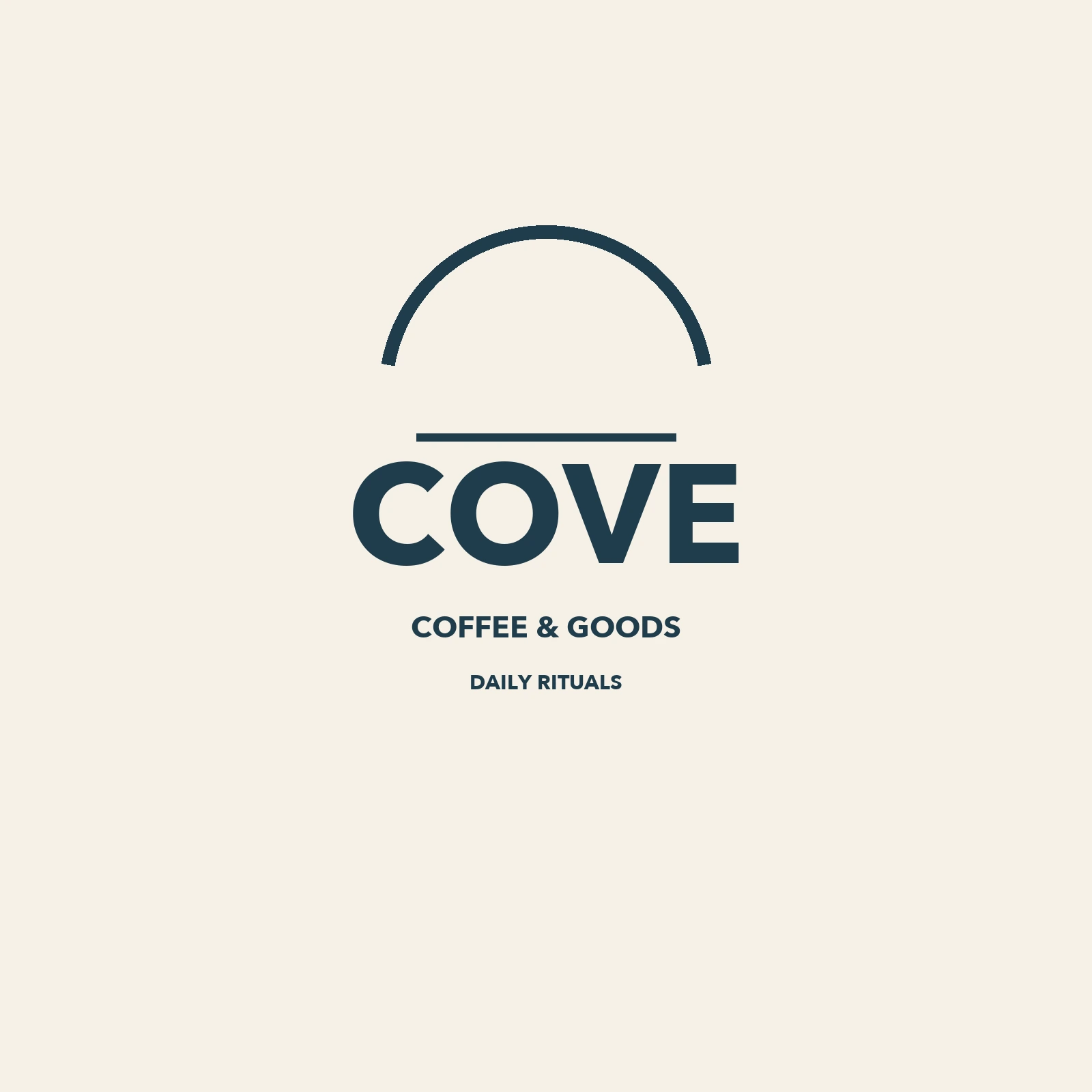
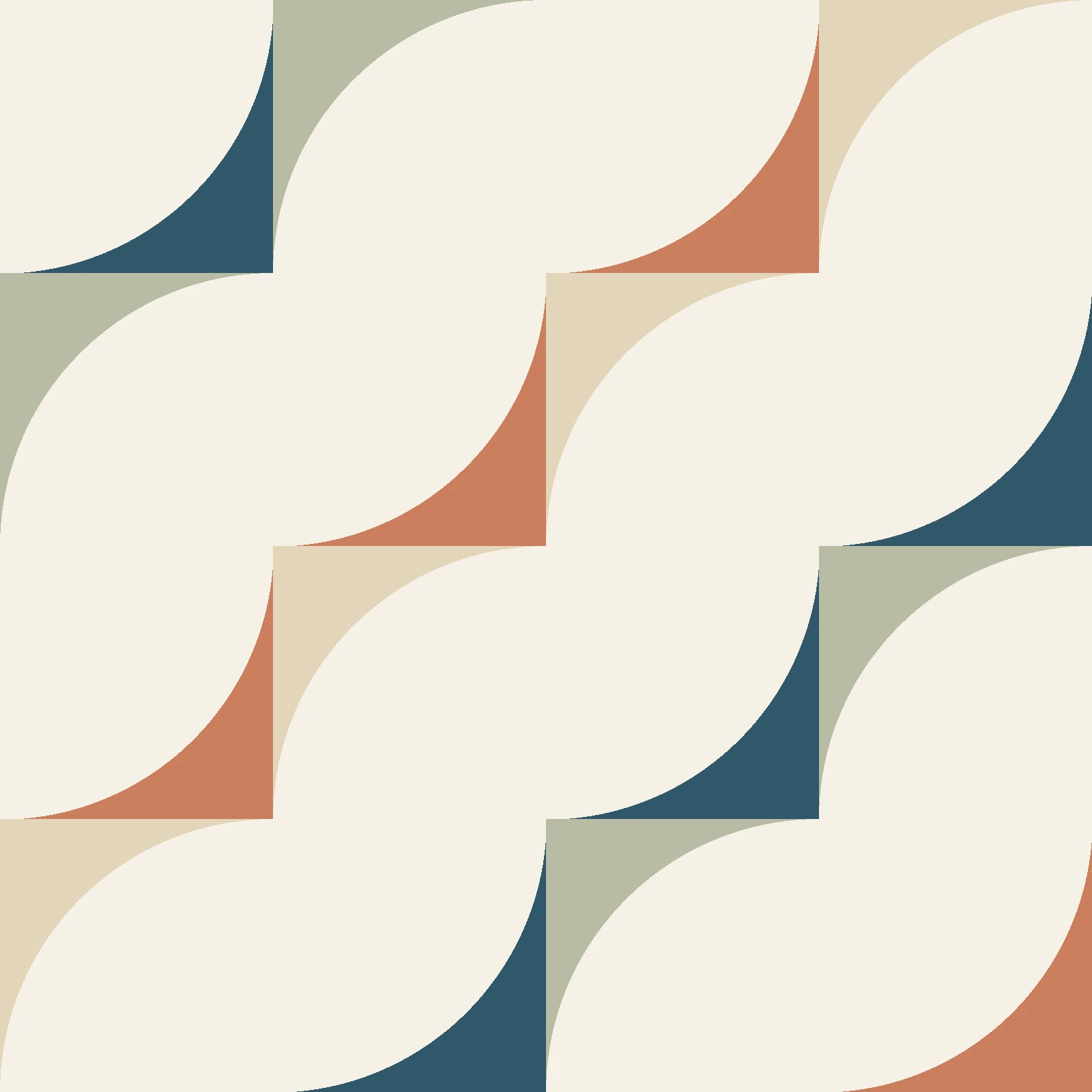
Download the transparent COVE mark or the seamless repeat tile to inspect the source files used here.
Presentation box: keep the lid and edges believable
A packaging mockup can help a beauty, accessories or gifting brand review the appearance of a carton or presentation box in a product gallery. Begin with the correct box construction. In this example, the repeat is applied to the lid while the lower box stays plain. Examine how the print turns from the lid’s top onto its narrow side faces.
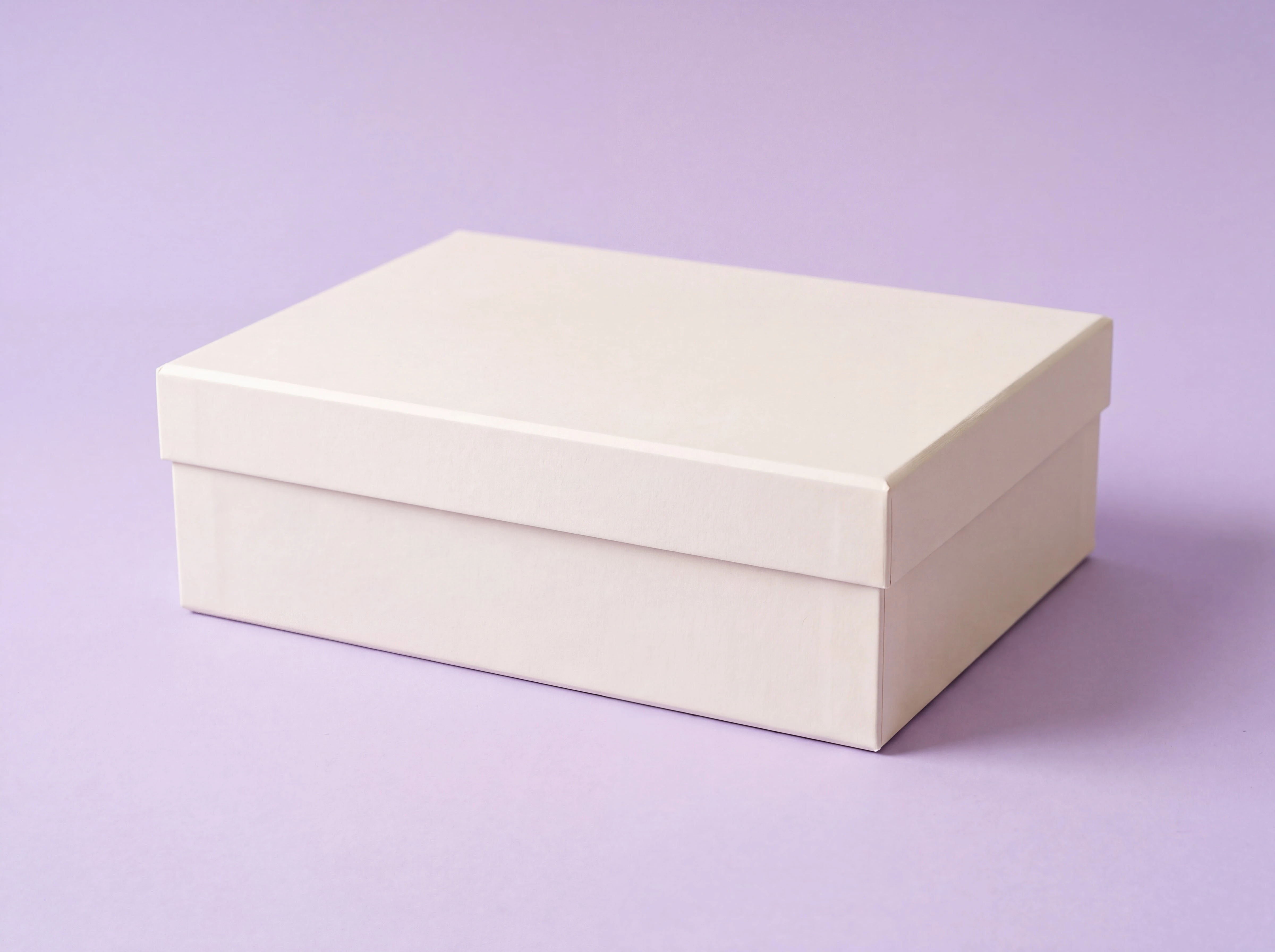
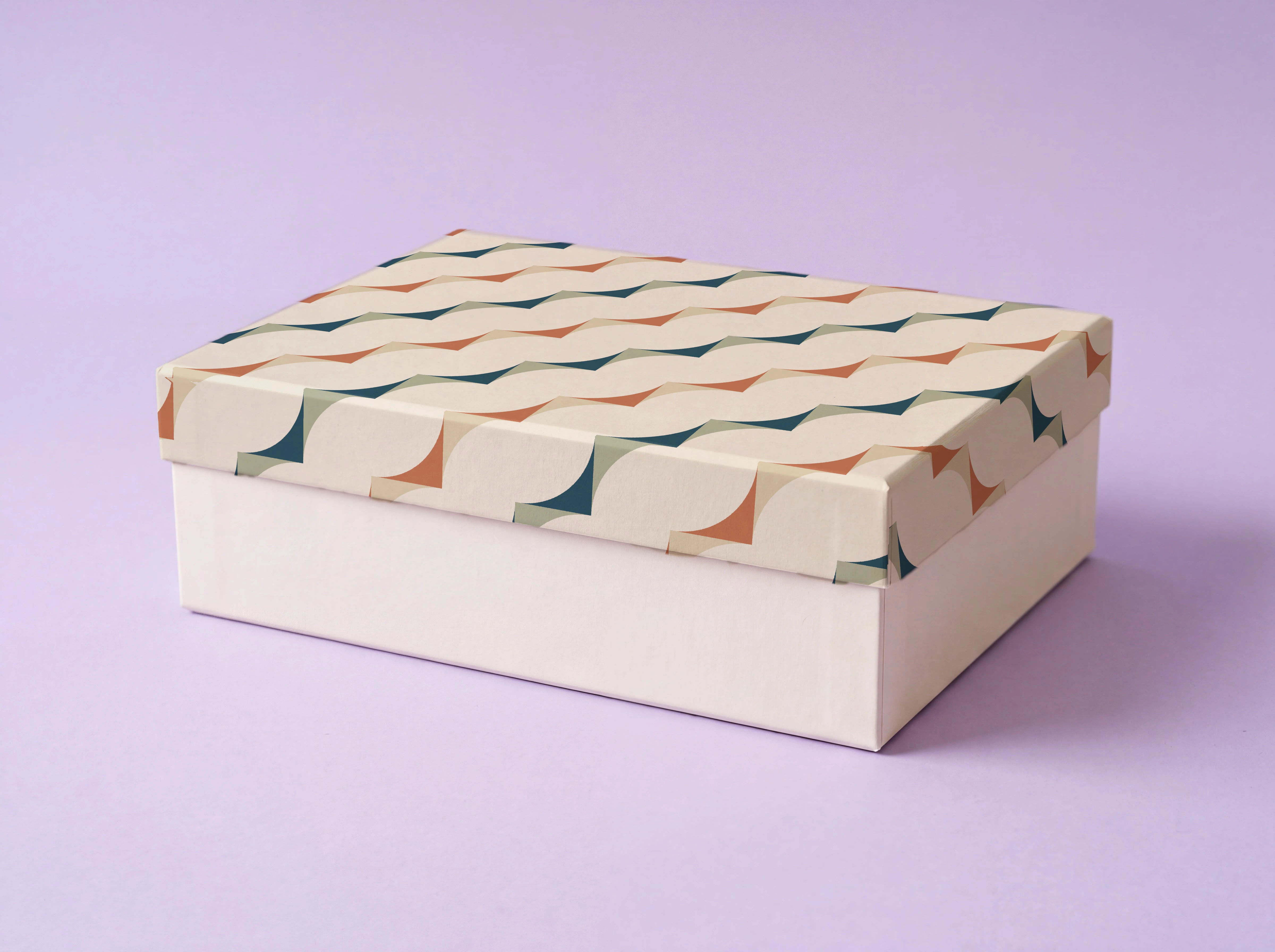
For a real SKU, do not assume a continuous wrap across a lid and box body matches the packaging dieline. If the actual product has separate panels or a lid-only design, select and place artwork for those areas separately. Keep the supplier’s dieline as the manufacturing file; the photograph is a visual presentation of it.
Takeaway cup: place one mark and preserve the hand
A coffee or food brand may need its approved mark on a cup held in a lifestyle photograph. This case also illustrates the problem of small lettering on a curved product: making the word correct is only part of the job. Its scale, position and compression toward the sides must make sense.
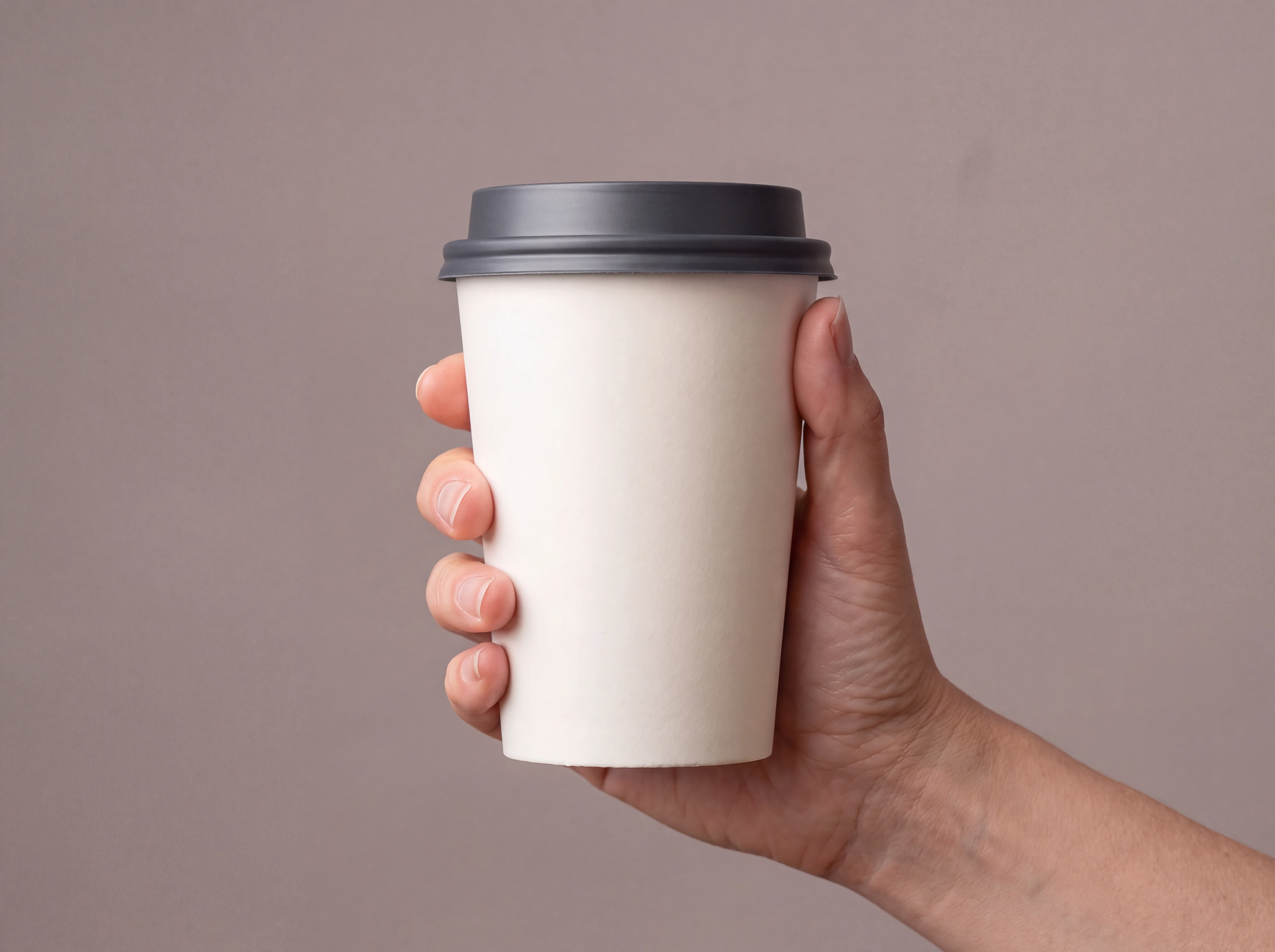
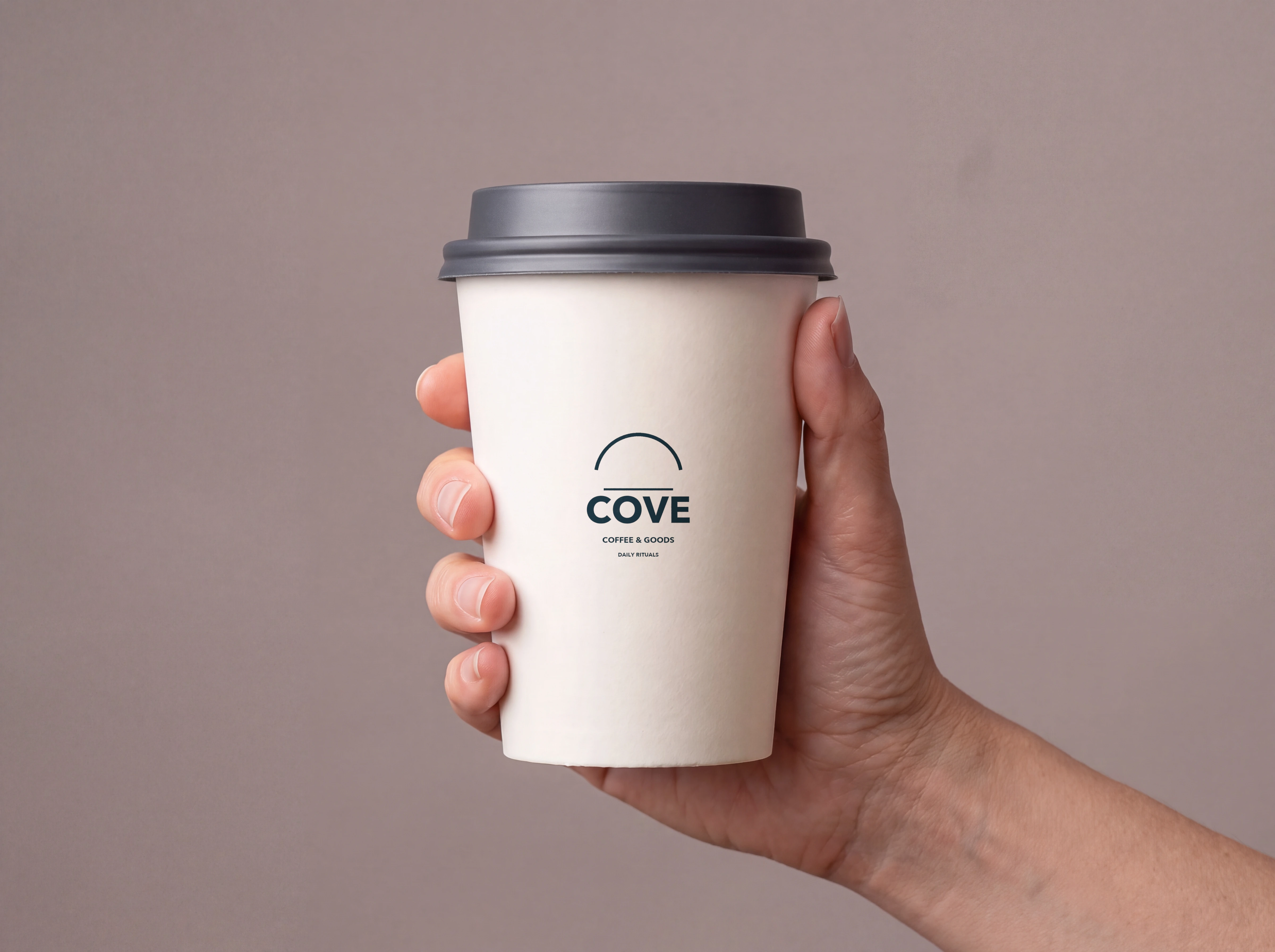
In this cup test, the automatic shape result mirrored the lettering after processing finished. The published example uses Wrap to shape off, with a small mark centered on the front. This is a flat placement with surface shading, not a demonstration of a successful cylindrical wrap. Check whether that approximation suits the image; for artwork extending around the sides, use a different base or another compositing workflow if the wrap remains incorrect.
Keep the full mark away from the strongest side curvature unless it is actually printed there. If the small line is unreadable in the storefront crop, provide a closer product image. Enlarging the mark beyond the real print size would misrepresent the item. The same placement principle applies to a shirt’s chest logo or a small printed pouch label; the substrate and finish still need their own review.
Cotton throw: match the repeat through the folds
For a homeware brand, a fabric pattern mockup can show a print variant in a furnished setting. Start with the correct fabric weight, weave, drape and fringe. A print overlay cannot turn a thin cotton throw into a thick woven blanket.
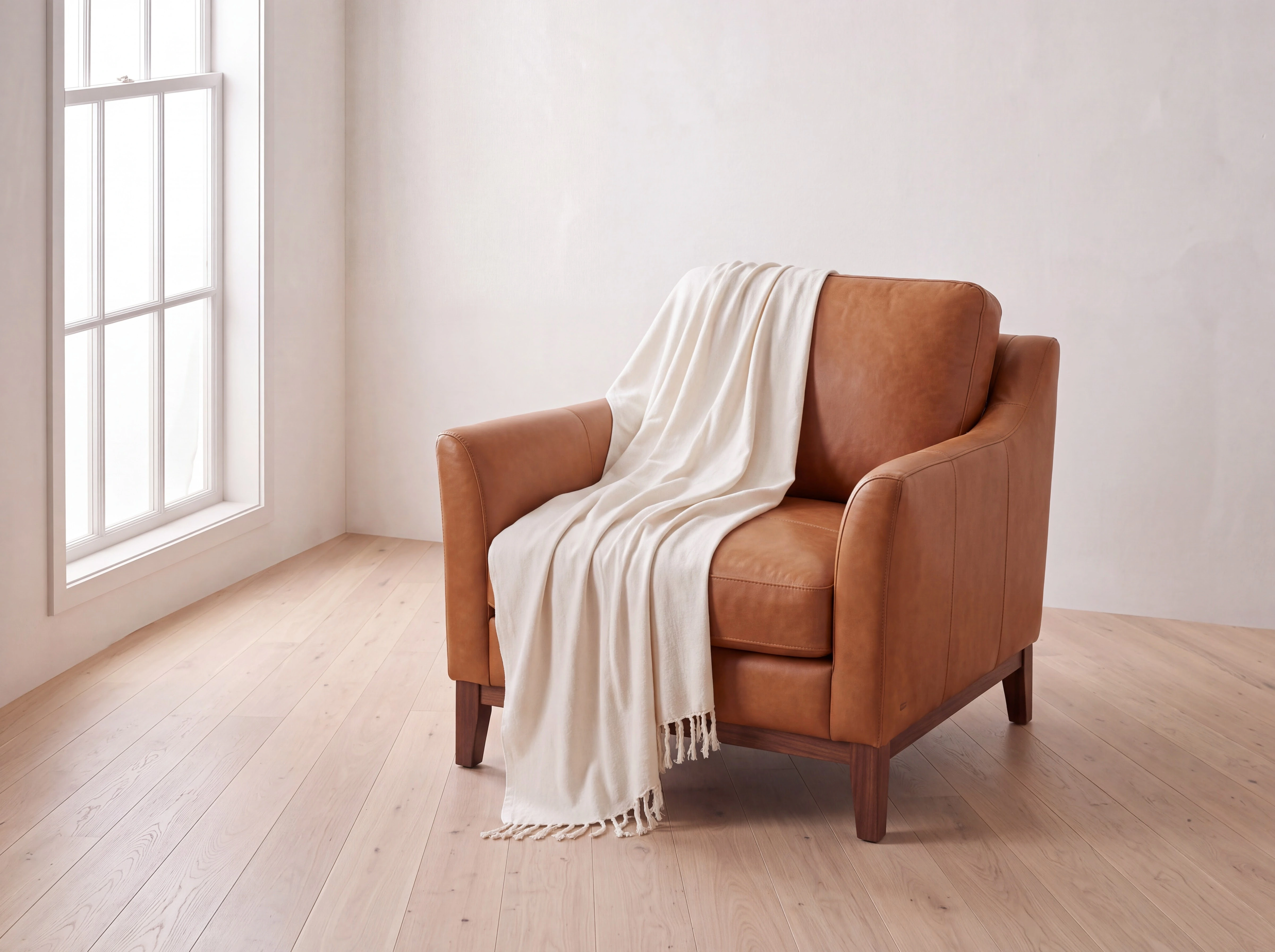
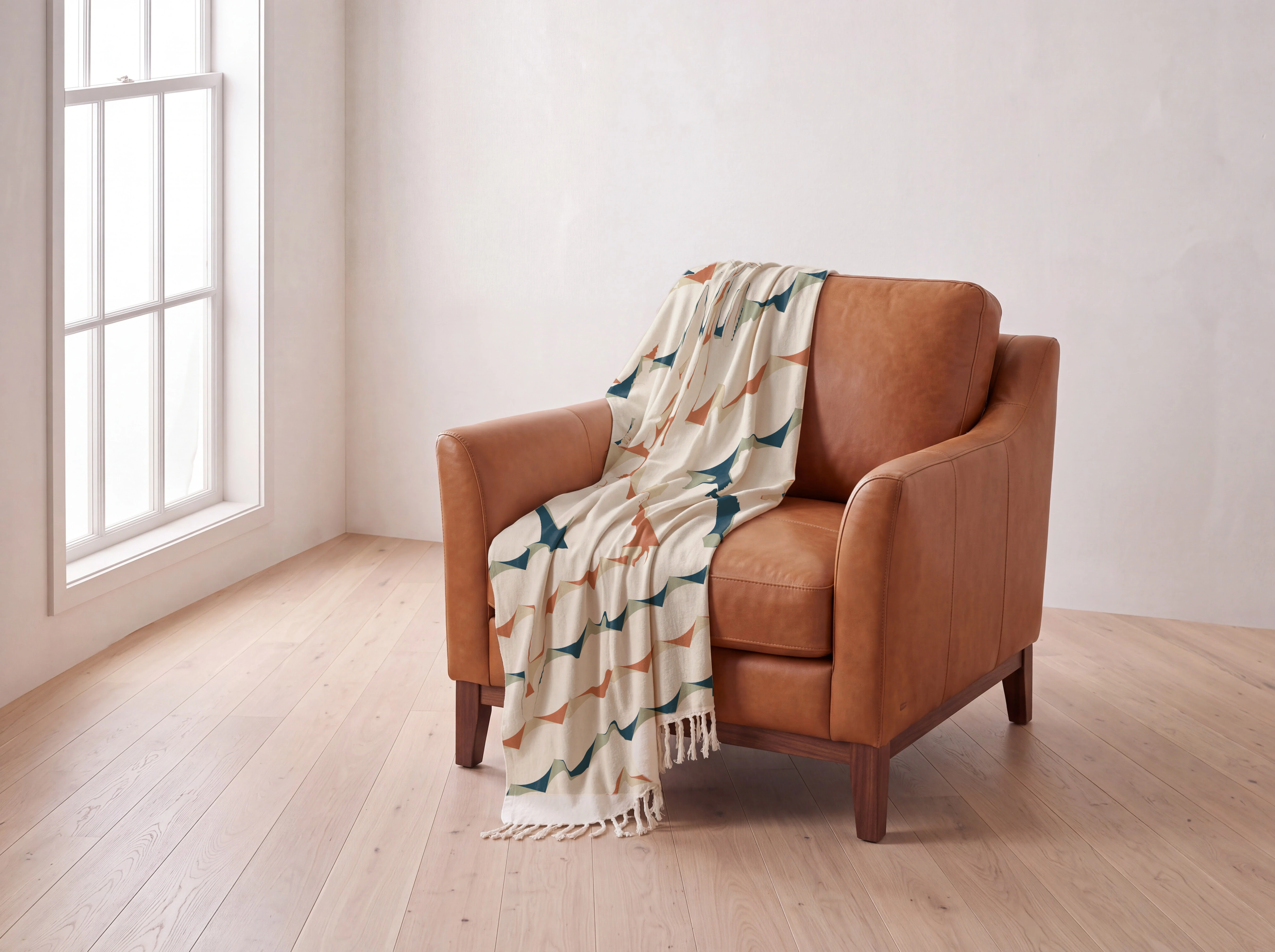
In this throw example, a stronger wrap compressed the geometric curves too much. Reducing Follow surface to 20% kept the repeat recognizable while the photographed folds supplied the shading. That setting is specific to this image; compare your own export with the artwork.
Check both the broad hanging section and the turn over the chair. Motifs should compress as the fabric turns away. Preserve unprinted fringe and exclude the chair from the mask. For bedding, apply the same review to the folded-back edge, piping and pillow boundaries. The sample sheet includes duvet cases for exploring those differences.
Fixing small details in Nano Banana product images
Choose the method according to the detail you have, rather than repeatedly rerunning the whole image.
| Situation | Useful next step |
|---|---|
| Approved logo or label artwork is available; the surface can be selected | Generate a plain surface and apply the file in Mockup Lab. Check print scale and perspective. |
| Only a product photograph exists; the detail is part of the photographed material | Use reference-based generation and consider Lynx detail refinement. Check the result against the reference. |
| Garment cut, box closure, cap or product proportions are wrong | Correct the base image or generate a better one before applying a print. |
| The text is simply too small in the final frame | Add a closer detail image. Correct wording alone cannot make subpixel letters readable. |
| Foil, embroidery or raised lettering determines the product’s appearance | Use photographs of the manufactured detail to verify the result. A flat artwork overlay does not prove that physical finish. |
Mockup Lab gives you manual placement and surface controls. Lynx refines details from product references during generation. They address different inputs and levels of control; review the complete product whichever path you choose.
Troubleshooting a product mockup
| What you see | What to check first |
|---|---|
| The logo repeats across the product | Turn Tile artwork off in Fit. |
| A white rectangle surrounds the logo | Export a transparent PNG instead of an artwork file with a baked-in background. |
| Print appears on fingers, furniture or trim | Refine the selection with Mark, Shift-click and the brush/eraser. |
| Lettering becomes mirrored or reverses after processing | Compare the finished preview and export to the artwork. For the affected shirt, a flipped upload copy compensates for the reversed mapping; keep the master upright and verify the export. A small front-facing mark may work with Wrap to shape off, as in the cup example. Reject a result that still differs from the master. |
| The artwork looks pasted flat | Check Wrap to shape, wait for processing, then inspect the Shape mode. |
| Letters stretch badly at a crease | Check the base image’s fold and artwork placement. Move the print only if that matches the real product; otherwise use a better view. |
| Pattern scale differs between variants | Compare motif count across the same visible product span and use a sample photograph as the reference. |
| Colors look dull or the print is faint | Check the underlying surface color, blend and opacity. Multiply inherits the substrate’s color. |
| Fabric looks plastic or heavily embossed | Reduce Gloss or Texture and verify Texture from matches your source. |
| An old design shows through | Prefer a plain base. Normal can repaint a selected surface, but inspect the result around folds and seams. |
| Preview looks soft | Inspect High-quality preview and the exported PNG. Also check the actual source-photo and artwork resolution. |
Before using the image on a product page
Review the composite beside a photograph of the manufactured item and the approved artwork. Check exact spelling, symbol shape, variant color, motif count, physical print placement, seams and unprinted regions. Then review the intended mobile crop. Keep a clear product view and a detail image in the gallery when the lifestyle image cannot show the design adequately.
Shopify’s product-photography guidance frames product photographs around showing customers what they will receive. Apply that test to the mockup: a new print file does not establish that the pictured material, construction or colorway exists. Label proposed designs clearly when they are still concepts.
An exported mockup is also separate from a production print file. Printful’s explanation of mockup images makes that distinction explicitly: the mockup is a printing reference, while the correct print file is still required. Keep the original artwork, supplier specifications and physical-sample approval in your production process.
For a collection, record the SKU, artwork version, base image and approved export together. Reuse a scene across print variants only when the physical product is otherwise the same. Each different photograph needs its own selection and placement review; this walkthrough does not establish an automatic batch-mapping workflow.
Frequently asked questions
Where is Mockup Lab in Astria?
Click a generated image to open its lightbox, then select Mockup or press M. The separate /mockup-lab page contains prepared examples for trying the controls.
How do I add a logo to an AI-generated product photo?
Generate the product with a plain surface. Open Mockup from the lightbox, choose Add pattern and upload the logo as a transparent PNG. Click the surface, turn Tile artwork off, then adjust its size, position, wrapping and finish. Save to prompt or download the PNG after checking the result.
How do I make shirt and bedding mockups?
For a shirt front graphic, use a transparent PNG with Tile artwork off. For a duvet cover and matching pillowcase, use a seamless repeat with Tile artwork on and a separate layer for each piece. Check the manufactured print size, garment seams, bedding folds and unprinted areas before exporting.
Does Mockup Lab fix misspelled Nano Banana text?
It lets you apply the approved artwork file instead of asking the image model to regenerate those letters. Start with a plain printable area so the old lettering does not show through. The finished print still needs review for size, legibility, shading and distortion.
Does a mockup prove the product will print correctly?
No. It is a visual composite. Verify the manufacturing file, physical dimensions, material and printed sample separately. Use product photography to confirm details the mockup cannot establish.