
New: Astria Course Series 1+2 β€” E-commerce & Fashion with AI.Explore the course

Meet Edit Area β€” a new tool on the platform for those time-consuming small adjustments. Fix skin texture, change colors, or correct tricky areas like fingers

Small edits, big difference! πŸ–ŒοΈ

Meet Edit Area β€” a new tool on the platform for those time-consuming small adjustments. Fix skin texture, change colors, or correct tricky areas like fingers without regenerating the whole image.
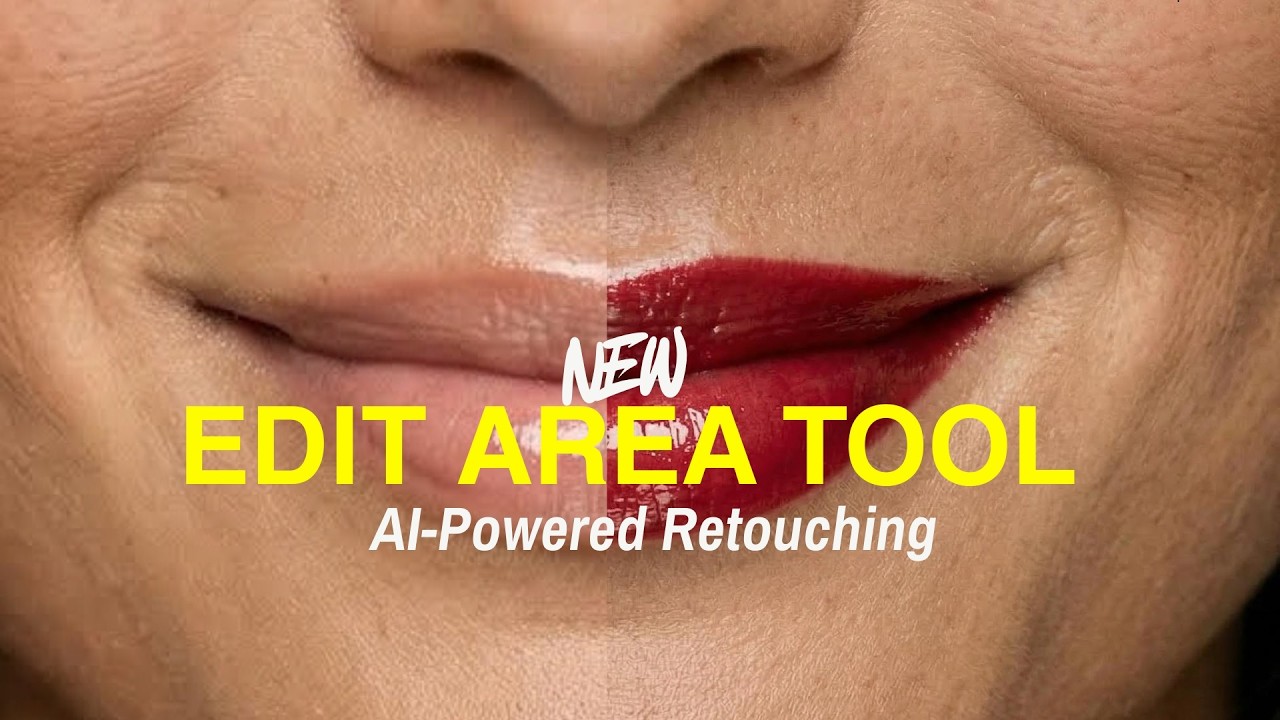
Edit Area Tool Demo

How it works:

1️⃣ Select Edit Area β€” Choose the Edit Area tool in your prompt settings.

2️⃣ Brush the area β€” Paint over the part you want to modify. No need to be perfectly precise β€” just give the AI a general idea.

3️⃣ Describe the change β€” Type what you want ("enhance skin", "change shirt color") and check the result.

No more regenerating entire images for a small fix. Edit Area gives you targeted control over the details that matter most.

Keyboard map

Shortcuts

Press keys together unless alternatives are separated by β€œor”.

The map is always one shortcut away

Press it again to return to your work.

Everywhere

Move between Astria's main spaces.

Open or close this shortcut map
Alt+H
Go to Generate, or focus its prompt there
Alt+G
Go to Board
Alt+B
Open or close Agent
Alt+A
Switch workspace
Alt+W
Close the active overlay or menu
Esc

Composer

Choose a tool and generate without leaving the keyboard.

Open the image composer
Alt+I
Open the video composer
Alt+V
Choose a composer tool by position
Alt+1–5
Generate
⌘+Enter
Add a reference
@
Create a text reference from selected text
⌘+Shift+T

Generation gallery

Hover a generation or output first, then press a key.

Select or deselect an output
S
Like or unlike
L
Mention in Agent
Mor@
Rerun the prompt
R
Open its template
T
Archive or unarchive the prompt
Shift+A
Download the prompt images
D

Media viewer

Shortcuts available while viewing an image or video.

Previous or next result
←orβ†’
Zoom out, return to result, or close
Esc
Open Mockup Lab for an image
M
Temporarily show the original in Darkroom
Hold \
Cycle through layers
C
Choose a layer directly
1–9

Contextual shortcuts only act when their surface is visible or selected.